Greetings, Dynamites!
As we approach the end of the year, we’re excited to introduce another Dynamo release packed with great features that we think you’ll enjoy. In release 3.4, we’ve further enhanced existing tools including Package Manager and TuneUp, as well as introduced new features and fixes. In this post, we’ll highlight the key features from this release. When you’re ready to try it out, you can download and install the release from dynamobuilds.com. Don’t forget to share your thoughts and questions on the forum!
TL:DR
Dynamo Core 3.4 includes the following highlights: The Install button in Package Manager defaults to a package version that’s compatible with your setup thanks to new author-assigned version compatibility information. Authors can assign this info on the updated Package Manager website. TuneUp is available as a built-in package and includes more improvements. Mesh Toolkit nodes are included as a built-in library under Geometry > Meshes > Mesh. A new Python engine called PythonNet3 is available on the Package Manager. This release also features a new splash screen image, a homepage tab to let you return to the homepage while a file is open, better node search when a space is used in the node name or search query, plus several other quality-of-life improvements and bug fixes. For a full list, see the release notes.
What is Dynamo and its flavors?
What is Dynamo Core?
Dynamo Core is a collection of bundled components that consist of the graphical interface, the compute engine, the scripting language DesignScript, and the out-of-the-box nodes that are not specific to another program like Revit or Civil 3d.
What is Dynamo for <INSERT HOST HERE>?
Dynamo for [Revit, Civil 3d, FormIt, Advance Steel, Alias or Robot Structural Analysis] is a collection of host-specific nodes that work with Dynamo Core and run inside of said host.
What is Dynamo Sandbox?
Dynamo Sandbox is for package developers and other folks working with Dynamo code who want to stay up to date with the latest and greatest stuff coming out. Sandbox is Dynamo’s “Core” functionality distributed in a way that doesn’t interfere with other Dynamo installations and doesn’t require any other applications (except for a few windows components and some optional extras). You can read more about this distinction here.
So, what’s dropping with Dynamo 3.4?
Magic install button (and more!) in Package Manager
Finding the right version of a package to install can be a pain, and we’ve been hard at work to address this challenge. Starting in Dynamo 3.4, when you click the Install button in Package Manager, a compatible version of the package will be installed, just like magic! (As long as the package author has added compatibility information.) Read on for an overview of how it all works.
In addition, the Package Manager has been updated with several new features to help you identify and install compatible versions of packages, including icons, tooltips, and version tags. And we’ve made other improvements to enhance your package experience even more.
How is compatibility determined?
- Package authors can now designate compatible versions of Dynamo and/or hosts such as Revit or Civil 3D through the updated Package Manager website (read this blog post for a Package Manager deep dive, including more information on how compatibility information is added). Package authors, we need your help! Please log into the Package Manager website and update the package compatibility information. This new package management experience will get better with time, and we can do that even faster with help from all of you.
- We are also working on the ability for package authors to update compatibility information inside Dynamo’s Package Manager, which is planned for a future release.
- In Dynamo, this information is then cross-referenced with your current version of Dynamo and host, if you’re using one.
Let’s take a look at the new features in the Dynamo Package Manager window:
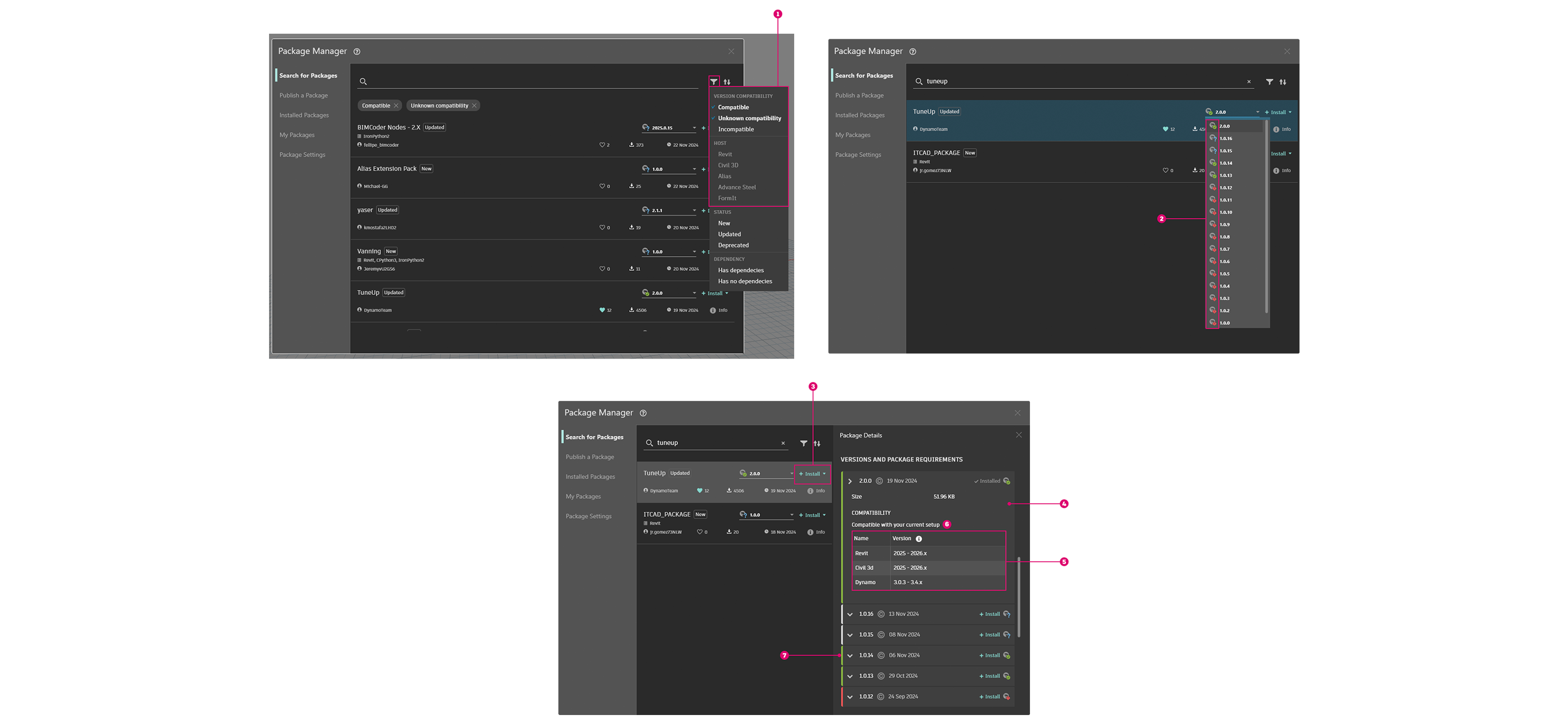
- New filters [ 1 ] help refine your package search. Use the version compatibility filters to find packages that are compatible, incompatible, or have unknown compatibility. The host and version compatibility filters are currently mutually exclusive: You can only have one of them active at a time. This is because host filters are legacy content and self-nominated by the package author. In time this will be replaced by the compatibility information that will allow for the same result, but pulled in a more automated way.
- You can tell that a package version is compatible in a few different ways. First, each version has one of three icons [ 2 ]: a green checkmark for compatible, a red alert for incompatible, and a blue question mark for versions whose compatibility is unknown. For a while, most versions will have unknown compatibility until authors update them over time.
- The Install button [ 3 ] on the package search tab defaults to the latest compatible version, if there is one. Otherwise, it defaults to the latest version. This means that as long as compatibility information has been assigned, the Install button will magically install the best version for your setup, without you having to think about compatibility at all! But if you want to install a different version, you can still do so by using the version drop-down menu. You’ll see a warning if you attempt to install an incompatible version.
- You can now open the Package Details panel in two ways: by clicking Info or by clicking the package’s name in the list of search results. The Package Details panel introduces new collapsible version cards [ 4 ], which organize version information in a much more efficient and browsable format compared to the table in previous iterations. By default, the card for the latest compatible version is expanded; if compatibility is not known, the latest version’s card is expanded. Click the headers to expand and collapse the cards.
- Each version card features a version compatibility table [ 5 ]. This table lists out all the versions of Dynamo Core and host (if applicable) that the version is compatible with. There’s also a note above this table [ 6 ] that states the compatibility status of the version, as well as a colored bar [ 7 ] on the left side of the card (green = compatible, gray = unknown, red = incompatible). You simply can’t miss this information!
For a deeper dive on the Package Manager improvements, including how authors can add compatibility information, be sure to check out this blog post.
These updates are a major step forward in ensuring that your package experience is seamless, helping reduce the pain of identifying the right version. We are continuing to add even more features to Package Manager in Dynamo as well as the website, so keep an eye out—and let us know what you think on the forum!
Tune up your graph with built-in TuneUp
Our previous release brought a refresh to the TuneUp extension, which helps you optimize your graph by giving you better visibility into execution orders and times. In 3.4, we’re bringing TuneUp into Dynamo as a built-in package. This means you can find TuneUp in the Extensions menu without having to install it separately via Package Manager. For more on this useful extension, check out the 3.3 blog post.
If you already have TuneUp installed from a previous version of Dynamo, you can go ahead and uninstall it and enjoy the built-in package. If both are installed, the version that is loaded depends on the package loading sequence in your package settings.
In addition to bringing TuneUp into Dynamo by default, we’ve added some improvements:
- Click a node or a group header to zoom to the relevant section of your graph in the workspace.
- Groups are now shown by default, arranging grouped nodes under a color-coded bracket. If you don’t want to see groups, however, simply toggle them off using the switch in the top right corner of TuneUp.
- The display of the panel is improved at narrow widths, ensuring that the Run All button remains visible for longer.
- TuneUp now works in Dynamo for Civil 3D!
- An issue has been fixed where Dynamo would previously crash if you exported TuneUp data to a CSV file and had the CSV file open in Microsoft Excel. Hooray!
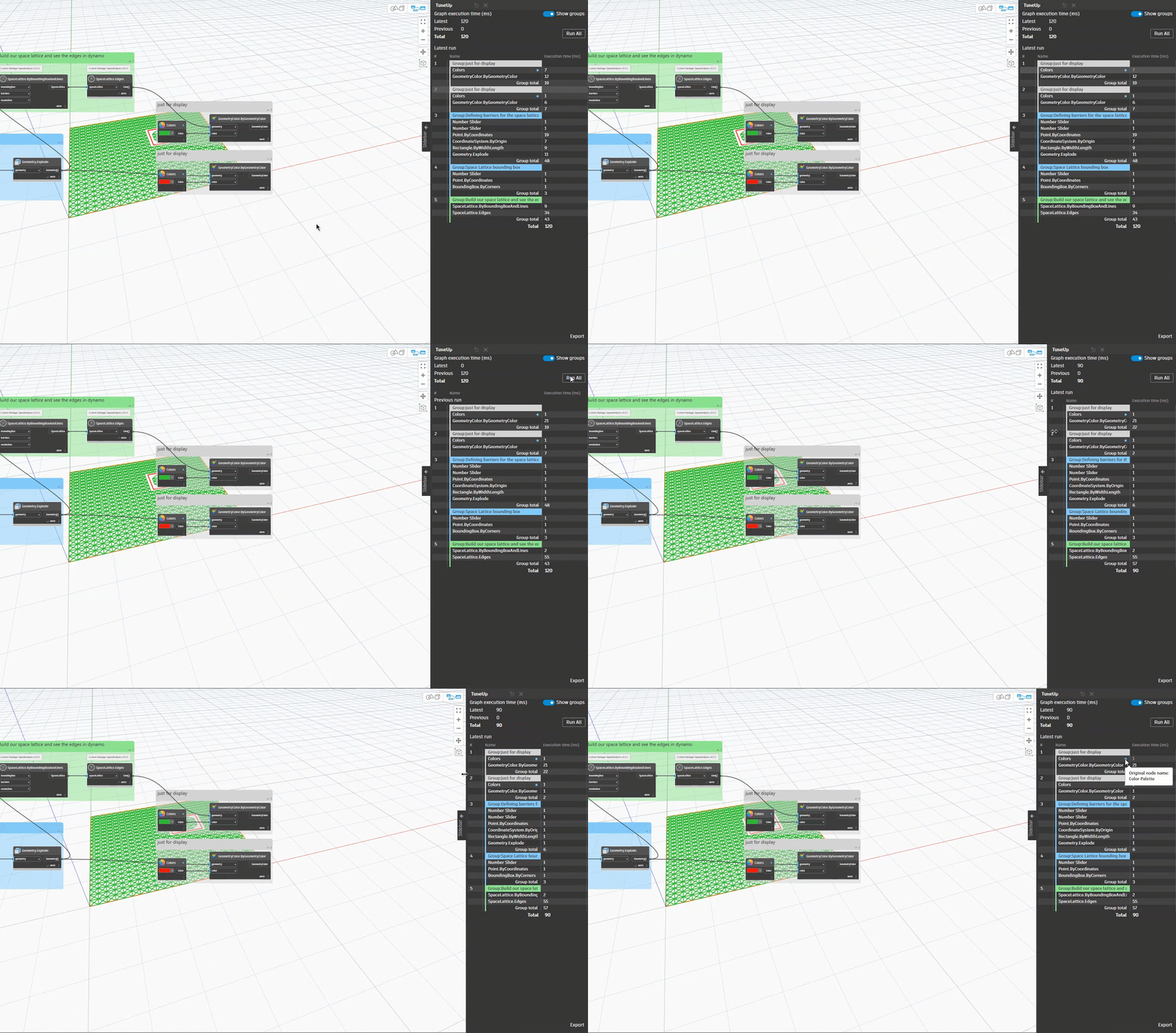
We hope these improvements make your graph optimization with TuneUp even easier!
Mesh Toolkit out of the box
We’ve brought even more goodies to Dynamo out of the box: In this release, Mesh Toolkit is available by default! You can find the mesh nodes in the node library under Geometry > Meshes > Mesh.
Mesh Toolkit provides tools to import meshes from external file formats, create a mesh from Dynamo geometry objects, and manually build meshes by their vertices and indices. These nodes also provide tools to modify meshes, repair meshes, or extract horizontal slices for use in fabrication.

Mesh nodes in action
Mesh nodes are also included in Node Autocomplete’s recommendations, and each mesh node includes a refreshed icon and help documentation.
PythonNet3-backed Python engine available
A new Python engine, PythonNet3, is now available on Package Manager. This engine aims to bridge the gap between Iron Python and CPython.
PythonNet3 improvements over CPython3 include:
- Fixed overloaded method resolution
- Improved generic method inference (don’t need to specify generics as often)
- Better extension method support, including Linq
- Make use of C# operators
- Override .Net methods that have an `out` or `ref`
The default engine (“CPython3”) remains unchanged. Check out our dedicated post on the new Python engine for more details!
Quality of life improvements
Version 3.4 introduces a wide selection of improvements to make your Dynamo experience even more delightful. Below are some highlights.
- A brand new splash screen image greets you when you start up Dynamo 3.4, and we’ve also used this beautiful image as the cover for this blog post. This image was created using panel and T-spline lattice nodes.

The new splash screen image highlights the capabilities of the panel nodes and T-spline nodes, both introduced in their current iteration in release 3.1. Using these new nodes, you can manipulate simple geometry to easily create more complex geometry/patterns like this example hexagonal lattice.
-
- Panel Nodes: Panel nodes are used to divide the surface into hexagonal panels.
- T-Spline Nodes: T-spline nodes allowed for the smooth transitions between the lattice spokes to get a more organic shapes by using input parameters like segment counts and start and end radius. These nodes also helped to create the smooth beveled edges for the extruded surfaces.
- You can now easily switch between the homepage and a graph or custom node with the new tabs. This lets you access everything the homepage has to offer without forcing you to close your graph or custom node first.

- Node and package search results are now more accurate when the node name or the search query includes a space. For example, you can find
PointAtParameterby searchingpoint at parameter, orList Createby searchinglist create.

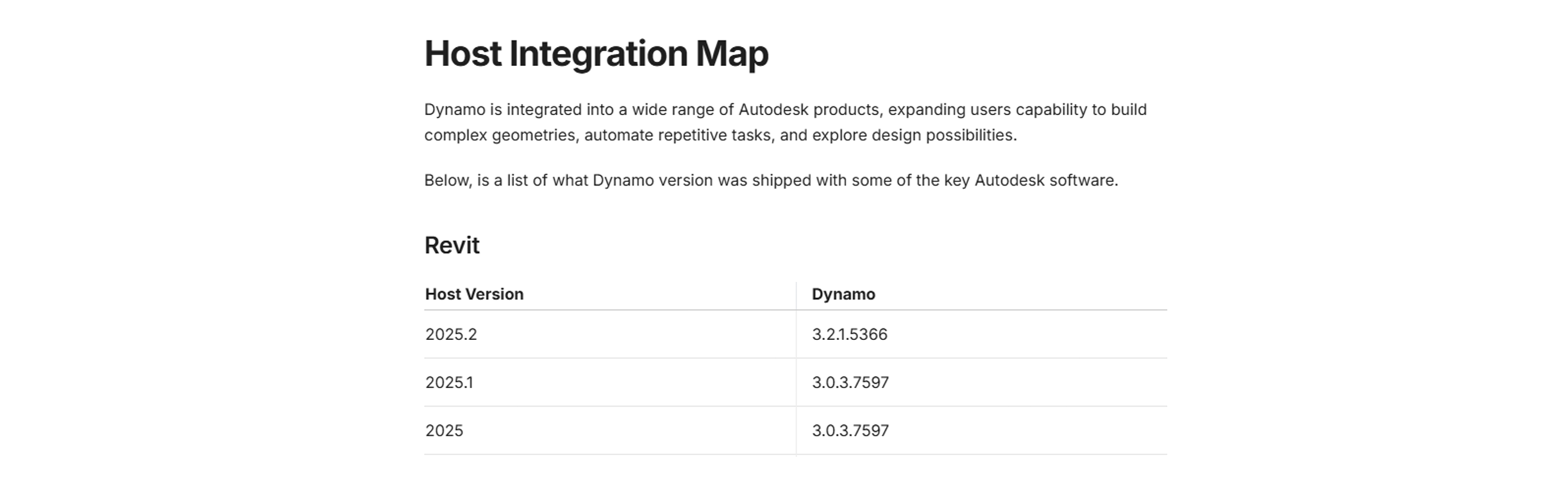
- Need to look up which version of Dynamo corresponds with a version of Revit, Civil 3D, Alias, or Advance Steel? You can now find this information in Dynamo Primer.
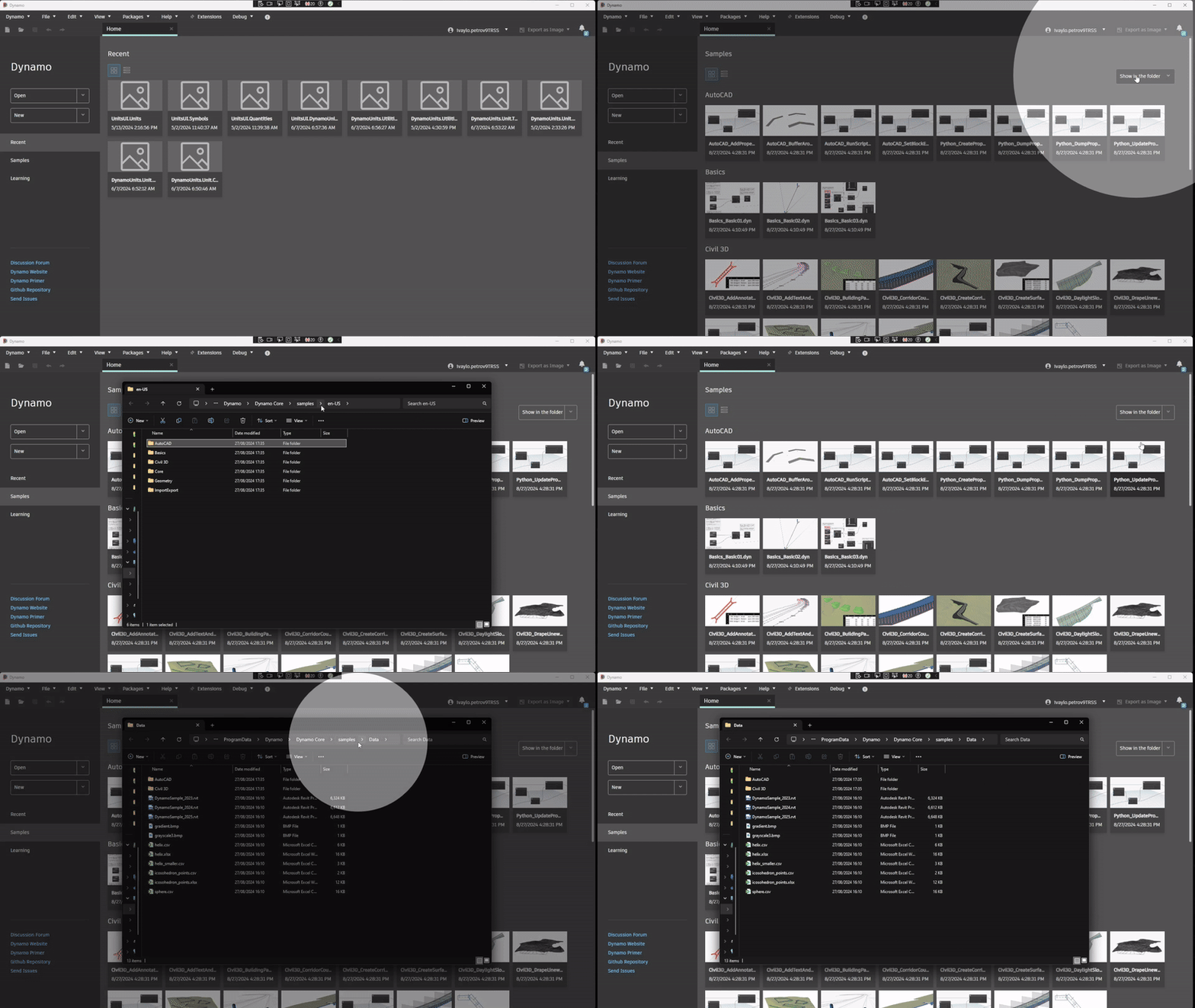
- You can now easily access the folders for samples and data sets from the Dynamo homepage. On the Samples tab, click the arrow next to Show in the folder, then select samples or data sets. This button replaces the previous “Show Samples in Folder” button.
- Organizing your graph just got easier with the ability to add pins to groups. Once added to a group, the pin will move with the group, just like any grouped node. By default, pins are added to the group when it’s created. But you can also remove them from the group if you wish, either by right clicking the pin and selecting Remove from group, or by dragging the pin out of the group while holding the Alt key.

Bug Fixes
This release squishes a lot of bugs, and below are some highlights. The full list of bug fixes can be found in the release notes.
- We fixed an issue where users couldn’t select warning text in order to copy/paste it. Now, warning text can once again be selected and copied, so you can better troubleshoot node issues.

- We fixed an issue where the Show Connectors option, available under
View > Connectorsin the top menu, wasn’t behaving as expected. Now, if you choose to hide connectors, they will remain hidden when new nodes are placed and when the file is reopened. - All package nodes in the workspace will now have a purple overlay when you zoom out. Previously, zero-touch and UI nodes from a package did not have a purple zoom-out state.
- When writing a package description, package authors can once again add new lines to it by pressing Enter.
I like what I see! Where can I grab Dynamo 3.4?
Dynamo 3.4 will be made available in our host integrations at a future date and can be explored right now through the dynamobuilds.com website or the GitHub build page – available in the Sandbox version of Dynamo. Then, join the discussion on the forum!
If you’re curious, you can also read our Release Notes
For more information on other minor features, bug fixes, and known issues in Dynamo 3.4, take a look at the release notes!
A huge thank-you to everyone who made this release possible, with a special shout-out to our entire community! Want a glimpse into what’s planned next? Visit Dynamo Roadmap, where you can take a look at current and upcoming work, express your support for features you want to see, and let us know what you think by adding a comment.
The Dynamo Team