Hello, friends of Dynamo, and welcome to another round of improvements in the form of Dynamo Core 3.3! This release introduces some incremental yet powerful improvements as we prepare for larger leaps in future versions. In addition, this release includes several smaller improvements and fixes. Intrigued? Read all about the highlights from this release below, then go to dynamobuilds.com to download and install the release. Got feedback, requests, or other thoughts? Join the conversation on the forum.
TL:DR
Dynamo Core 3.3 includes the following highlights: The updated TuneUp package and extension offers detailed insights into graph performance with an improved user interface and control features. We’ve updated the Package Manager to include better folder structure retention, package size visibility, and search by package author. We’ve added a way to bulk edit the Python engine for multiple Python nodes at a time, and the new GraphEngine node, available in the Engine package, enables running a Dynamo graph within your graph in a separate process. Quality-of-life improvements include higher resolution node icons, negative index retrieval, and reorganized scaling settings in Dynamo for Revit. For full details, check out the release notes.
What is Dynamo and its flavors?
What is Dynamo Core?
Dynamo Core is a collection of bundled components that consist of the graphical interface, the compute engine, the scripting language DesignScript, and the out-of-the-box nodes that are not specific to another program like Revit or Civil 3d.
What is Dynamo for <INSERT HOST HERE>?
Dynamo for [Revit, Civil 3d, FormIt, Advance Steel, Alias or Robot Structural Analysis] is a collection of host-specific nodes that work with Dynamo Core and run inside of said host.
What is Dynamo Sandbox?
Dynamo Sandbox is for package developers and other folks working with Dynamo code who want to stay up to date with the latest and greatest stuff coming out. Sandbox is Dynamo’s “Core” functionality distributed in a way that doesn’t interfere with other Dynamo installations and doesn’t require any other applications (except for a few windows components and some optional extras). You can read more about this distinction here.
So, what’s dropping with Dynamo 3.3?
Fine-tune your graph performance with TuneUp
Have you ever wondered if a particular node is dragging down your graph’s performance? Or perhaps you’ve made a few tweaks and want to see the impact on performance? Enter TuneUp, the Dynamo package that helps you optimize your graph by giving you better visibility into execution orders and times.
The TuneUp panel shows the execution order of nodes and how long each node took to run. It visually demonstrates Dynamo’s delta-compute efficiency, where unchanged nodes retain their output during a new run, helping skip unnecessary recalculations and boost graph performance. It also allows you to force a re-run of all nodes in the graph, whereas the Run button only executes nodes with changes since the previous run.
The TuneUp package has been around for a while, but in this release we’ve made a host of improvements to make graph optimization even smoother as we prepare to make this an out-of-the-box extension. Let’s take a look.
- [ 1 ] A new refreshed look and feel is your first clue that this isn’t yesterday’s TuneUp.
- [ 2 ] Here you can see a summary of your graph execution times, with the latest run, previous run, and total time (previous + latest) expressed in milliseconds.
- [ 3 ] Toggle Show groups to display grouped nodes under a color-coded bracket. The color matches the group’s color in the workspace, and total execution time is shown for the group. Grouped nodes also get sorted as one item while this setting is enabled.
- [ 4 ] To force execution of all nodes in the graph, even those with no changes since the last run, click Run All.
- [ 5 ] The different sections show data about the latest run, previous run, and nodes that were not executed during the latest run. Here you can see the execution time for each node, group (if groups are enabled), and totals for each run.
- [ 6 ] Renamed nodes are marked with a blue dot. To see the original node name, hover your cursor over the dot.
- [ 7 ] Sort nodes by execution order (this is the default), name, or execution time by clicking on the column header. Click again to reverse the order.
- [ 8 ] Export data to CSV or JSON by clicking the Export button in the bottom right corner of TuneUp.
Known Issue: If you are exporting to CSV file and you have the CSV file open in Microsoft Excel, then this causes Dynamo to crash. We are working on fixing this in the next release. For now, please make sure to not have the CSV file open when exporting from TuneUp to the file.

In addition, we’ve made performance improvements to minimize a hit to performance when TuneUp is not profiling execution time.
Ready to enter a new era of graph optimization? Install TuneUp in the Package Manager (in the top menu, go to Packages > Package Manager, then type TuneUp in the search bar and install the lastest version of TuneUP package). Once it’s installed, you can find it in the top menu under Extensions > TuneUp. Let us know what you think, and stay tuned for even more enhancements in future releases.
Package Manager
The Package Manager, Dynamo’s one-stop shop for installing and managing packages, is undergoing some serious construction to help improve the lives of package authors and consumers alike. In this release, we’re kicking off with a smaller round of fixes and improvements, with more dramatic changes coming soon.
- We’ve improved the Retain Folder Structure option for package authors, which keeps the structure of the selected files rather than imposing Dynamo’s usual package folder structure. Authors can add files or folders from different locations without unexpected changes.
- Package size is automatically captured during the publishing process and available in the package details.
- You can search for packages by package author.
- Package authors can once again publish a version of a package online after the package was already published locally.
- The option to deprecate a package is available for non-deprecated packages only.

Change the Python engine for multiple nodes at once
Bulk editing of the Python engine for your Python nodes, DYFs/custom nodes is here! You have two options:
- To update the engine for all Python nodes in the current graph, in the top menu go to
Edit > Set Python Engine, then select your desired Python engine. - Select one or more Python nodes and right click to open the context menu. Then, select Python Engine Version and your desired engine. This updates the engine only for the selected nodes.

Stay tuned for a compelling reason to use this feature in a future version!
Dynamo users, start your engines! GraphEngine node brings a graph into your graph
The GraphEngine node is now available through the Engine package! This node runs a Dynamo graph file in a separate process from the current Dynamo workspace. It allows the current graph to set input values on the target graph and receive output values from the result of the target graph’s execution. The package works with Dynamo versions 3.0 and newer.
To set up a graph for use with GraphEngine, mark some inputs and/or outputs (right-click on node, “Is Input” / “Is Output”). These nodes will be exposed to the host graph through input and output ports on the GraphEngine node. Simple values (numbers, strings, Booleans) can be passed in and out through any node that can be marked as an input or output.
To pass more complex data types (e.g. geometry) in or out, use the DefineData node. When using DefineData as an input you can also use the input to the DefineData node to set a default value for the corresponding port on the GraphEngine node.
Please note that this node is very much a work in progress. Your experience may be a little rough around the edges, especially when it comes to debugging and nice error messages. We’re actively working on improving the experience and adding to what GraphEngine can do, and will post updates to Package Manager as we make them. On that note, we’d love your input on what doesn’t work and what you’d love to be able to do with this new tool. Here’s a summary of a few of the things we know don’t work quite yet:
- Inception.
GraphEnginewon’t work with a graph that already has anotherGraphEnginein it, and it won’t work in a custom node. - Error messages on nodes and for missing packages don’t yet show up on the
GraphEnginenode. If something doesn’t seem right, try opening and running the target graph directly in Dynamo to see what issues you run into. - The target graph can’t contain host-specific nodes. The target graph is run outside the context of whatever host (Revit, Civil 3D, etc.) the
GraphEnginenode is running in, so it can’t access the host document or run host-specific nodes. You will need to extract data – geometry or parameter values – from the document to pass to the target graph.

Node help clean-up
In this release, we’ve plugged some holes in node documentation to ensure that documentation is available for as many nodes as possible.
- Documentation is available for nodes with special characters in their name, such as the operators / < > *. Previously, these characters caused file path issues.
- Previously missing help documentation for certain Math, Quantity, and Geometry nodes is now available again! Additionally, we’ve added sample images to nodes where they were previously absent.
- We updated the sample file for the
DefineDatanode to further clarify how it works.
Quality of life improvements
It’s not a Dynamo release without a collection of smaller features that have a big impact on your experience.
- We began the work of making node icons more crisp and clear in the previous release, and we’ve made more progress since then. All out-of-the-box nodes now have redesigned icons with higher resolution.

A small sampling of our updated node icons
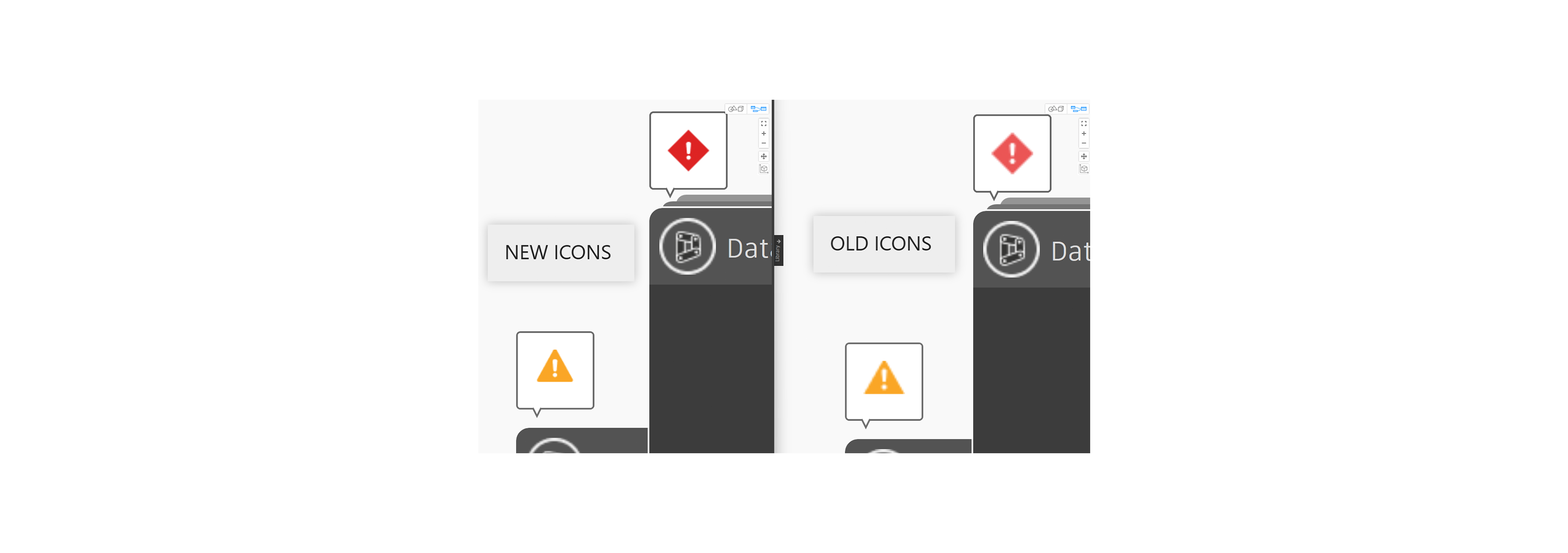
- Node state icons for errors, warnings, and info states also received a makeover – check out the quality improvement below.
- You can use a negative index to retrieve an item from a list using
List.GetItemAtIndexnode. A negative index less than the length of the index pulls from the end of the list. AsList.IndexOfnode is commonly used in conjugation with this node, to compliment this change and ensure it doesn’t create downstream issues to existing graph, we’ve also updated theList.IndexOfnode to return null as a node value when an index is not found instead of -1. [ Note: If any existing graph is relying on -1 index check as part of its logic, the graph author will need to update to use null check instead after Dynamo 3.3.0 release.]

- We’ve reorganized the graphic element scaling settings in Dynamo for Revit to better clarify what they control.
- Users of Dynamo Player will find an improved display of multiple elements selected from Revit. Commas have been added between element IDs on the list, and an ellipsis at the end shows if the list is longer than 20 items.
Bug fixes
Several bug fixes in this release make Dynamo more robust. For a full list, take a look at the release notes.
- We’ve improved node library search results when searching for a node with a space in its name.
- We fixed a bug where default values for ports weren’t appearing in the Documentation Browser node help in locales other than English.
Good stuff! So where can I grab Dynamo 3.3?
Dynamo 3.3 will be made available in our host integrations at a future date and can be explored right now through the dynamobuilds.com website or the GitHub build page – available in the Sandbox version of Dynamo.
If you’re curious, you can also read our Release Notes
For more information on other minor features, bug fixes, and known issues in Dynamo 3.3, take a look at the release notes!
We’re grateful to everyone who made this release possible and to the entire Dynamo community for continuing to support our work. Be sure to stay tuned to the Dynamo Roadmap, where you can take a look at current and upcoming work, express your support for features you want to see, and let us know what you think by adding a comment.
The Dynamo Team