Hello friends of Dynamo!
We are thrilled to announce the launch of our refreshed Package Manager in Dynamo and our newly revamped Dynamo Package Manager website! We know that finding the right version of the package that will work for your Dynamo setup is not easy right now. The Package Manager, which serves as a one-stop-shop for all your package-related needs, has a bunch of new features in the recent Dynamo Core 3.4 release to address these concerns. We also recognize that a significant amount of community members are still using older versions of Dynamo for some of their projects, and they will not have access to the new refreshed Package Manager in their Dynamo setup. To extend the benefits to users of older versions of Dynamo, we are also working on homogenizing this experience with the Package Manager website.
If you rely on custom packages developed by the community for your Dynamo workflows and have struggled in the past to find the right version of a package, the new features added to the Package Manager will make your Dynamo authoring experience more enjoyable. This transformation aims to improve your package management experience by making it easier to find, manage, and install the right version of Dynamo packages. These additions will be beneficial not only for users of the recent Dynamo core 3.4 and newer versions but also for those using older versions of Dynamo.
If you are a Package Author and have struggled in the past to inform your users which version of the package to use or needed to update the package description after publishing a version but couldn’t and had to wait until your next version release, then look no further. We have a new Package Management workflow for Package Authors that will fill this gap. As of today, this workflow is available through our new and refreshed Package Manager website.
If you are thinking, “Finally!! How can I use this and how does it work?”, keep reading, as we cover the below topics in this blogpost:
- Package Management Experience inside Dynamo for Package Consumers
- A Revamped Package Manager website for a joyful experience for Package Authors
Package Management Experience inside Dynamo for Package Consumers
Introducing new Package Compatibility Status

Figure 1: Compatibility Status Icon
Each package version will now feature a status icon indicating its compatibility. A package is marked compatible if the version of the user’s Dynamo setup (inside Host environment or Dynamo Sandbox) matches with the version range indicated by Package authors. These icons will show if a package is Compatible (green checkmark), or Incompatible (red alert) with your Dynamo set up. If compatibility information has not been designated by the Package author, then the status will be indicated as Unknown Computability (blue question mark). This visual cue will help you quickly identify which versions of the package will work for your setup, whether you are using Dynamo for Revit, Civil3D, Alias, or any other host application.
Note: FormIt and Forma are currently not included in the list. The list will be updated in the future.
What’s new with Package Manager in Dynamo 3.4 for Package Consumers?
[1] – We’ve now introduced these collapsible version cards. So, now when users go to Package details, it automatically expands the version card for the version that is the latest compatible version for the user’s Dynamo setup. So, user no longer must scroll through the version detail table to find relevant information like before.
[2] & [4] – The version card also includes the Version publish date along with the package size.
[3] – The Install button installs the latest compatible version of the package when compatibility information is available. It identifies the Dynamo and Host versions user is currently working in and automatically finds the right version of the package; when user hits the Install button. The user no longer has to worry about finding and picking the correct version of the package.
Note: When Compatibility information is not available, i.e., if compatibility information has not been designated by the Package author for all versions, then the Install button defaults to the old behavior of installing the latest version of the package.
[5] – Version Compatibility Table listing the Dynamo and/or Host versions compatible with the package version.
Note: Versions range with maximum range marked with .x (eg: 2025.x, 2025.1.x or 3.x), mean that the package version is compatible with all versions of the specified major or minor release.
[6] & [10] – Compatibility status icons to inform users which version of the package is compatible with their Dynamo setup when compatibility information has been provided by authors. We have also included status bars, so it’s hard to miss for users whether a package version is compatible with their setup or not.
[7] – We’ve added filters for version compatibility. For example, if users only want to see packages that are compatible with their Dynamo set-up, this will help users narrow down the search.
[8] – When computability information is available, Install button automatically picks the latest compatible version, instead of always pointing to the newest version.
[9] – Users can still select a version directly from the search results by using the version selector drop-down as compatibility status icon are available here as well. The versions are listed in descending order, with the latest version at the top.
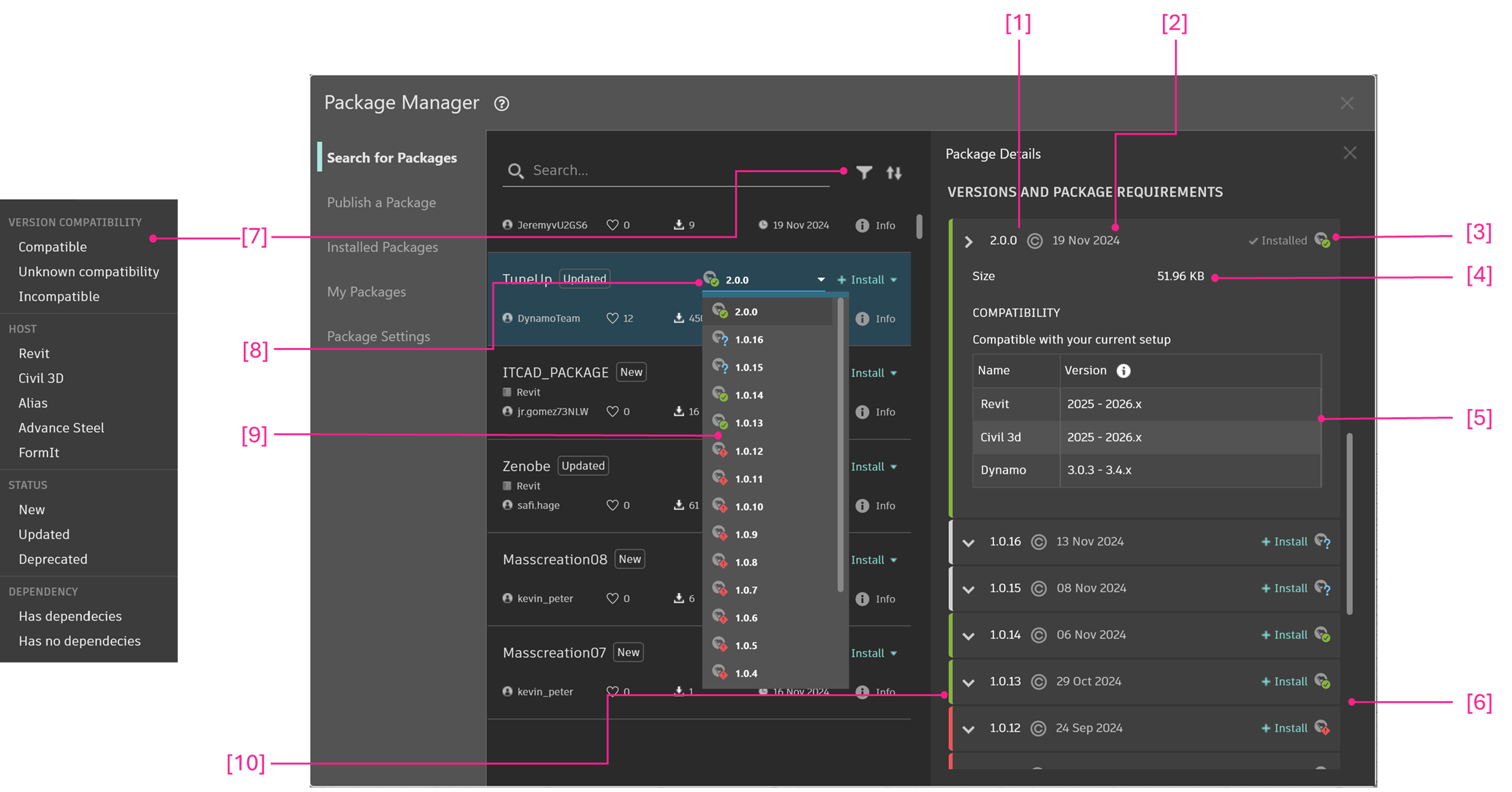
Figure 2: What’s new for Package users in Package Manager in Dynamo
What’s new in Package Manager Website for Package Consumers?
You can search for packages and find the Compatibility matrix table listing the Dynamo and/or Host versions compatible with each version, where information has been updated by Package Authors. As this is the website and it doesn’t know what version of Dynamo or host you have with your setup, there is no smart download button here. We are working on improving search and adding filters to help you find the right version faster.
[1] – A refreshed look for package and version information. We have introduced version cards for each version within a package.
[2] – Package dependencies will all be listed under Depends on in the version card, so it’s easier for users to find dependencies where applicable. Previously, package dependencies were listed under Directly Uses and Full Dependencies and weren’t clearly associated to each version.
[3] – We have introduced Compatibility Table listing the Dynamo and/or Host versions compatible with the package version.
Note: Versions range with maximum range marked with “x” (eg: 2025.x, 2025.1.x or 3.x), mean that the package version is compatible with all versions of the specified major or minor release.

Figure 3: What’s new for Package users in Package Manager in Dynamo Website
A Revamped Package Manager website for a joyful experience for Package Authors
The Package Manager website has been an essential resource for users, providing another way to access the vast array of packages that enhance and extend the capabilities of Dynamo. However, over time, the website has begun to show its age, necessitating a much-needed refresh to make it user-friendly. This is why we have undertaken a comprehensive revamp of the Package Manager website. We also recognize that a significant number of users still rely on older versions of Dynamo for their projects, which do not support the new Package Manager interface. To ensure that everyone can benefit from the improved experience, we are also working on homogenizing the Package Manager across all versions of Dynamo. This update aims to provide a seamless and modern experience for all our users, regardless of the version they use.
1. Login to Package Manager website
Users can now log into Package Manager Website using their Autodesk ID and find all their published packages under My Packages. This is a portal for package authors to manage their existing packages.

Figure 4: Package Manager Website Login and “My packages”
2. Update Package details
The Package description, website link and repository link can be added/updated following as shown in the image below:
[1] – Under My Packages, select the package and select Edit package details.
[2] – Website and Repository links can be added or modified using the respective fields.
[3] – Package Description can be updated.
[4] – Click Save changes to update the package details. Currently, it may take up to 15 minutes for the information to refresh in Package Manager inside Dynamo as it takes a few minutes for the server to update the information. We are working on removing this delay.

Figure 5: New UI to update Package Details for Published Packages
3. Edit Compatibility information retroactively for published Package versions
Step 1: Compatibility information can be added/updated following the steps listed below as shown in the image below:

Figure 6: Edit Compatibility Info for Published Packages – Step 1
1– Click on the package version to update compatibility information for.
2- The Depends on list is auto populated when a package is published from Dynamo to include all the Dynamo Packages that the package depends on.
3 – Click on the pencil icon next to Compatibility to open the Edit Compatibility Information workflow with three options to pick from.
Step 2: Follow the below flow chart and refer to the table below to help you understand which option works best for your package.

Figure7: Which Option to Choose for “Edit Compatibility Info” workflow
Let’s use some examples to walk through some scenarios:
Example Package # 1- Civil Connection: This package has API dependencies with both Revit & Civil 3D and does not include a collection of core nodes (eg: geometry functions, math functions, and/or list management). So, in this case, the ideal option would be to go with Option 1. The package will be shown as Compatible in Revit and Civil 3D that matches the version range and/or individual version list.
Example Package # 2 – Rhythm: This package is a collection of Revit specific nodes along with a collection of Core nodes. In this case, the package has host dependencies. But also includes core nodes that will work in Dynamo Core. So, in this case, the ideal option would be Option 2. The package will be shown as Compatible in Revit and Dynamo Core (also called Dynamo Sandbox) environment that matches the version range and/or individual version list.
Example Package # 3 – Mesh Toolkit: This package is a Dynamo Core package which is a collection of geometry nodes that has no host dependencies. So, in this case, the ideal option would be Option 3. The package will be shown as Compatible in Dynamo and all host environments that matches the version range and/or individual version list.
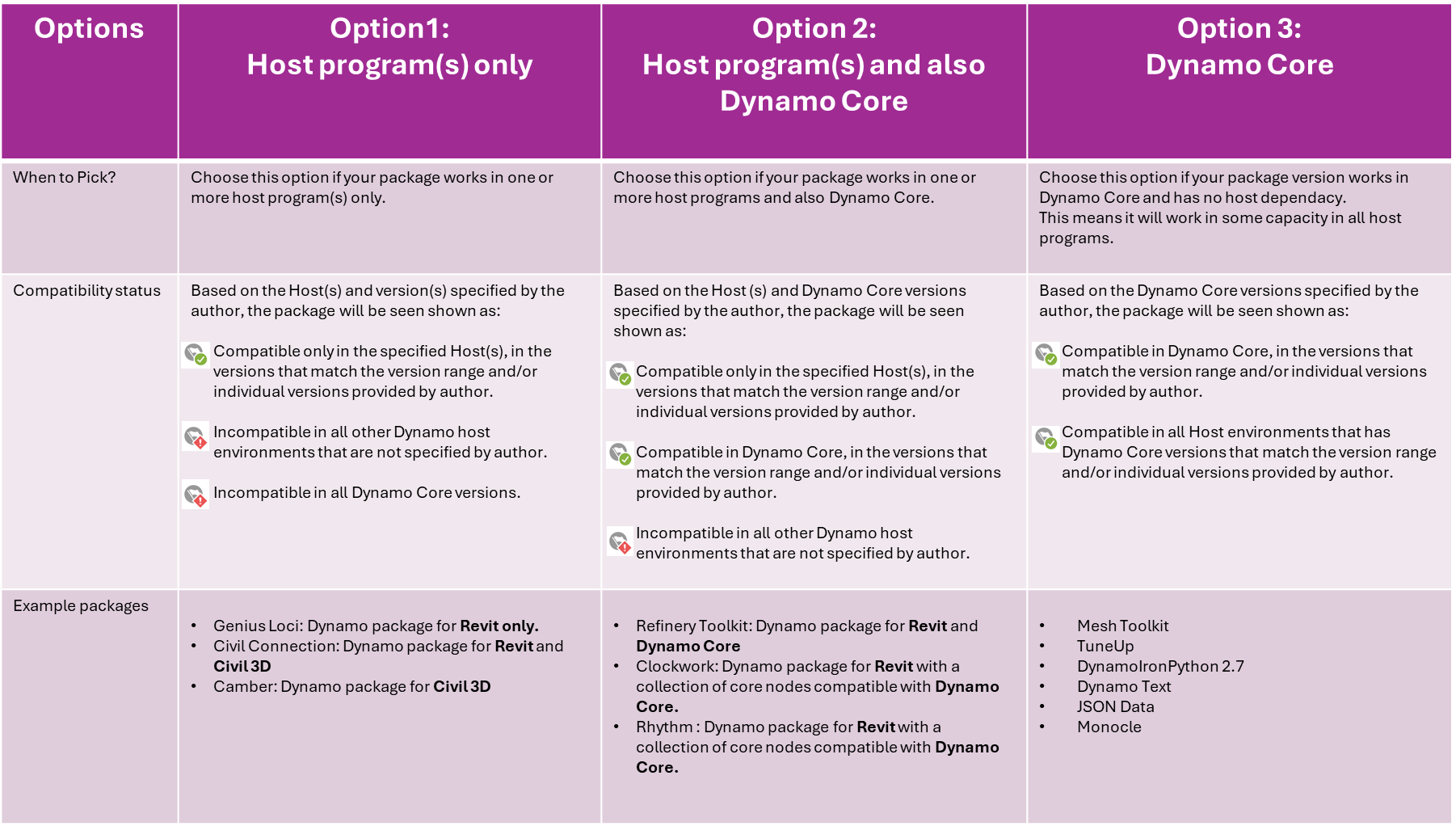
Figure 8: Edit Compatibility Info Options
Depending on the option selected, Dynamo and/or Host specific fields will pop-up as shown in the image below.
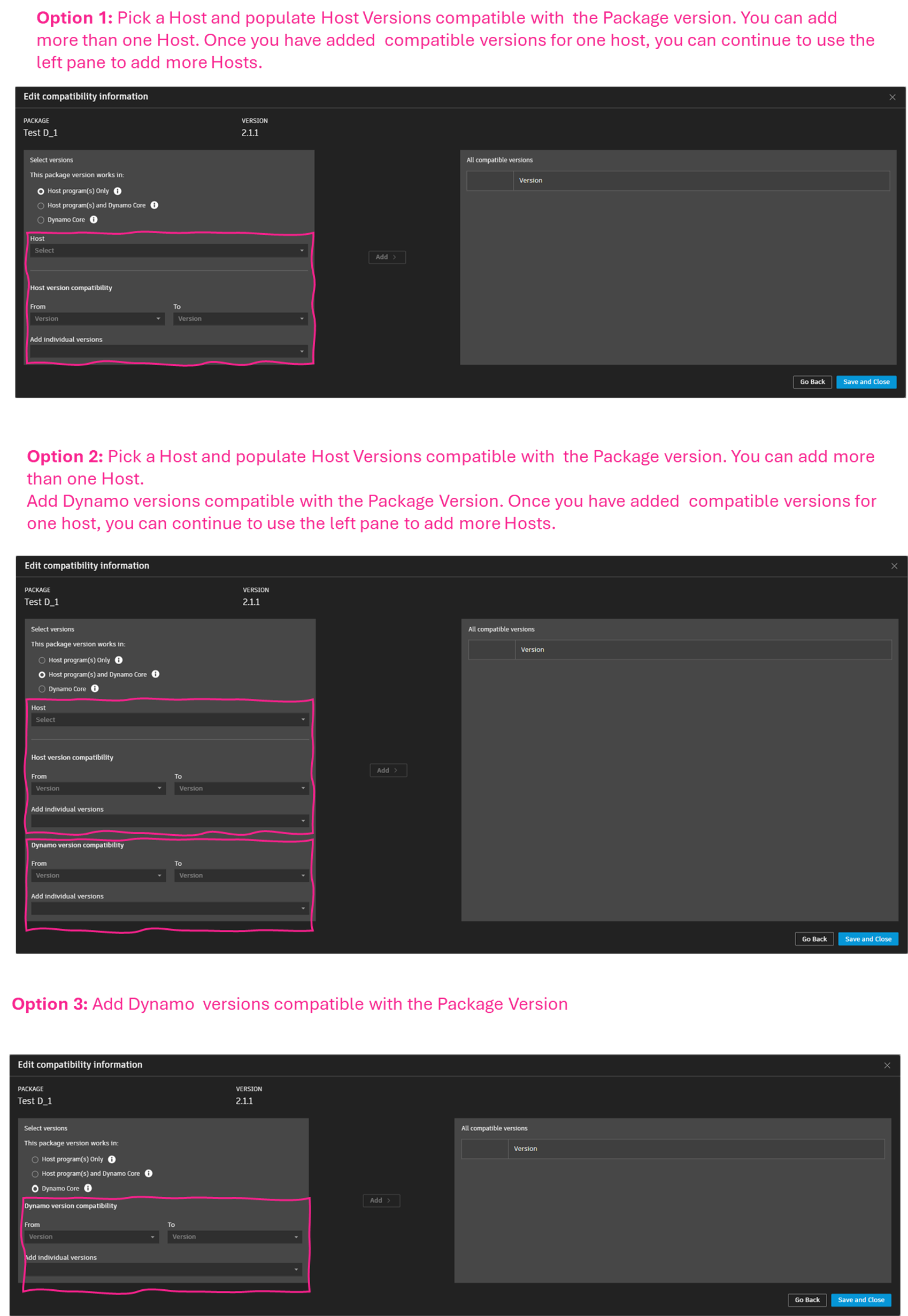
Figure 9: Edit Compatibility Info – Step 2
Step 3: To populate the Host and/or Dynamo versions compatible with the package version, a range (From–To) can be added. Or, if needed individual versions can also be selected from the Add individual version drop down.

Figure 10: Edit Compatibility Info- Step 3
A few things to note here:
- In the range field, it is mandatory to fill both From and To.
- From is the minimum version of Host/Dynamo that your package version is compatible with. To is the maximum version of Host/Dynamo that your package will work in. For example, 2025-2025.x =Everything >= 2025.0.0 and <= 2025.*x which means all 2025 versions
- To help authors reduce their package upkeep time, we have included wildcard versions in the “To” range, for example 2026.x, 2025.x ,3.x, 2.x and so on. For example, if you know your package works in Revit 2025.3 and will work for future minor and patch releases of Revit 2025, you can provide the Version range as 2025 – 2025.x. In this case, when there is a new minor version of Revit, say 2025.4, you need not come and update the package compatibility information. This version of the package will be shown as compatible in Revit 2025.4 as well.
- Add Individual versions dropdown list includes only individual versions of Host or Dynamo. For example, Revit 2025 means 2025.0.0 only, Civil 3D 2025.1 means 2025.1.0 only, Dynamo 2.0 means Dynamo Core 3.0.1 only and so on.
- The Compatibility schema only supports one range per Host/Dynamo. You can update the range once added, by deleting the version range chip and adding a new updated range. Or you can choose to Add individual versions.
- If individual versions are added that are already within the compatible range added, the duplicate individual versions will be omitted from the All Compatible Versions table.
- Need to look up which version of Dynamo corresponds with a version of Revit, Civil 3D, Alias, or Advance Steel? Host x Dynamo version mapping information can be found in Dynamo Primer.
Step 4: After selecting all the applicable Host and/or Dynamo versions, click on Add to populate the compatibility information to the All Compatible Versions table.
To add another Host or more versions of the already selected Host and/or Dynamo versions, you can continue to use the fields on the left pane and add to the All Compatible Versions table.
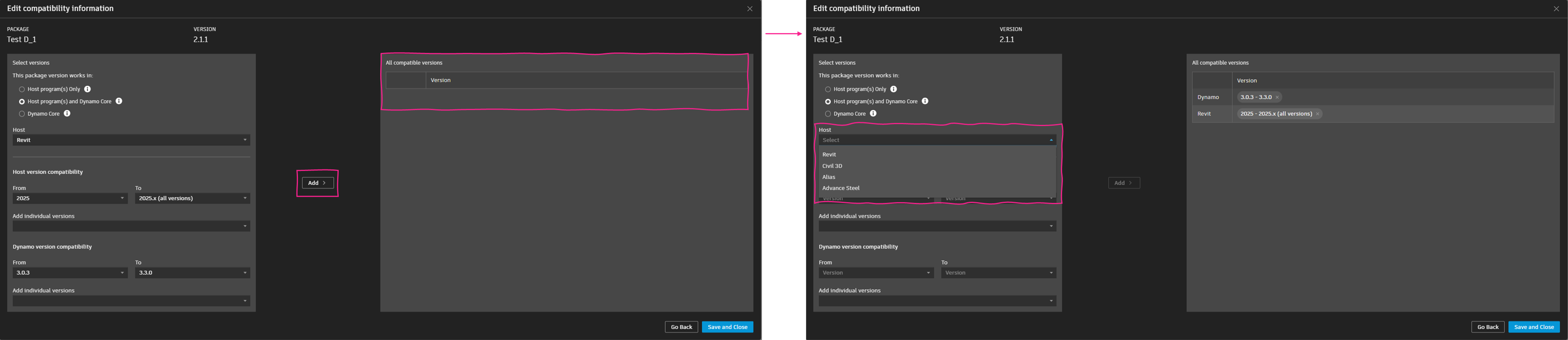
Figure 11: Edit Compatibility Info- Step 4
Step 5: Users can review the compatibility information to ensure it is correct. Versions can be removed from the All Compatible Versions table by clicking on the “x” mark on the versions chips as shown in the image below. Once the information has been reviewed, users can hit Save and close. It might table up to 15 mins for the compatibility information to reflect in the Package Manager inside Dynamo.
Note: To remove a Host from the table, remove all versions from the row.

Figure 12: Edit Compatibility Info- Step 5.a

Figure 12: Edit Compatibility Info- Step 5.b
Checkout this video for step-by-step instructions on how to update compatibility information for your package.
Package Authors: Call to Action

To all our Dynamo Superheroes/Gurus. Yes, we are talking about all you package authors who share these amazing Dynamo packages and enable so many others in the Dynamo community to level up what Dynamo can do for their projects. We need your help. Please log into the Package manager website (link here) and update the package compatibility information. This new Package management experience will get better with time, and we can do that even faster with help from all of you.
Package Management: What’s next for us?
We are not done yet; our journey to improve your Dynamo Package management experience is far from over. We are busy working on improvements to the Package Manager website to make it easier for users to search and find the right versions of packages. On the Dynamo side, we are adding a new package management workflow to the Publish Package section, aiming to streamline the process for package authors. And that’s just the beginning – we have many more exciting updates in the pipeline. So, stay tuned!
We hope that the new improvements to Package Manager in Dynamo and the revamped Package Manager website will significantly improve both Dynamo users as well as Package author experience. We’d like to extend a huge thank-you to everyone who made this possible and to the entire Dynamo community for continuing to support our work.
The Dynamo Team