This blog series dives into leveraging Dynamo to orchestrate and unify data and design logic for residential building configurations with Forma and Revit. To understand this connection, you can learn more about Dynamo in Forma here.
You can find the first blog post in this series here and the second blog post here.
In blog post 2, we used Dynamo to generate geometry in Forma based on our defined rules and design logic (DNA). Now it’s time to leverage this critical information in Revit for downstream modeling. We’ll explore two primary methods: first, utilizing the Forma Add-in for Revit to bring a Forma proposal directly into Revit, and second, driving our own custom modeling outputs.
Method 1: Using the Send to Revit Add-in (Beta)
When I first planned this post, I underestimated the power of Forma’s native integration with Revit. Before we dive into Dynamo, let’s explore what Forma offers us “for free” with its out-of-the-box functionality.
If you’re new to this feature, I highly recommend reviewing Autodesk’s official guide: Send a Forma proposal to Revit | Autodesk.
The Beta’s ability to translate Forma massing geometry into Revit elements is truly impressive. With just a few clicks, you can generate Revit walls, floors, roofs, families, levels, grids, rooms, family types with instances, and even rich metadata.
The ability to model and schedule Revit rooms with Forma-provided metadata is a significant win! I’ll certainly be exploring how to leverage these Revit rooms (whether as bounding boxes, meshes, or geometry) within Dynamo to drive dimensionally located downstream modeling behaviors. This functionality alone opens up exciting possibilities for driving future Dynamo and Revit modeling workflows, and I’m eager to explore how these Revit rooms can serve as foundational geometry.
Bringing rooms from Forma into Revit is a significant win because it establishes a pathway for us to use a rule/coordinate-based approach for placing the content necessary to meet your modeling requirements. This simplifies your workflow immensely. See the video below for examples on transforming Revit rooms into usable geometry and points.
Method 2: Driving your own modeling behaviors
To keep our graphs as simple and efficient as possible, I’ve set a few restrictions:
- Avoid Rotating Buildings in Forma: Choose a building that hasn’t been rotated. This significantly reduces the number of calculations needed to account for infinite rotational possibilities, allowing us to focus more clearly on workflow optimization and model automation.
- Use the Provided Revit Template: Please use the FormaDynamoRevit-Metric-01.rte template file (provided below in the quick start guide for method 2). It comes pre-loaded with essential families, properties, and settings.
- One Building Configuration per Revit Project: Stick to a single building configuration per Revit project for consistency. Thus the *.rte file.
- Out-of-the-Box Dynamo Nodes with Python: We’ll be using standard Dynamo nodes enhanced with Python for our operations.
- Stay in Metric:
The video above demonstrates how Dynamo now mirrors the geometry points from Forma. We’ve successfully brought in insertion points, polycurves, and unit names—picking up right where we left off in Blog Post 2. Now, let’s leverage these Forma geometry inputs to drive our Revit modeling behaviors directly!
Quick start to running your graphs for method 2:

Forma Dynamo Revit Workflow
-
- Download and extract the zip file into a folder (use this link to download files needed for this post).
- Copy “FormaDynamoRevit-Metric-01.rte” to your Revit template folder.
- Open Revit, create a new project, using the Revit template file (FormaDynamoRevit-Metric-01.rte) to create new Revit projects, then open Dynamo (the video below starts at this point).
- Open the provided graph called “ReadFormaGeometryConvertToRevitElements-01.dyn.”
- Open the Forma proposal that was generated using the graph from blog post #2.
- Activate Forma Dynamo Player and open/connect to “ReadFormaGeometryConvertToRevitElements-01.dyn.”
- Select a floor of a building that has NOT been rotated.
- Modify the Corridor, Unit height inputs if required, and run the graph.
- Review the results.
Explaining What Happened
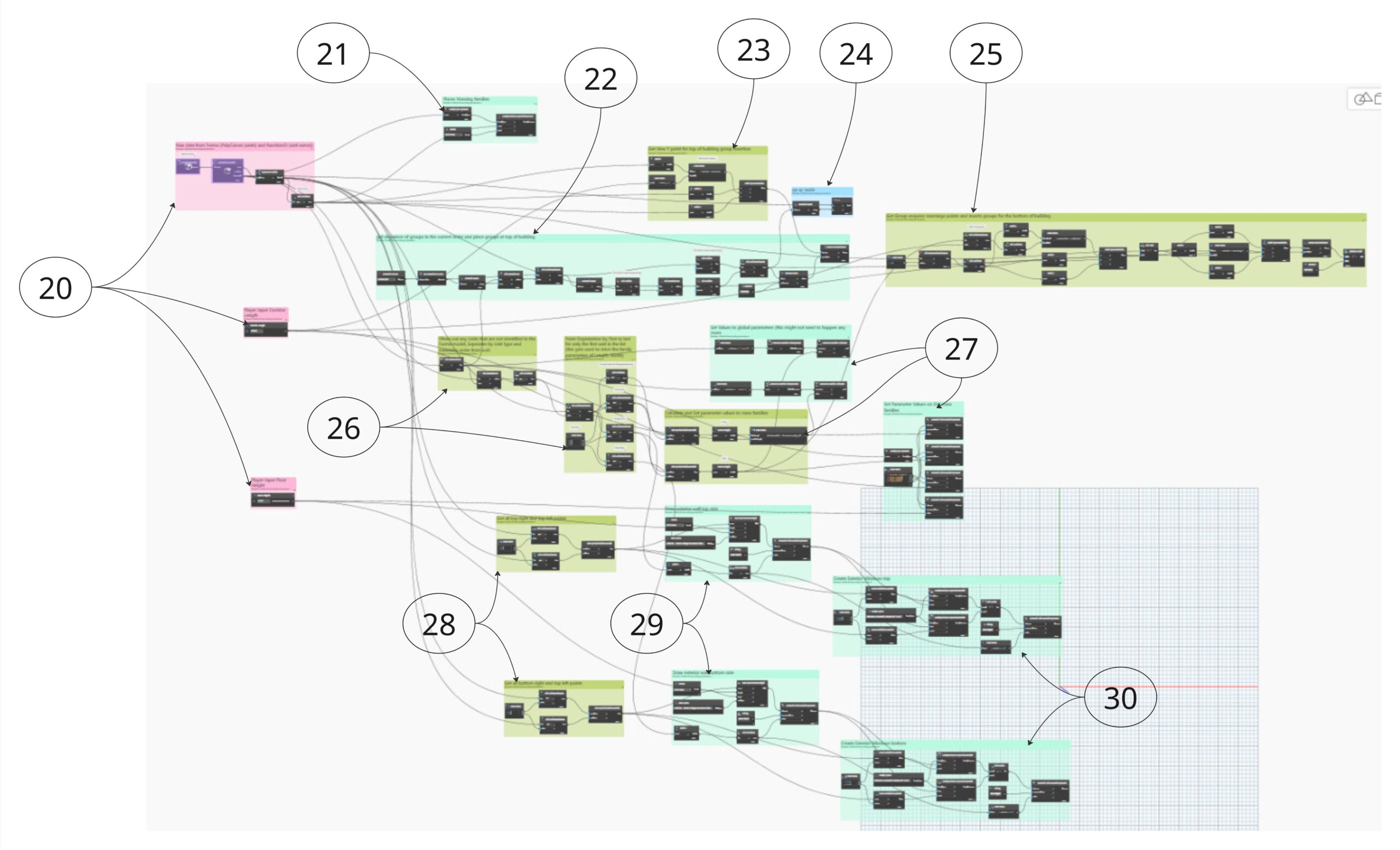
Dynamo Graph Workflow Forma to Dynamo to Revit
#20 : Inputs, Select Forma Floor, Corridor Length, Unit Height.
#21 : Places Revit Generic model box family
#22 : Arrange, filter, and place Revit Groups as units at the top of the building.
#23 : Calculate New Y point for Group insertion.
#24 : QA/QC node; these results should always be True.
#25 : Arrange, filter, Rotate, and place Revit Groups as units at the bottom of the building.
#26 : Filters for active units and points.
#27 : Calculates and flexes Units (groups, global parameters, and families) to match configuration.
#28 : Get required points and calculations to model exterior walls and windows.
#29 : Model wall at the end of each unit.
#30 : Place windows on walls from #29.
Here is what we should see:

Unified Building Configuration
Concluding Thoughts: The Power of Prescribed Authoring—Unlocking Predictable and Automated Workflows
This blog series has explored the synergy between Dynamo, Forma, and Revit, demonstrating how a disciplined approach to authoring can drive your design and construction workflows. The ability to centralize your design logic and rules within Dynamo, and then apply that “DNA” across multiple platforms, is not merely an efficiency gain; it’s a strategic advantage that empowers predictable outcomes and tight integration.
Why Prescribed Authoring Matters
Establishing control over your authoring techniques within any design tool, especially when integrating multiple platforms, offers immense benefits:
- Predictable and Instantaneous Data Extraction: When your modeling sequence is disciplined, extracting critical model data becomes remarkably predictable and virtually instantaneous. This precision eliminates common headaches, such as misaligned elements that disrupt downstream processes. Consider the difference between a wall not joining cleanly at a T-intersection, leading to an improperly sized or placed wall panel, versus one where disciplined authoring ensures elements start in the proper location for accurate panelization and fabrication.
- Data-Driven Authoring Sequence: A prescribed authoring sequence ensures your model is built logically, where each element’s creation is driven by consistent data or by its preceding elements. For instance, a wall must inherently precede any wall-hosted elements, a simple but critical sequence that guarantees hosting integrity for accurate detailing.
- Enhanced Downstream Communication: By controlling your authoring methodology, information flows outward from your design program in a structured and reliable manner. This control is paramount when you need to extract information in a specific or unique way, ultimately driving subsequent project phases. This is absolutely critical for companies with higher modeling standards and requirements, especially those industries that need to control every point, authoring style, and modeling sequence. This not only enhances design predictability but also grants the crucial ability to ingest and prepare the model for fabrication-level data. Achieving this precision is vital; it guarantees that your outputs and downstream workflows are reliable and accurate, regardless of whether they dictate manufacturing, drive estimating, or fulfill other specific requirements. By setting up your models with this foresight, you lay the groundwork for a truly integrated design-to-fabrication pipeline.
Dynamo, Forma, and Revit: A Powerful Alliance
Imagine generating hundreds of building configurations with minimal effort. That’s the power of Forma’s intuitive modeling, functioning exactly as a top-tier building configurator should. When integrated, Forma and Revit become a powerhouse. You can swiftly iterate and evaluate designs using Forma’s comprehensive analytics, then bring those designs into Revit for detailed tasks like cost analysis, general construction models/drawings and bill of materials generation. This connection transforms workflows that once spanned days or weeks into just a few hours.
Here’s why the relationship between Forma and Dynamo is so valuable:
- Driving Productized Building Design (DFMA): Customers in the Design for Manufacturing and Assembly (DFMA) space often have more rules and requirements enforced around design and construction logic, particularly concerning construction means and methods. Centralizing these rules and requirements within Dynamo gives you the power to drive modeling on two platforms—Forma and Revit—that each possess amazing capabilities. This allows you to utilize each tool with the exact same Dynamo-driven rules and requirements (your company’s “DNA”) that your product is already mandated to enforce. Now, those same rules your company/industry was already using are driving Forma’s modeling behaviors!
- Let Forma Configure for You: We’ve long been able to leverage Forma for conceptual configurations (2 years and 2 months now). Now, with the two methods explored in this series, you have the ability to convert that Forma geometry into detailed Revit elements. This connection is truly transformative for all customer types: configure in Forma, automate the Revit modeling, and with some additional effort, even automate documentation.
This series has only scratched the surface of what’s possible when these powerful tools are connected through intelligent, prescribed authoring. The ability to translate conceptual designs into detailed, rule-driven Revit models, all orchestrated by your company’s unique design logic, represents a significant leap forward for the AEC industry.
Until our next digital rendezvous, stay cool!
Crafting this series has been a genuinely rewarding experience, and my sincere hope is that it has provided you with valuable insights and actionable ideas on how to more effectively integrate and leverage these powerful design tools. Thank you for embarking on this journey with me. I invite you to connect with me at CustomBuildingConfigurators.com or LinkedIn and share your thoughts, your experiences, and your aspirations for how these new tools can be applied in your own workflows.
Steve DeWitt
