Hey Civil 3D users,
Christmas is coming soon, and we have some early gifts for you in Dynamo for Civil 3D 2025.2! This release unlocks more opportunities for you to automate plan production workflows and puts helpful samples and node documentation at your fingertips. In addition, there are several smaller improvements and fixes. Read on to learn more.
To get all of this great new stuff right now, download and install the Civil 3D 2025.2 update using the Autodesk Access desktop app, or download it by signing in to your Autodesk account on manage.autodesk.com.
TL:DR
Dynamo for Civil 3D 2025.2 provides a big boost for plan production workflows with new nodes for labels. These nodes give you the ability to create labels for objects like alignments, surfaces, and profile views. General-purpose nodes are also available for common tasks such as setting label dragged offset locations or overriding text for specific label components. We’ve also introduced a highly-requested Pick Point node, which provides the ability to specify a point in the current document and return it as a Dynamo point. This node can also be configured as an input in Dynamo Player. Railway designers will benefit from new nodes for industry-standard railway cant parameters, as well as an expansion to the Alignment.CantInfoAtStation node.
We’re on a journey to make Dynamo easier to learn, and this release features more in-depth documentation and sample files for nodes in the AutoCAD section of the library. To view this information, right-click on a node and then click Help…, or select the node and press F1.
Lastly, Dynamo Core has been updated to version 3.3, bringing you fresh improvements to the Package Manager, an enhanced TuneUp package for graph performance monitoring, a bulk update option for Python node engine, and more.
So, what’s dropping with Dynamo for Civil 3D 2025.2?
Automate plan production with nodes for labels
We know that plan production can be tedious work, and we want to help you get it done faster. In the previous release, we introduced new nodes for text, MText, multileaders, and tables. We’re cranking things up in this release by giving you 62 new nodes for working with labels.
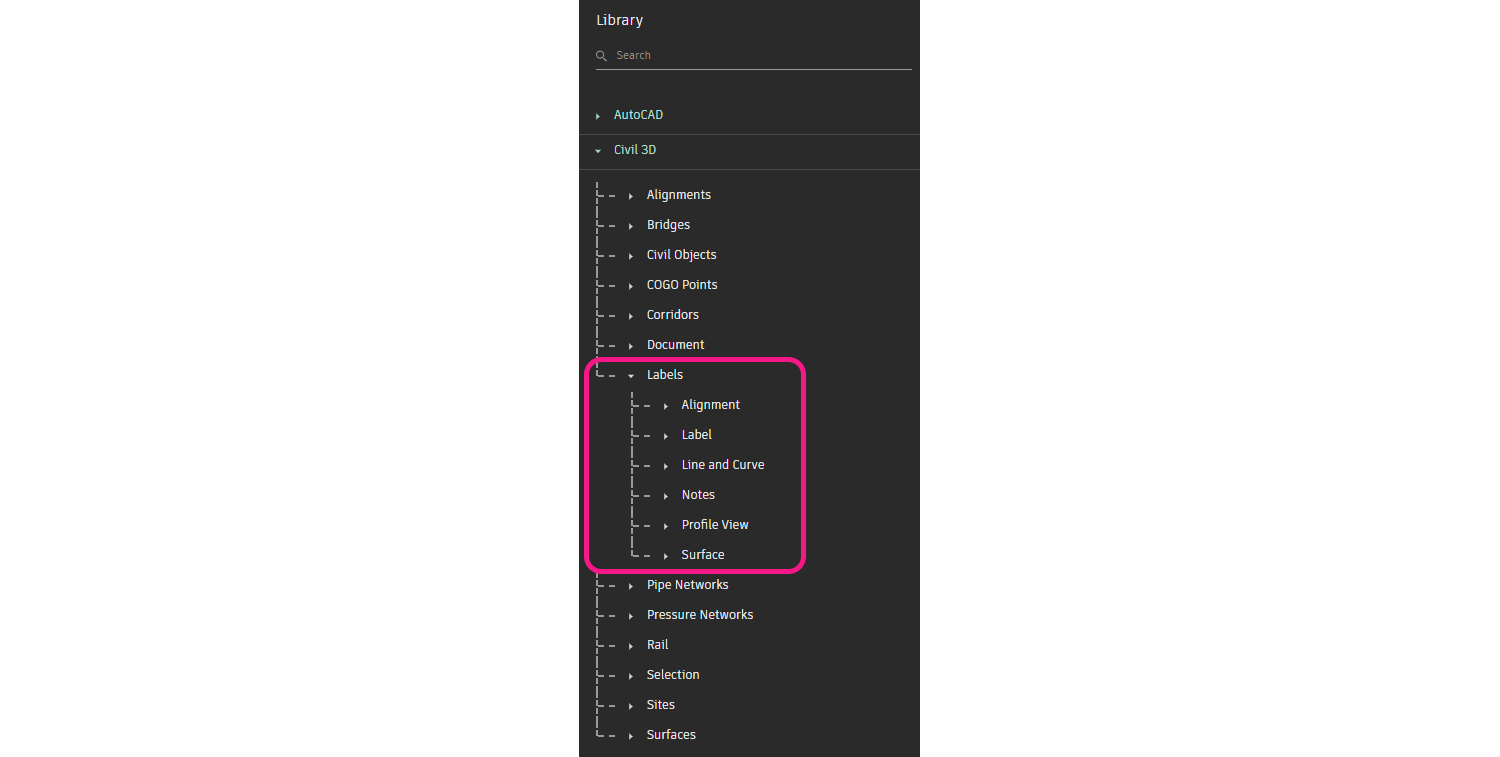
New nodes for labels in the Civil 3D library
These nodes will enable you to automate tasks such as:
- Create alignment station/offset labels at a point or at a specified station/offset using the nodes in the
AlignmentStationOffsetLabelcategory - Create general-purpose line/curve or note labels using the nodes in the
GeneralSegmentLabelandGeneralNoteLabelcategories - Create profile view station/elevation or depth/grade labels using the nodes in the
ProfileViewStationElevationLabelandProfileViewDepthLabelcategories - Create surface spot elevation labels using the
SurfaceSpotElevationLabel.ByPointnode - Create one- or two-point surface slope labels using the nodes in the
SurfaceSlopeLabelcategory - Adjust label location and dragged offset using the
Label.SetInsertionPoint,Label.SetLabelLocation, andLabel.SetDraggedOffsetnodes - Adjust label rotation using the
Label.SetRotationnode - Override text in specific text components using the
Label.SetTextComponentOverridenode - Assign reference text objects using the
Label.SetReferencedObjectnode - Identify the object that a label is attached to using the
Label.ObjectAttachedTonode
As you can see, you have a ton of flexibility to configure the arrangement and display of labels in an automated fashion. Here’s an example that showcases how you can pull all of this together to label objects along an alignment.

Placing station/offset labels at block reference locations along an alignment, with configuration for dragged offset, text component override, and reference text
Pick Point node
You spoke, and we listened. The Pick Point node is finally here! No more manually entering coordinates or using other workarounds to get a specific point from the drawing and use it as an input in your graph. Just drop this node in your graph and use it to pick a point. You can also configure this node as an input in Dynamo Player so that others can easily use it, too.

Using the Pick Point node in Dynamo Player to specify a table insertion point
In-depth documentation for AutoCAD nodes
In this release, the nodes in the AutoCAD section of the library now come with rich documentation to help you learn more about them. This information is available in the Documentation Browser, the single location to look when you want to understand more about what a particular node does. You can even insert an example graph directly into your workspace. To view this information, simply right-click on a node and then click Help…, or select the node and press F1.
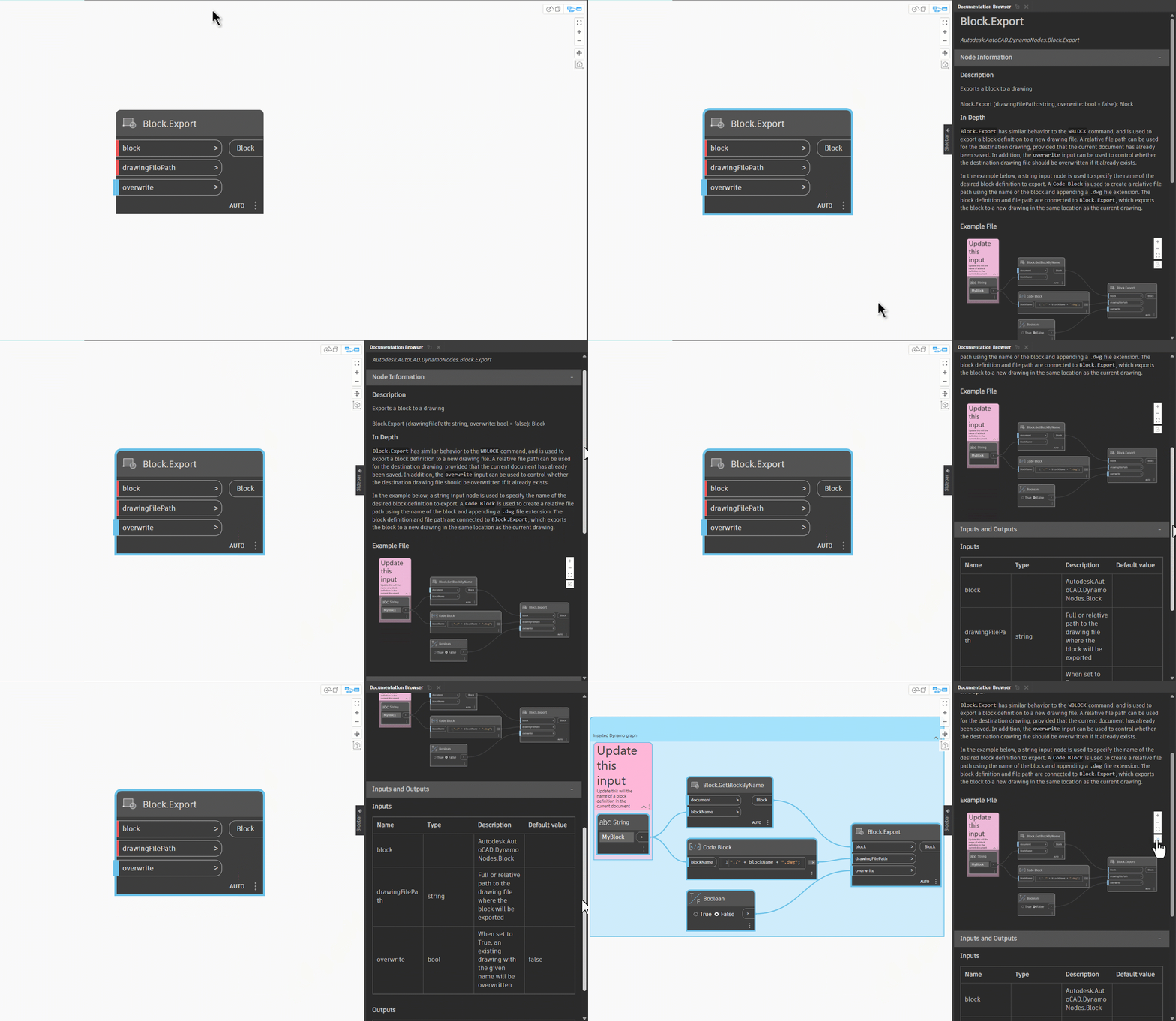
Viewing in-depth node information and inserting a sample file from the Documentation Browser
New nodes for industry-standard rail cant parameters
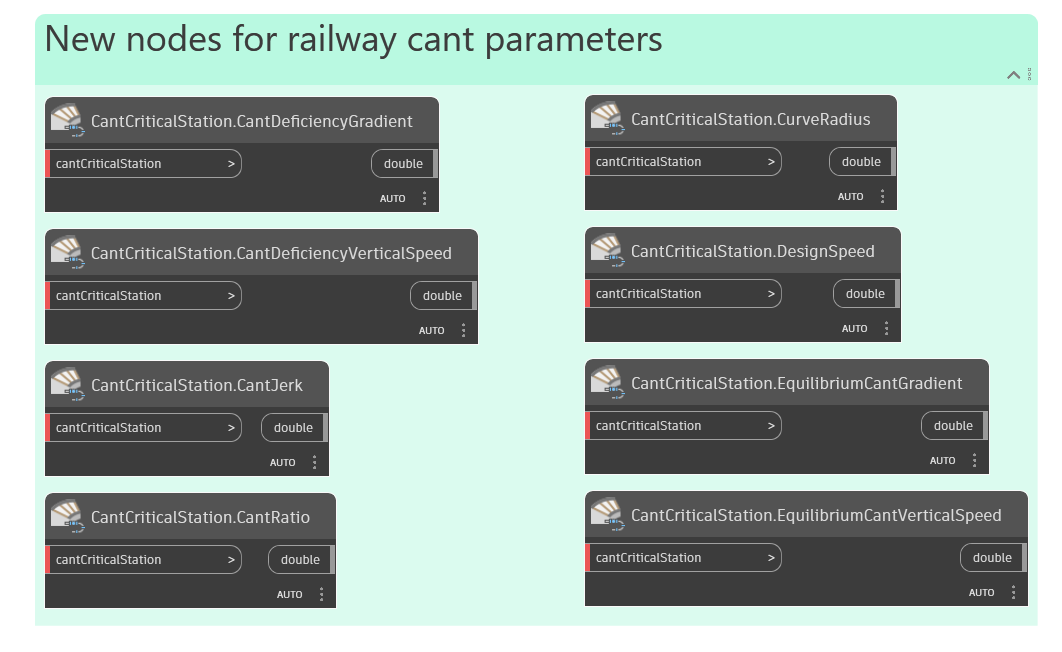
Railway designers, you’ll be pleased to hear that you now have access to more cant data with 8 new nodes in the CantCriticalStation category. These nodes give you read-only access to industry-standard parameters such as cant deficiency gradient and equilibrium cant vertical speed.
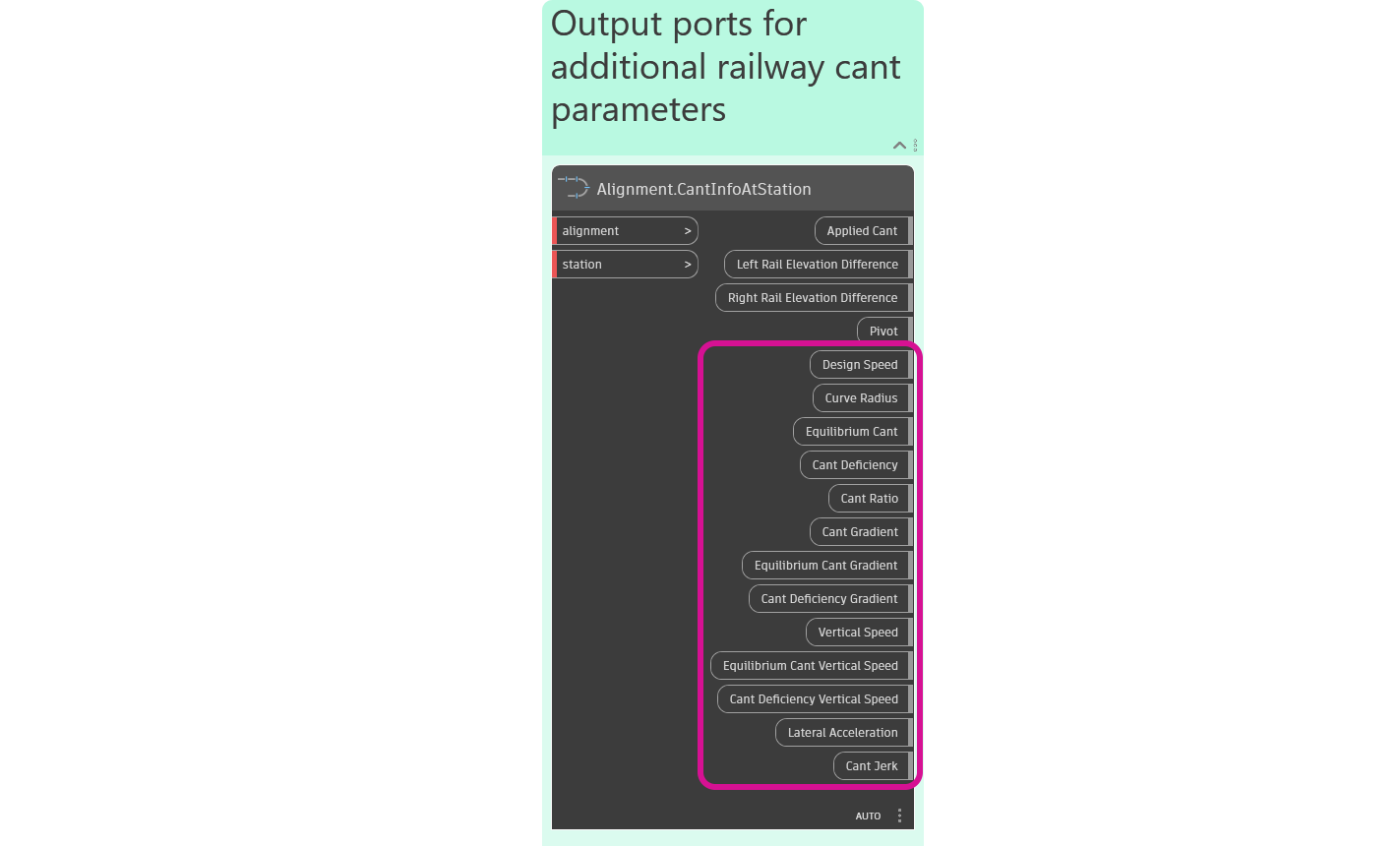
Also, we’ve expanded the Alignment.CantInfoAtStation node with more outputs for these additional parameters. This node provides you with the calculated cant data at any station along a rail alignment.
Smaller buckets of work
Aside from the bigger items, there are also a few smaller improvements to be aware of:
- The
Object.ByGeometrynode now supports creating point objects from Dynamo points - We’ve improved the clarity of descriptions, tooltips, and warning messages for several nodes
- The
Choose Property Data Typedropdown node now includes “List” in the available options - The
PropertySetDefinition.AddManualPropertyDefinitionnode is now configured to only accept list definitions that are configured to apply to manual property definitions - The
Alignment.ImportLabelSetnode now returns the given alignment instead of void - The
Choose Hatch Patternnode is now configured to retrieve pre-defined hatch pattern names from either the acad.pat or acadiso.pat files, depending on whether the drawing units are imperial or metric
Bug fixes
And last but certainly not least, we were able to track down several bugs and get them fixed in this release. A few of them were brought to our attention by eagle-eyed users like yourself, which we greatly appreciate! Here’s a snapshot of the most important bug fixes, and you can view the full list in the release notes.
- Fixed an issue in which the
CivilObject.SetStylenode would display a warning message for certain object types - Fixed an issue in which the
ProfileView.ByAlignmentnode would return null when the default object layer setting for new profile views was set to a layer that didn’t exist in the drawing - Fixed an issue in which the
Profile.LowPointsandProfile.HighPointsnodes would return incorrect values for certain vertical curves - Fixed an issue in which the
Object.Exportnode would occasionally fail to export objects - Fixed an issue in which the
Part.PartSizenode would display a warning for null structures - Fixed an issue in which the
CorridorTarget.SetTargetToOptionnode would display a warning when using “nearest” or “farthest” for an elevation target - Fixed an issue in which the
Civil Object by Namenode was unable to return a TIN surface when a TIN volume surface was also present in the drawing - Fixed an issue in which the
Alignment.ByPointsnode would return null when a default alignment style was not set in the drawing
What’s next?
It’s been a great year for Dynamo for Civil 3D, and you can expect more improvements as we move into 2025. Be sure to stay tuned to the Civil Infrastructure Roadmap, where you can take a look at current and upcoming work, express your support for features you want to see, and let us know what you think by adding a comment.
Happy Holidays!🎄
The Autodesk Civil Infrastructure Team