Introduction
The JSON.stringify() function in Node.js is used to convert JavaScript objects into JSON format. It takes an object as an input and returns a string in JSON format. This function is commonly used when you need to send data from a server to a client in a format that is easily interpretable by the client. It’s also useful for storing data in a format that can be easily read and processed later. If you haven’t noticed already, the Dynamo file type is also in JSON (while it was XML based in 1.x versions).
The Data.StringifyJSON and Data.Remember nodes in Dynamo works the same way as the JSON.stringify() function in Node.js. It converts objects into a JSON string.

Data.StringifyJSON and Data.Remeber Nodes
If you are thinking, but why do I need another data translation node when we have Geometry.ToSolidDef node or Export to CSV/Excel. Well, then keep reading.
Data.StringifyJSON
The Data.stringifyJSON node offers several benefits:
- Data Exchange: It allows you to convert objects (Dynamo Core Geometry, Strings, Integers) into a string format that’s universally recognized, making it easier to transmit data between Dynamo instances and/or another client.
- Storage: It’s useful for storing data. You can stringify Dynamo geometry and data and store it in a database or a file in a format that can be easily retrieved and parsed.
- Easy to read: It is easy to read and write for us (humans), and easy to parse and generate for machines.
- Cross-language compatibility: JSON is language-independent data format. It means that the data can also be used across different programming languages.
- Nested structure: JSON.stringify allows to convert complex nested JavaScript objects into string format.
On the other hand, the Geometry.ToSolidDef node in Dynamo is a function specific to the Dynamo. This node converts geometric data into a solid definition that can be used to store and recreate geometry objects. Let’s see how these two are different with an example.
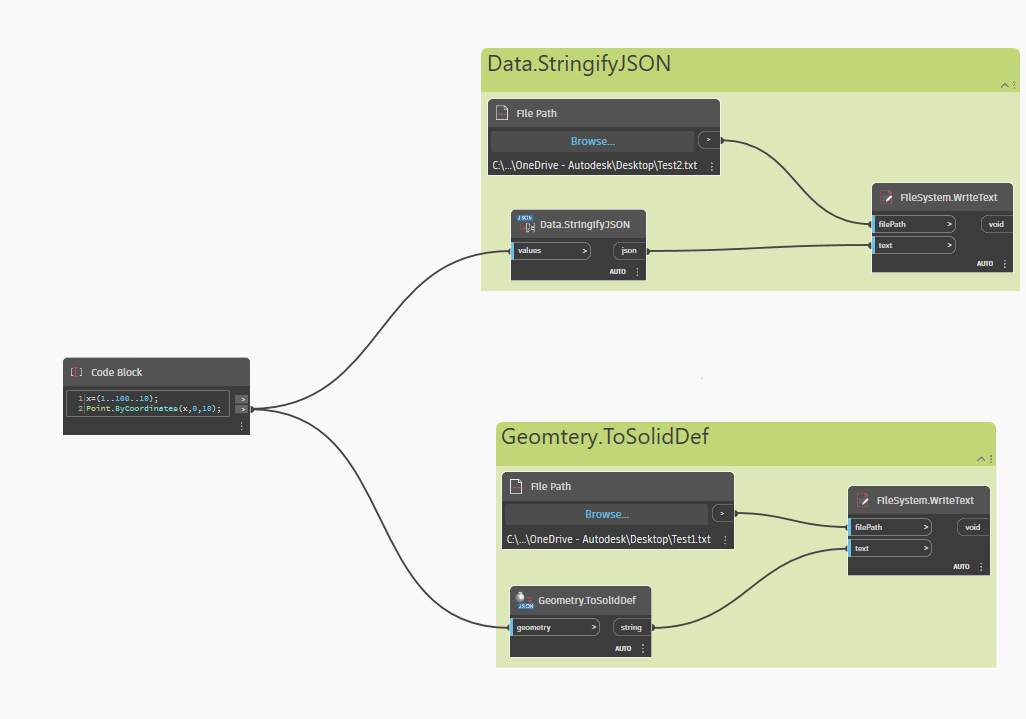
Translating an array of Points to JSON using Data.StringifyJSON versus Geometry.ToSolidDef
Consider an array of Points and we can convert it to a JSON formatted file using two methods:
1. Data.StringifyJSON node
2. Geomtery.ToSolidDef node
While both these strings can be imported and parsed to geometry when you want to use the stored data in the future, Data.StringifyJSON node offers data in a format that is human readable and also easy to parse when I try to edit it outside of Dynamo as you can see below.
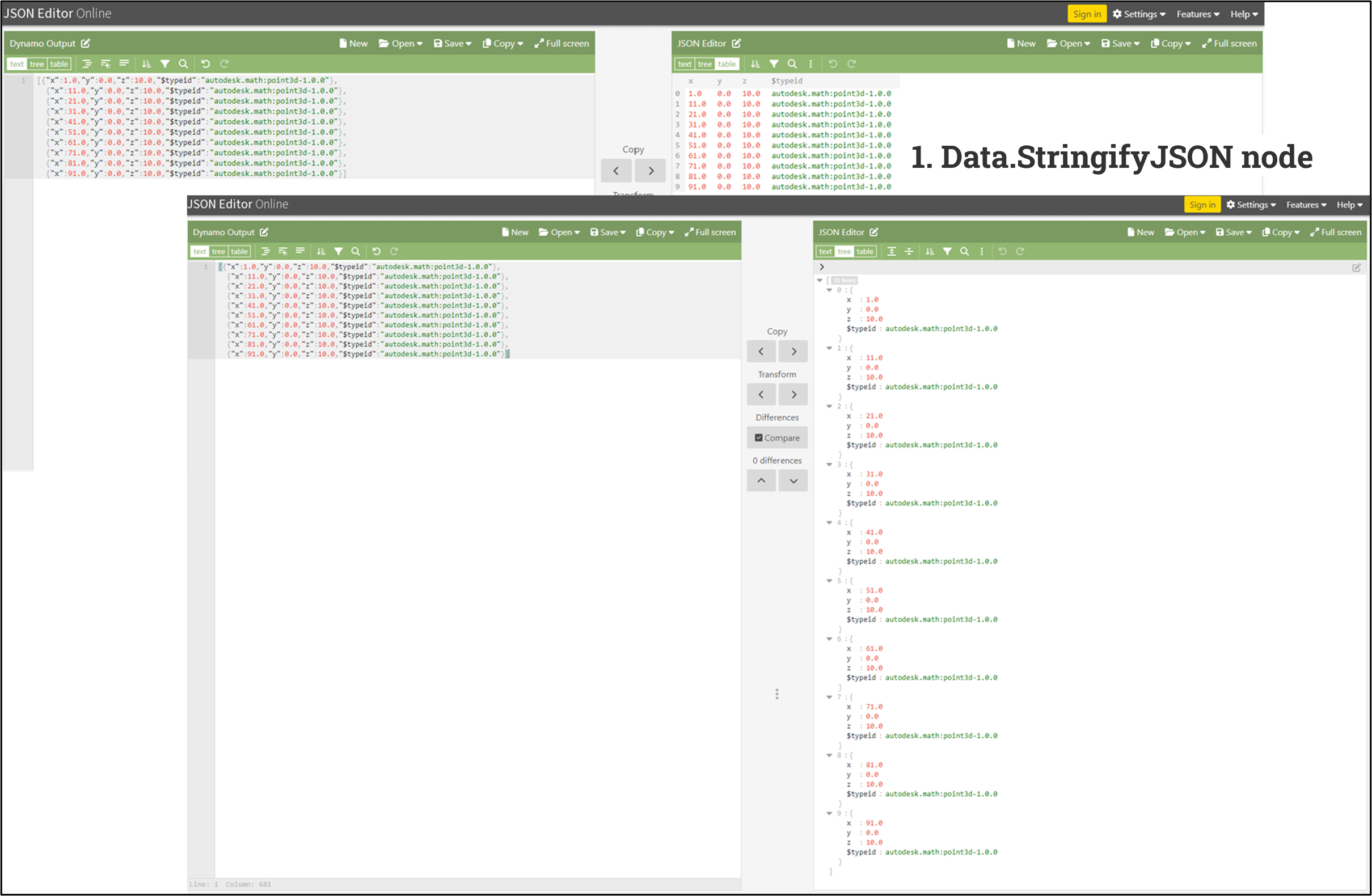
Using JSON Editor to read and/or update JSON string (output) generated by Data.StringifyJSON Node
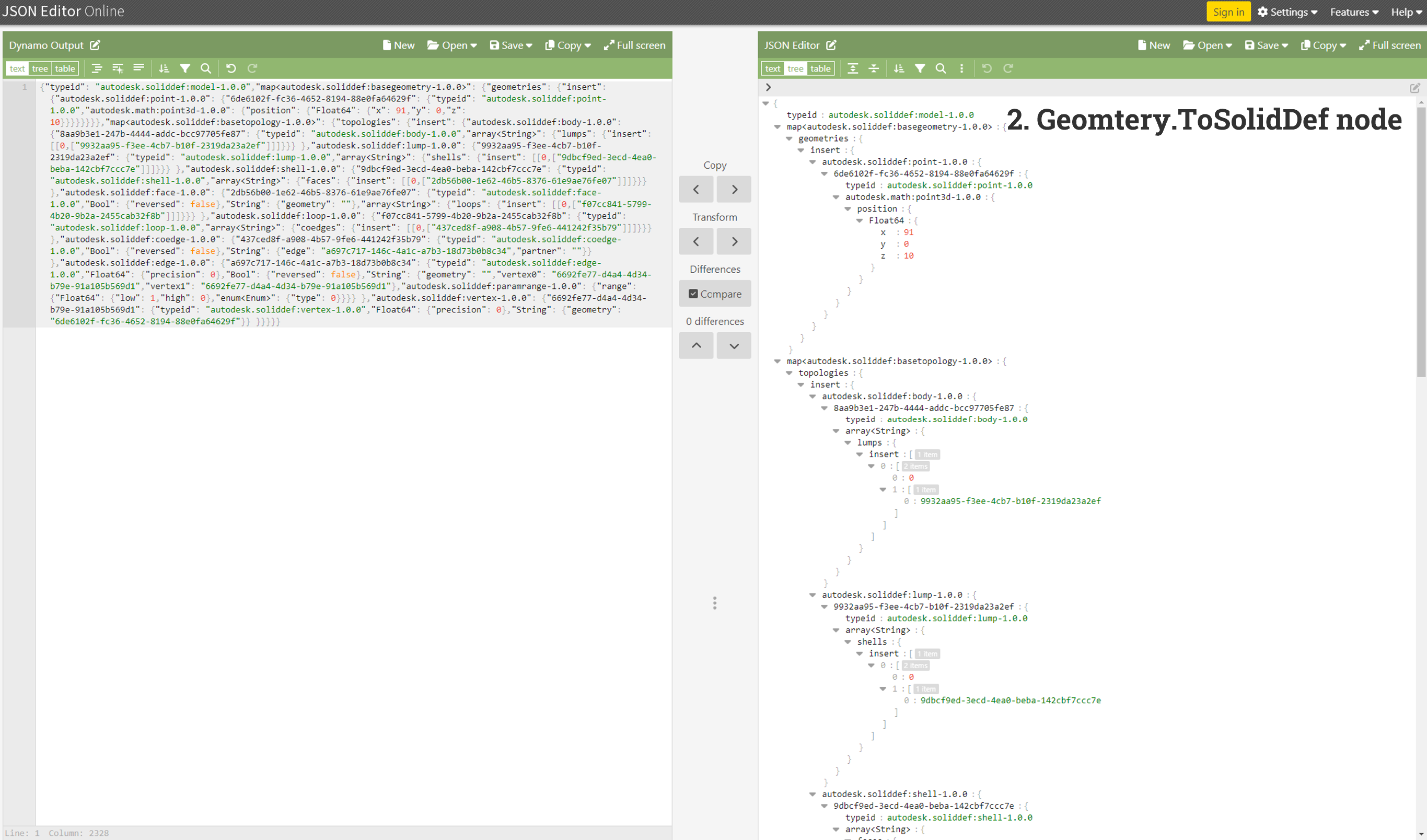
Using JSON Editor to read and/or update JSON string (output) generated by Geometry.ToSolidDef Node
How can we use these nodes in our workflows?
Now let’s see how you can use it in some real case scenarios.
In my previous role, I had leveraged the power of Dynamo for automating rebar detailing calculations and annotations. I’ll use an over simplified version of this rebar detailing workflow as an example to explain how the Data.StringifyJSON node can be utilized. The task at hand is to store data derived from a Dynamo graph, which calculated structural reinforcement details like rebar spacing, rebar size, and rebar quantities along with some geometry objects like Column location (Points), Rebar Shape (Curve), Rebar Span (Surface) and Rebar location-center curve (Curve). This data is then shared with a BIM modeler who would use another Dynamo graph for automating rebar annotations. Our method involved using a combination of SAT files along with csv/excel files for data storage and exchange. Sometimes, given the complexity of the model, with multiple unique floor slabs, this necessitated careful attention to naming conventions and the folder structure (file path).
Now, let’s reimagine this process using Data.StringifyJSON node. In this simplified example, let’s assume that the data that the BIM Manager required for slab reinforcement detailing is limited to the column locations (Point), rebar central curves (Curve), rebar lengths, rebar quantities, and rebar spacings (Integers).
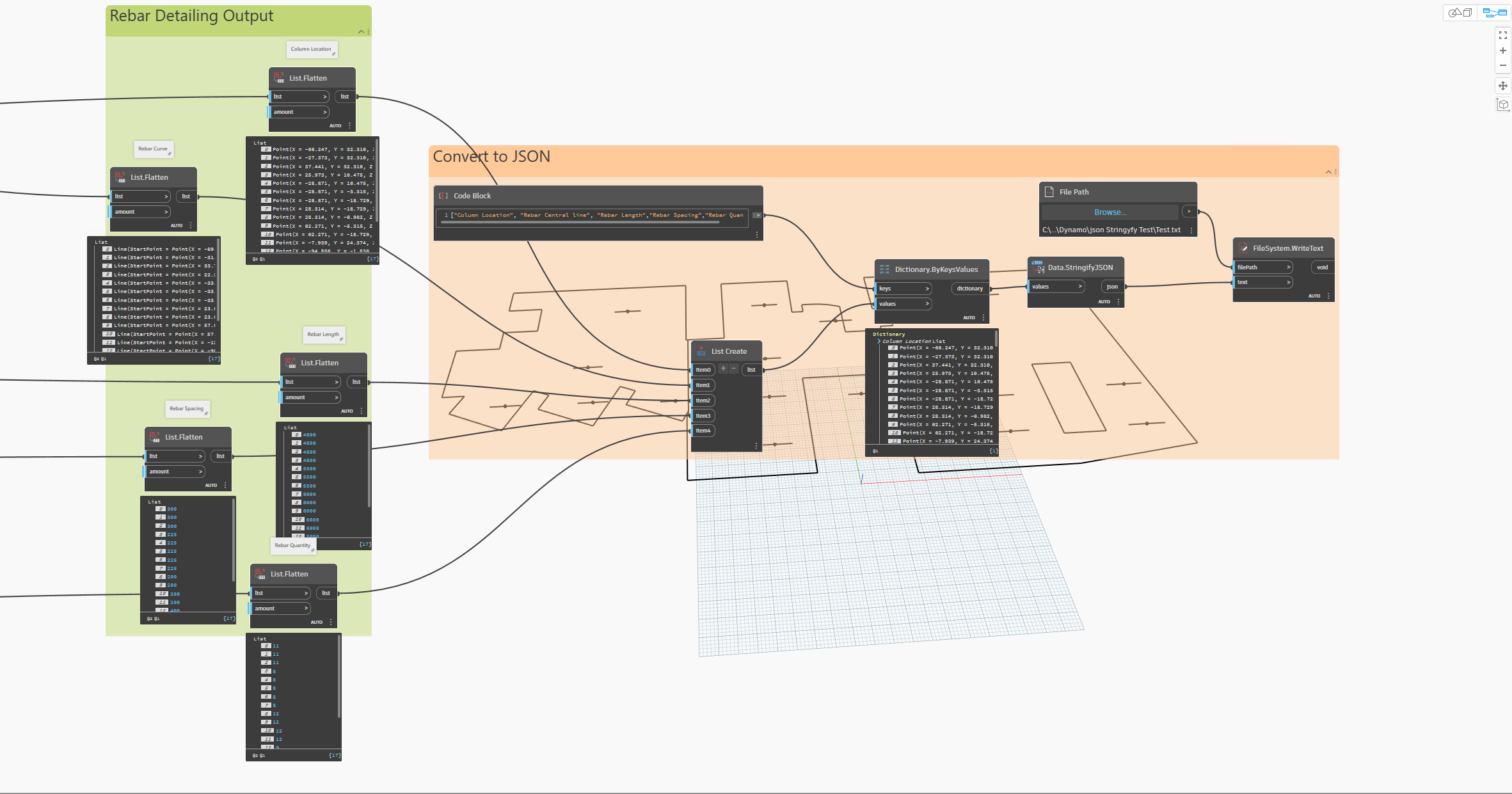
Example Dynamo graph to translate Dynamo core data types (Integers, Strings and Geometry) to JSON
In cases where structural slabs are identical across multiple levels, you can use the same information with a modification to the z coordinate of the point to match the Level’s elevation. To do this, I would open the file in a JSON editor and update the Z coordinates. As a user, I can still read/modify the string just like when I was using Excel to store/update the data. The BIM Manager can then use the Data.ParseJSON node to read the string back to Dynamo in their native data format, such as Point, Curve, Integers, or String.
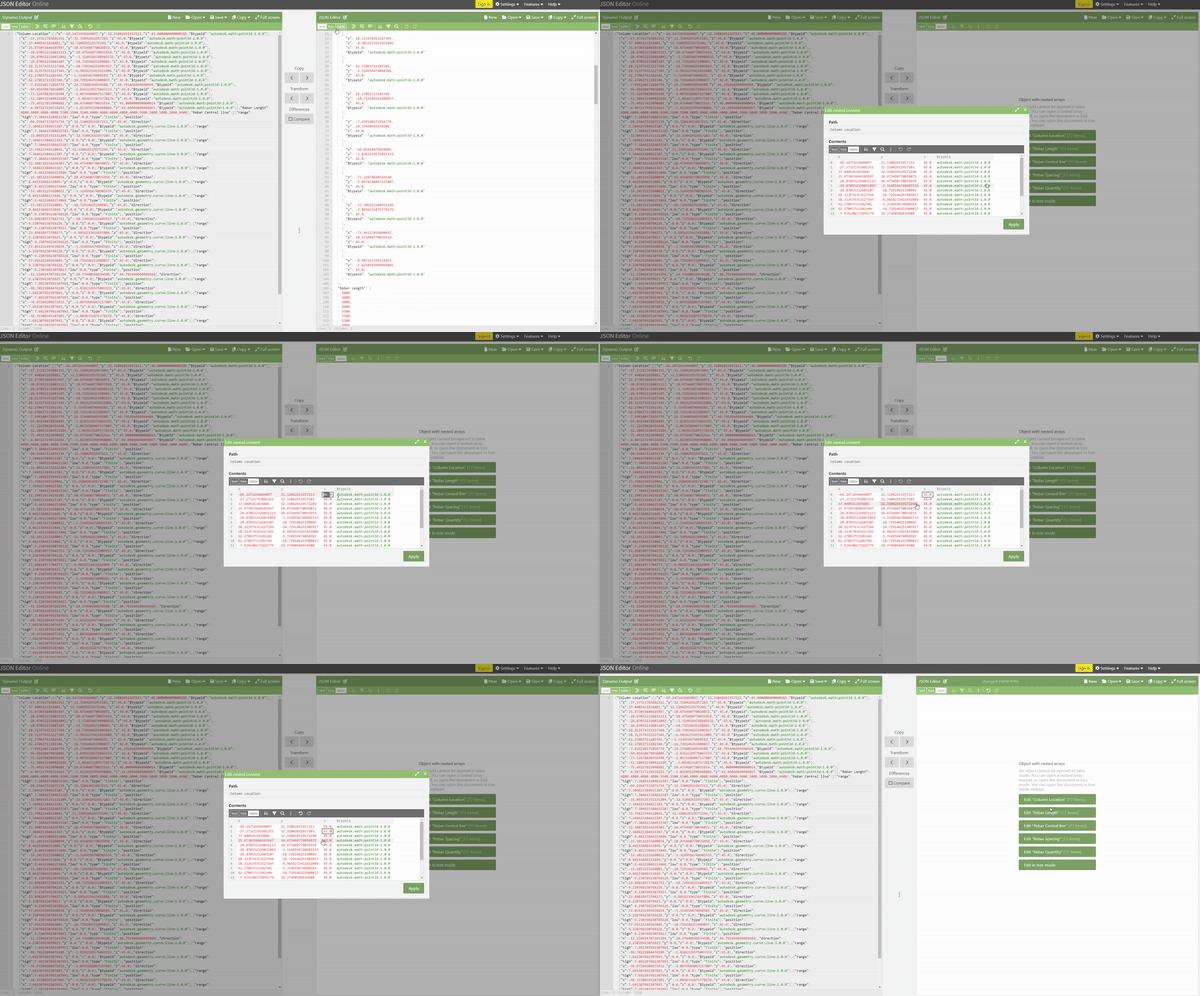
Example Scenario demonstrating manually reading and updating JSON string (output) generated by Data.StringifyJSON Node using JSON editor
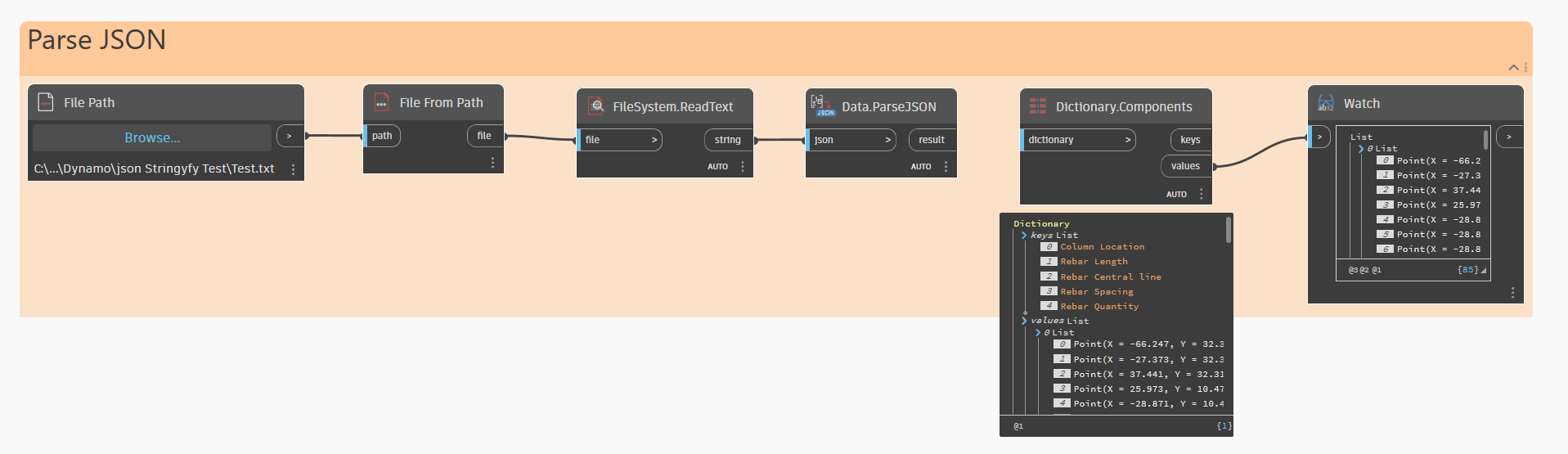
Example Dynamo graph to parse JSON string to Dynamo core data types (Integers, Strings and Geometry)
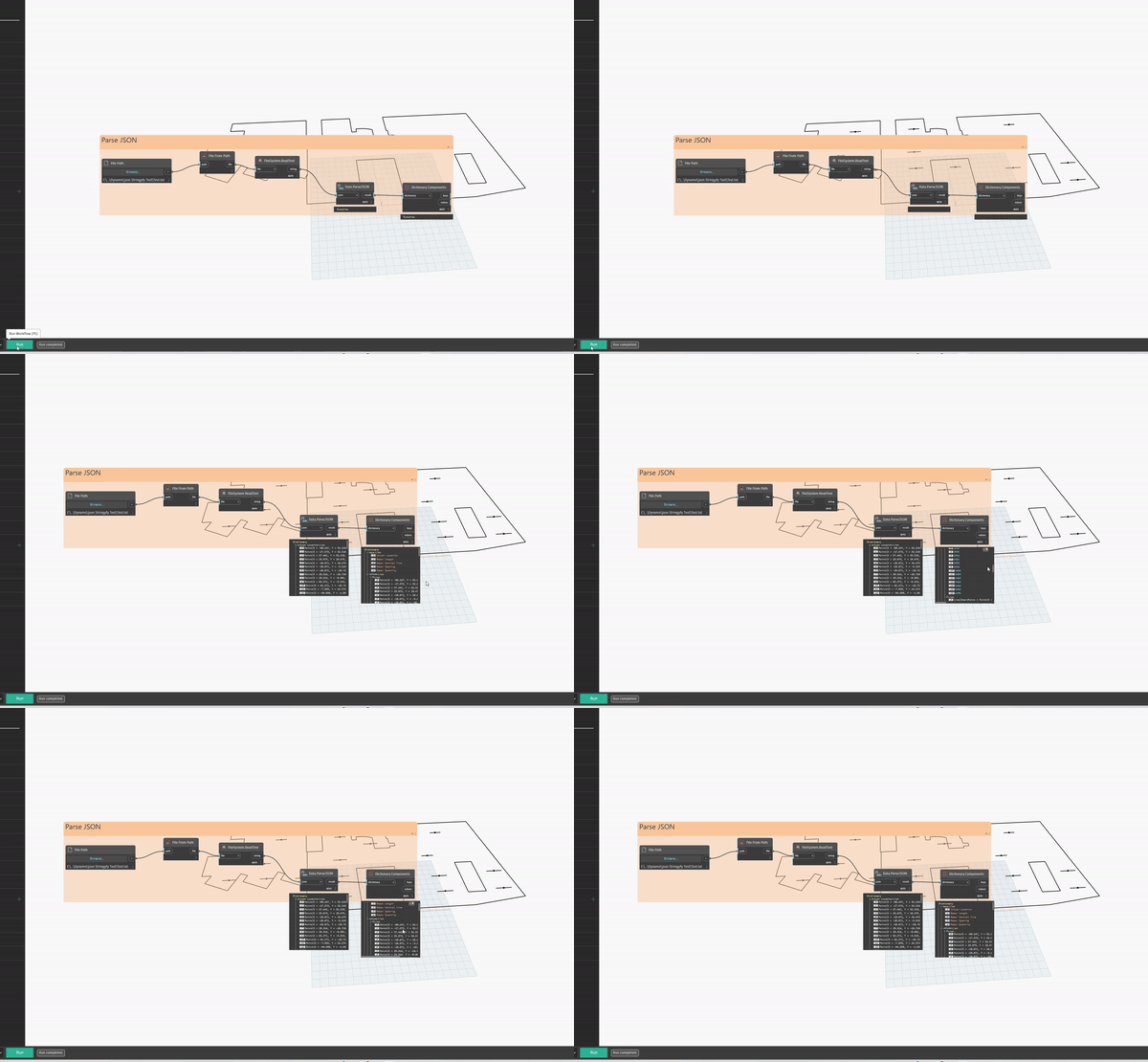
Example scenario demonstrating use of Parse JSON and using Dictionary.Components node to read Dynamo core geometry types from JSON String
This method seems easier right, then having information stored in multiple file formats while also being able to easily read/update and bring it back to Dynamo in its native format. However, remember that this method can be used for only Dynamo Core data types. If you want to store the list of Rooms from your model, what you can do, is get the geometry from the Room (eg. Boundary curve or Solids) and its properties (Room name, Category, Area) as Integers or Strings, and convert it to a JSON file to share it with your team or outside your team.
For instance, let’s consider a scenario where you are working on space programming using Dynamo for Revit and a custom VR tool for visualizations and walkthroughs. In this case, you want to update the space programming in your VR tool based on the data in your Revit model. This is where Data.StringifyJSON comes in. First, you can use Dynamo, to extract the relevant data from your model. This could be the names of the rooms, their sizes, their spatial relationships with each other, etc. Create a list of Dictionaries as how I did in the rebar detailing example above and convert this data into a string. Once your data is in JSON format, you can export it from Dynamo. This could be to a local file, or it could be to a cloud-based storage service, depending on your workflow.
Data.Remember Node
The Data.Remember node works the same way, but it stores the information within your Dynamo graph, so you don’t have to write and read the information. It’s particularly useful when you want to retain the data between different Dynamo sessions or as you all know it, for your Generative Design workflows. When you add nodes that depend on a Revit Selected node, you also add a Data.Remember node to hold the data. When the Generative Design tools panel is open during the authoring process, Dynamo indicates where a Data.Remember node is required.
Conclusion
In conclusion, Data.StringifyJSON and Data.Remember nodes facilitate the seamless exchange of data, whether it is between team members or Dynamo instances or from one tool to another. This is the beginning of a future where data from Dynamo flows freely, accurately, and most importantly, without being lost in translation.
We’re excited about the potential of these new nodes and would love to hear more about how you plan to use them in your own workflows.