Summary
In the Dynamo and Generative Design world, we often focus on workflows that are designed with architects in mind or workflows that are more general. For instance, viewport creation and laying out sheets is something pretty much every design team has to do; this includes architects, structural engineers, and MEP engineers.
However, a question that comes up very often is regarding MEP-centric workflows. This question comes up so often that we wanted to take a moment to highlight some of the processes, packages, and tools needed to work within an MEP setting in Dynamo. This post will also serve as a bit of a “preflight” for Generative Design workflows.
Dynamo’s Current File Nature
One topic that people don’t realize very often is, that Dynamo is made to work on the current active Revit file.
To summarize how Dynamo works (as simple as possible):
- With Revit file open, the user opens Dynamo
- Dynamo attaches to the current file and “subscribes” to the model.
- Changes in Dynamo are queued up for Revit to handle.
- Dynamo makes changes with undo options available (known as transactions)
For more information, feel free to check out Dynamo for Revit’s source code here.
Working with Linked Files
This poses an interesting issue for disciplines such as MEP because these models are often interacting with linked Revit files. Linked Revit files in the Revit API are their own distinct document and need to be accessed in a way that references that document directly.
In the below example we demonstrate one of the issues with working with linked files.
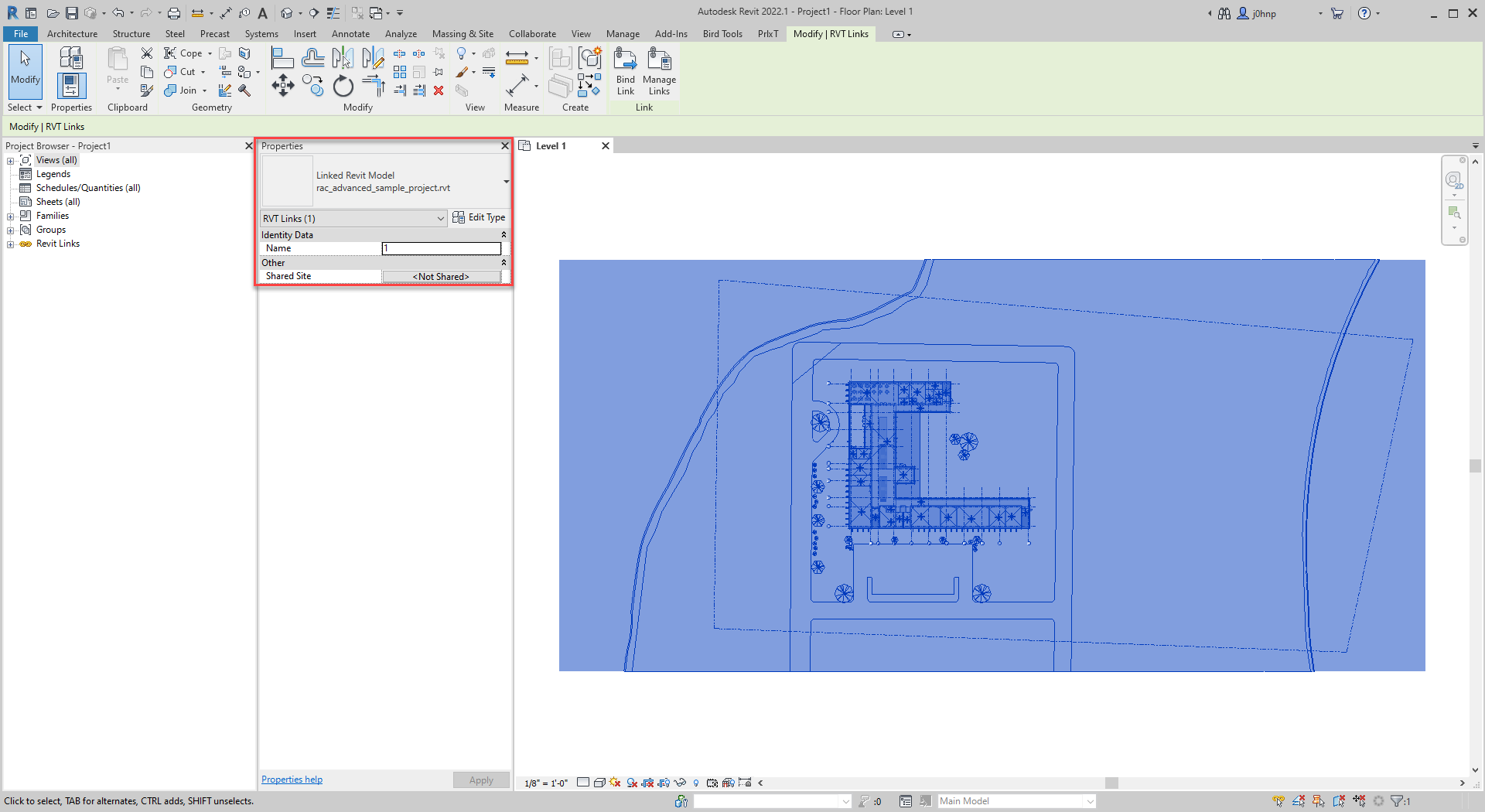
Architectural Model Linked
 1. Collecting Rooms with OOTB Nodes |
 2. Collecting Rooms from Link for use in the current model. |
In the above example, we can see in image 1 that no rooms are shown. This is because by default Dynamo is made to work on the current file. Image 2 demonstrates a way to obtain the rooms from the linked file. Essentially, we need to select the link instance (simulate tab selection in the Revit UI), and retrieve elements from that file’s document. This part of the example is using a custom Dynamo package called Spring Nodes for the collection. (Spring nodes is a package made by Dimitar of the Dynamo community and it is fully open source).
Why select architectural rooms when working in MEP?
Well, oftentimes coordinating MEP spaces with rooms (geometry or parameters) is needed. Additionally, synchronizing this data over the timeline of a project is tedious and Dynamo can definitely help with that.
Further considerations with linked files are related to coordination. If the file has been moved, your local coordinates will vary from the link file. Thankfully, packages have fixes for this as well. For instance, you will notice that the custom node from spring nodes also outputs the “transform” of the element to account for this difference.
 Room Locations on Moved Link |
 Relocated Room Locations |
Knowing how links work in regards to geometry locations is key in working with these files efficiently. There are other considerations, but the link file considerations are definitely one of the first ones we see happen.
Custom Packages for MEP Users
In addition to covering general considerations and how Dynamo works, we wanted to take a moment to look at a few of the custom packages available to users and their use cases. (Note: there are numerous helpful packages for MEP available and this is definitely not an exhaustive list.)
Spring Nodes
Website:
https://github.com/dimven/SpringNodes
Use-Case:
- At first glance, this does not seem like an MEP package. However, as detailed above, this package assists users with working with links.
bimorph nodes
Website:
Use-Case:
- This package has nodes for intersection calculation, working with CAD files, and controlling line styles.
Genius Loci
Website:
https://github.com/albandechasteigner/GeniusLociForDynamo
Use-Case:
- This package offers a lot of nodes for the Revit API. Most noteworthy are view cropping nodes which allow you to synchronize the view crop in your file with other files.
MEPOver
Website:
https://bimstallatie.sites.google.com/site/bimstallatie/dynamo/mepover-package
Use-Case:
- This package allows you to work with pretty much any MEP element. Connectors, Parts, Systems, spaces, and all sorts of other MEP-related elements.
Sparrow
Website:
Use-Case:
- Sparrow contains a lot of nodes for various algorithms. Shortest path optimization, K-Means clustering, etc. These are all useful in Dynamo, but also in Generative Design. One hidden node in this toolkit allows for ceiling pattern extraction. This is especially useful for MEP component placement while accounting for ceiling grids.
Autodesk University Classes Related to Dynamo and Generative Design for MEP
Dynamo for MEP Classes
- Programming Revit MEP? Say It Ain’t Dynamo by Jason Boehning
- In this class, Jason covers a variety of introductory topics and relates them to MEP in an easy-to-understand manner.
- MEP Modeling Made Easy in Dynamo by Cesare Caoduro
- Cesare covers Dynamo topics as they relate to Mechanical and Electrical contractors’ points of view.
Generative Design MEP Classes
- Moving Toward the Future of Design with Generative Design in Revit by Lilli Smith
- In this class, Lilli is joined by active users of the Generative Design process to discuss opportunities, the future of Generative Design and how they are applying it to their everyday workflows.
- HVAC System Selection with Generative Design by Sean Fruin
- In this class, Sean demonstrates how to fully utilize Generative Design to optimize and more efficiently select systems for MEP design.
As mentioned, the above list is not a full list of all the considerations with MEP in Dynamo or all the packages available. It is however a nice precursor to working in Generative Design with MEP. In an upcoming post, we will start building out workflows that utilize the above methods and packages to create Generative Design workflows in Revit.