Dynamo In Forma Beta now available!
Introducing the Dynamo in Forma Beta, the highly anticipated beta extension that empowers architects, urban designers, and real estate developers with design automation capabilities. The Dynamo in Forma Beta allows users to streamline their workflows and make informed decisions in the early stages of urban development projects. In this blog post, we will explore the key advantages of using Dynamo Player beta with Forma and walk you through the installation process. While this is an early effort with a developing set of functionalities, we hope you join us for the ride as we continue to unlock even more Dynamo capabilities in Forma over time, with the help of your ideas, use cases, and feedback. Let’s dive in and start envisioning the potential of automation in Forma with Dynamo Player beta.
What is Forma?
Autodesk Forma is an AI-powered platform that helps architects, urban designers, and real estate developers optimize and design better urban environments. It provides advanced tools and insights to support decision-making in the early stages of urban development projects.
What is Dynamo Player in Forma?
Dynamo Player is an extension that brings a variety of design automation capabilities to Forma users. Some key advantages of using Dynamo Player with Forma:
- Streamlined Automation: Dynamo Player simplifies the process of automating repetitive tasks and workflows in Forma. Custom graphs created with Dynamo’s visual programming environment can be executed directly within Forma with just a few clicks. The graphs are displayed as a list within Dynamo Player, making it easy to select and run them whenever needed. This streamlined process allows you to quickly execute repetitive tasks, reducing errors and boosting efficiency.
- Easy-to-Use Interface: Dynamo Player provides a user-friendly interface that makes it accessible to Forma users, with no Dynamo expertise required. In the future, we plan on releasing more sample graphs that give you access to Dynamo-powered automations without having to rely on developers or advanced coding skills.
- Customizable Parameters: Dynamo Player allows you to define input parameters for your automation graphs, enabling you to customize graph behavior based on your specific project requirements. You can set up options and values that can be easily modified each time the graph is executed, providing flexibility and adaptability to different scenarios.
- Reusability and Sharing: Dynamo Player promotes collaboration and knowledge sharing among Forma users. Automation graphs can be saved and reused across multiple projects, ensuring consistency and efficiency. Additionally, you can share your scripts with others in the Forma community, enabling them to benefit from your automation solutions and vice versa.
If you’d like to be one of the first people to try out Dynamo Player in Forma, read on!
Install Dynamo Player
To access the Dynamo Player beta version in Forma, you’ll need to install the DynamoFormaBeta package in Dynamo, then set up the extension in Forma. Let’s get started.
Note: The beta version currently works with Dynamo 2.19.3 Sandbox or Revit 2024.1 or Civil 2024.1 with the same Dynamo version, as well as future versions. You can download the sandbox version from Dynamo Builds.
Dynamo side
- Go to Packages > Search for a Package, and search for the DynamoFormaBeta package.
- Install the DynamoFormaBeta package to your computer.

This package enables the connection between Dynamo and Forma and contains a set of Forma-specific nodes.
With that, let’s finish up the setup on the Forma side!
Forma side
In Forma, you’ll need to add the Dynamo Player extension.
- Go to http://app.autodeskforma.com/ and sign in to your account. If you don’t already have access to Forma, you can purchase it or start a free trial.
- Open a project, and go to Extensions in the left-side panel.
- Click Add Extension, then click Add next to Dynamo Player. Dynamo Player will be added to your list of extensions. Close the Extensions window.

- In the Extensions panel, click the Dynamo Player extension to open it, then enter a path for the folder where you want to store your graphs.
- Note that this folder must be designated as a trusted file location in Dynamo, or you’ll get an error. Read more about trusted files in our blog post for Dynamo 2.15. To designate a trusted file location, in Dynamo, go to Preferences > Security > Trusted File Locations, then add path.

- Finally, if Dynamo 2.19.3 isn’t already running in the background, start it now to begin using Dynamo Player beta in Forma!
Getting started: Accessing graphs
You can try out your custom graphs in Forma by placing them in your designated graph folder. Alternatively, Dynamo Player beta comes prepackaged with sample graphs for you to experiment with.
Installing a sample graph:
- At the top of the Dynamo Player window, click the Show button next to Sample Files. You’ll see a list of samples along with a brief description and a Download link.
- Click Download under the sample you want to try. Then, move the DYN file you just downloaded into your designated graph folder.
- For convenience, hide the Sample Files list, then click the Load button to refresh the list of graphs. The graph you just downloaded should appear.
Using a sample graph:
- Click the newly installed graph to start using it. If you already had a graph open in Dynamo, you’ll need to save or discard changes to that graph before a new one can be opened.
- The graph’s inputs and controls change from graph to graph and can include sliders, checkboxes, input fields, canvas selections, and more. Once you’re done configuring the graph, hit Run to apply the changes.
- Once the Run is complete, depending on the graph, you may have the option to add the preview geometry from Dynamo into your Forma proposal by clicking the Add button in Dynamo Player.
Sample graph: Pixelated tower
Let’s take a closer look at one of the sample graphs that come with Dynamo Player. Pixelated Tower is a simplified homage to the MahanNakhon tower, a mixed-use high-rise in Bangkok, Thailand, designed by Büro Ole Scheeren Group. This sample gives you a taste of architectural exploration in Forma, and you can use it to start investigating the various analysis options available.

Once you’ve installed the Dynamo Player beta extension, follow the steps below to create your own pixelated tower in Forma. If you haven’t created a project in Forma yet, follow the instructions in this tutorial, then continue with the steps below.
- Open a project, and click Dynamo Player in your Extensions panel. Remember, Dynamo must be running in the background. Select the Geometry-CreatePixelTower sample.

- Once the sample opens, you’ll see several inputs you can manipulate. Use the sliders [ 1 ] , then click Run [ 2 ] when you are ready to generate the tower.

- When you are satisfied with the tower’s inputs and want to add it to your project, click Add [ 1 ]. If you want to move or rotate the tower, click the Move icon [ 2 ] in the right toolbar. With this tool activated, you can click the tower, then the spot you want to move it to. Refer to the popup [ 3 ] for exact dimensions.

- Next, let’s create a site limit, which will allow us to explore analytics options. First, hover over the Limits icon [ 1 ], and click Site Limit. This will allow you to draw the site limit [ 2 ], either by using shape tools or by drawing freeform.

- Coming soon: Edit in 3D Sketch! Adding the tower to the project adds it as a mesh, so we’ll need to convert it to an object. And very soon, you’ll be able to do that using 3D Sketch. Select the tower, and click Edit in 3D Sketch [ 1 ].
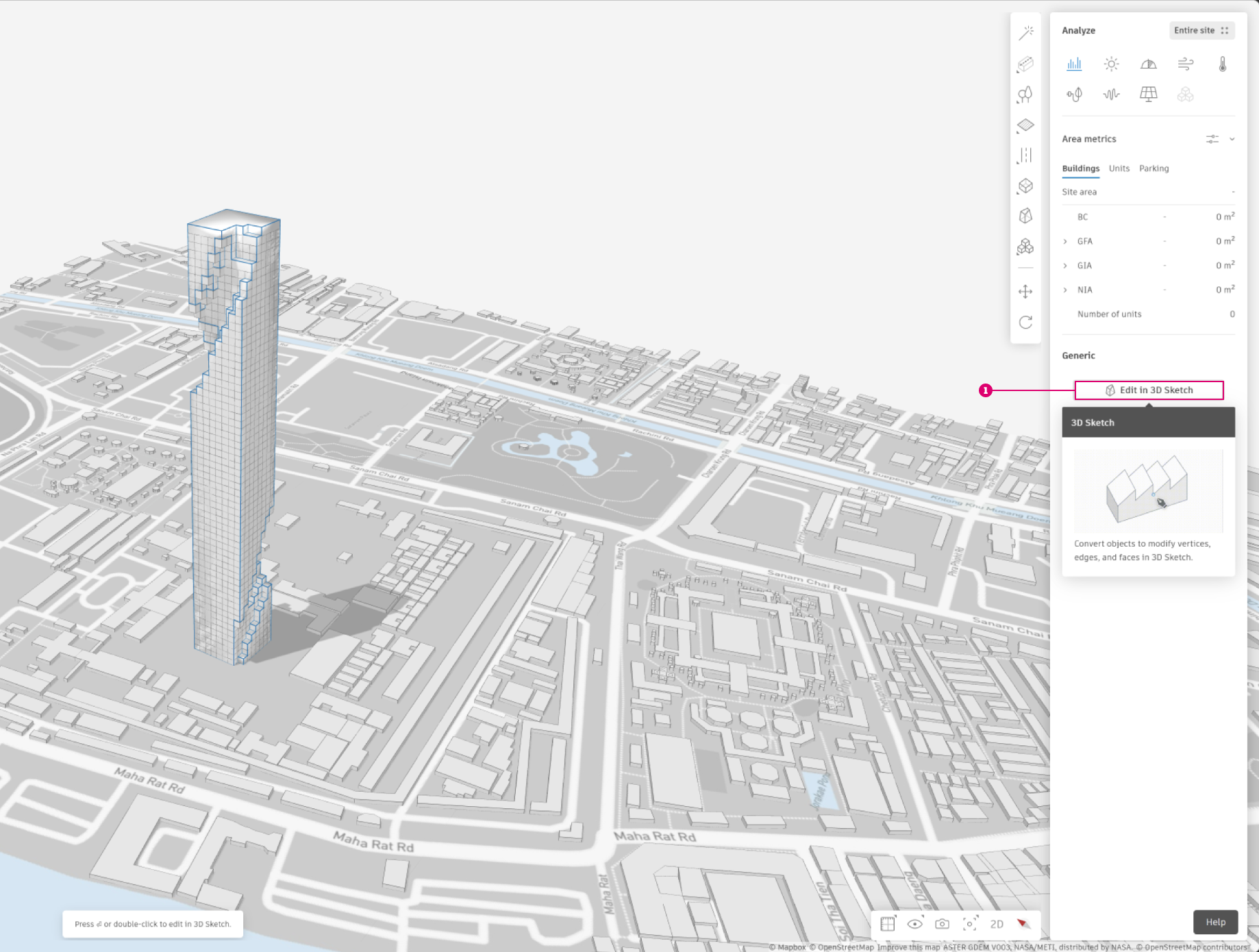
- In 3D Sketch mode, we can add floors to our tower. Select the tower, and click Add Floors [ 1 ].

- Next, we’ll default height to 5m [ 1 ] to match our input slider in the Dynamo Player graph for Cube Size so our floor slices make sense.

- You can set taller-height floors at the base of the tower (see lower right in the screenshot) if they are in increments of the same height as in the graph. In our example, they are 5m, so we can use 5, 10, 15, 20, etc.

- Now that we’ve created our floors, we can go ahead and select individual floors and specify their function:
- Residential
- Commercial
- Unspecified

- Once floor functions are specified, commercial floors show up in yellow, and residential floors show up in purple. At this point, you’ll also be able to look at area metrics [ 1 ].

- Explore some of the analysis options Forma has to offer! Featured below:
- [ 1 ] Solar analysis
- [ 2 ] Wind comfort
- [ 3 ] Daylight potential
- [ 4 ] Wind direction

Troubleshooting
Running into issues trying to launch Dynamo Player beta in Forma? Check out some of these possible causes and solutions:
- Make sure you are on the correct version of Dynamo: Either Dynamo Sandbox 2.19.3, Dynamo for Revit 2024.1+, or Dynamo for Civil 2024.1+
- If you downloaded the DynamoFormaBeta extension files instead of installing them via package search, you’ll need to unblock the files before they can be used. You can do this in one of two ways:
- Right click the file, go to Properties, and tick the Unblock checkbox at the bottom of the General tab.
- Extract the files with 7-Zip, a free, open-source file archiver tool.
- Ensure that the unzipped DynamoFormaBeta package folder is directly under the Packages folder for Dynamo 2.19, rather than nested under an extra folder named DynamoFormaBeta.
- Confirm that the graph folder in Forma is a trusted file location in Dynamo. See step 4a under the Install Dynamo Player: Forma Side section, above.
- Dynamo needs to be running while you are using Dynamo Player beta in Forma. If it is running, but you are getting an error, check Dynamo for any message dialogs that may be blocking the desired action.
Check it out, and join the conversation!
We hope you’re as excited to dive into the Dynamo Player beta in Forma as we are to be offering it to you! This is still an early version, with plenty of room for improvement and endless possibilities, and we want you to join us on the journey to making Dynamo Player as powerful as it can be. So give it a try, and let us know what you think by posting on the forum. All bug reports, suggestions, questions, and comments are welcome. See you in Forma!