Hey Civil 3D users,
We have some big news for you today. Dynamo for Civil 3D just got WAY more powerful! If you’ve used Dynamo in your projects at all over the past few years, you’ve probably become very reliant on third-party node packages to get your work done. This is because Dynamo for Civil 3D came with a relatively limited set of nodes (226 to be exact) that were geared towards workflows involving blocks, property sets, alignments, corridors, and COGO points. These were enough to get you started with building amazing Dynamo graphs that boosted your productivity, but we also heard that they weren’t enough to meet all your needs.
We’re thrilled to announce that in the Civil 3D 2025.1 update, Dynamo now comes with a massive set of 1,120 new nodes! In addition to all these awesome new nodes, this update is packed with other new features and lovely improvements to help make Dynamo more powerful and easier to learn. Read on for more details.
To get all of this great new stuff right now, download and install the Civil 3D 2025.1 update using the Autodesk Access desktop app, or download it by signing in to your Autodesk account on manage.autodesk.com.
TL:DR
Dynamo for Civil 3D just got a whole lot more powerful. In this release, there are over 1,100+ new nodes for working with design objects like pipe networks, feature lines, and more. These new nodes enable you to automate more complex design tasks, such as creating multiple corridors, extracting solid layers from terrain surfaces, or automatically annotating multiple design elements at once.
We’ve also taken great strides to make Dynamo easier to learn. There is a fresh set of sample graphs to help jumpstart your Dynamo learning and give inspiration for your next project. The node library has been reorganized to make it easier to find nodes, and we’ve improved the descriptions and port tooltips for all nodes.
Lastly, Dynamo Core has been updated to version 3.2.2, bringing you a refreshed homepage, workspace templates, new paneling nodes, and more.
So, what’s dropping with Dynamo for Civil 3D 2025.1?
The rest of this post is going to be a deep dive into all the goodness in this release. Here’s the breakdown:
- A richer experience
- New nodes and features
- Smaller buckets of work
- Changes to be aware of
- Bug fixes
- Compatibility
- What’s next?
A richer experience
Good ‘ol Dynamo, but better
As soon as you open Dynamo in this release, you’ll see that things look different, but also familiar. It will be different because there is a totally new Dynamo Home, a refreshed homepage that helps you access your graphs and learning resources with more efficiency. But it will feel familiar because this new home is consistent with the design of the Civil 3D home, as well as other Autodesk products.
In the new Dynamo Home, you’ll see a new Samples tab on the left. This release includes 18 new sample graphs to jumpstart your Dynamo learning and give you inspiration for your next project. In addition, we’ve updated all existing sample graphs with better node groups and notes so that you can follow along with the logic.
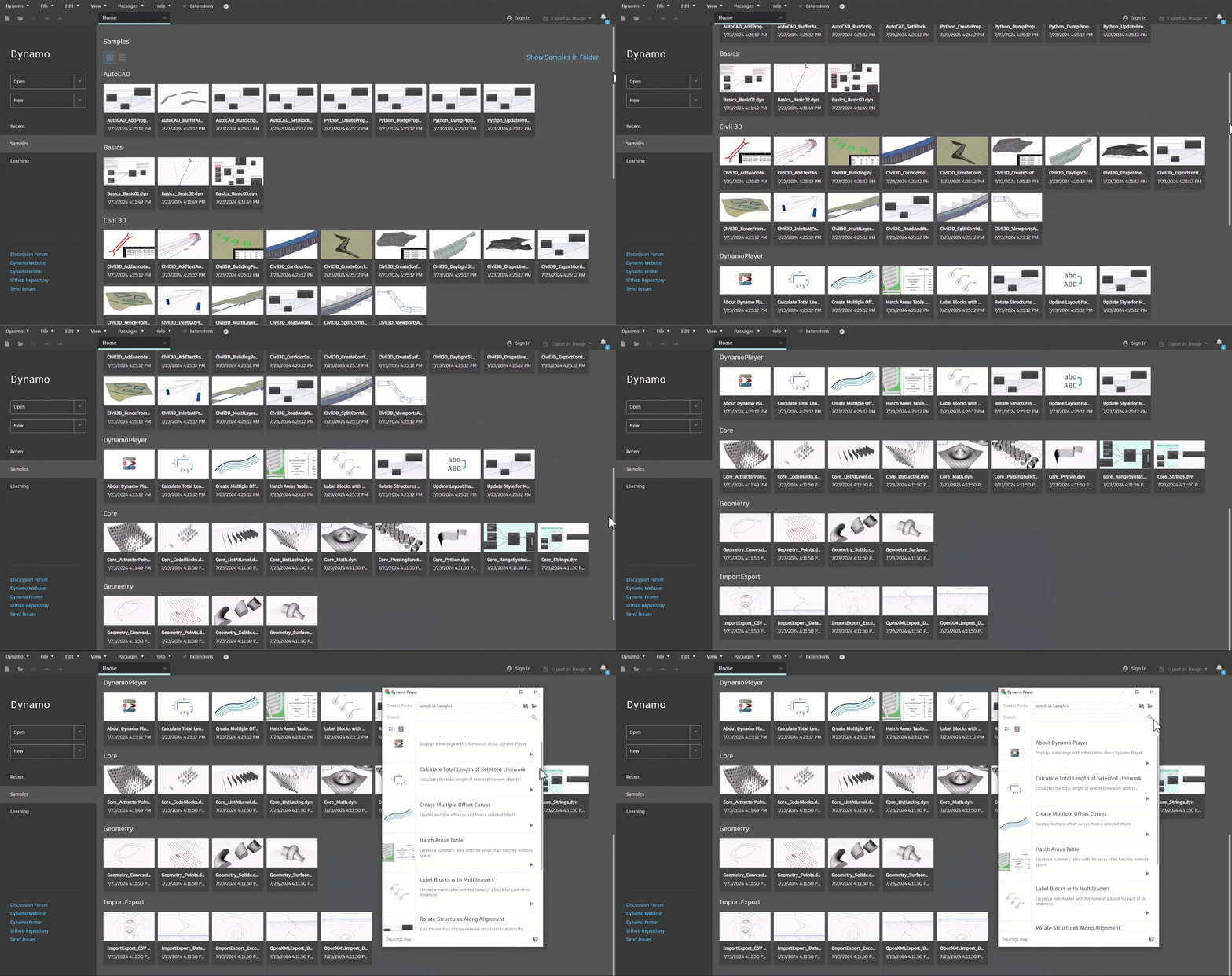
New and improved Dynamo Home, with fresh sample graphs available in the Samples tab and in Dynamo Player
The revamped home is just one of the many improvements in Dynamo Core 3.2.2, the version that comes with Civil 3D in this release. Take a look at the release notes for both Dynamo Core 3.1 and Dynamo Core 3.2.1 to get the full list of improvements that are baked into this update.
More-intuitive library
In this release, we’ve revamped the node library so that it’s easier to browse the nodes and find what you’re looking for. You’ll notice that the root-level AutoCAD and Civil 3D categories are the same, but within those two, things have been shuffled around a bit. We’ve rearranged the nodes to align with how most people tend to categorize AutoCAD and Civil 3D concepts. If you’re familiar with the Toolspace in Civil 3D, then you’ll see a lot of similarities here.
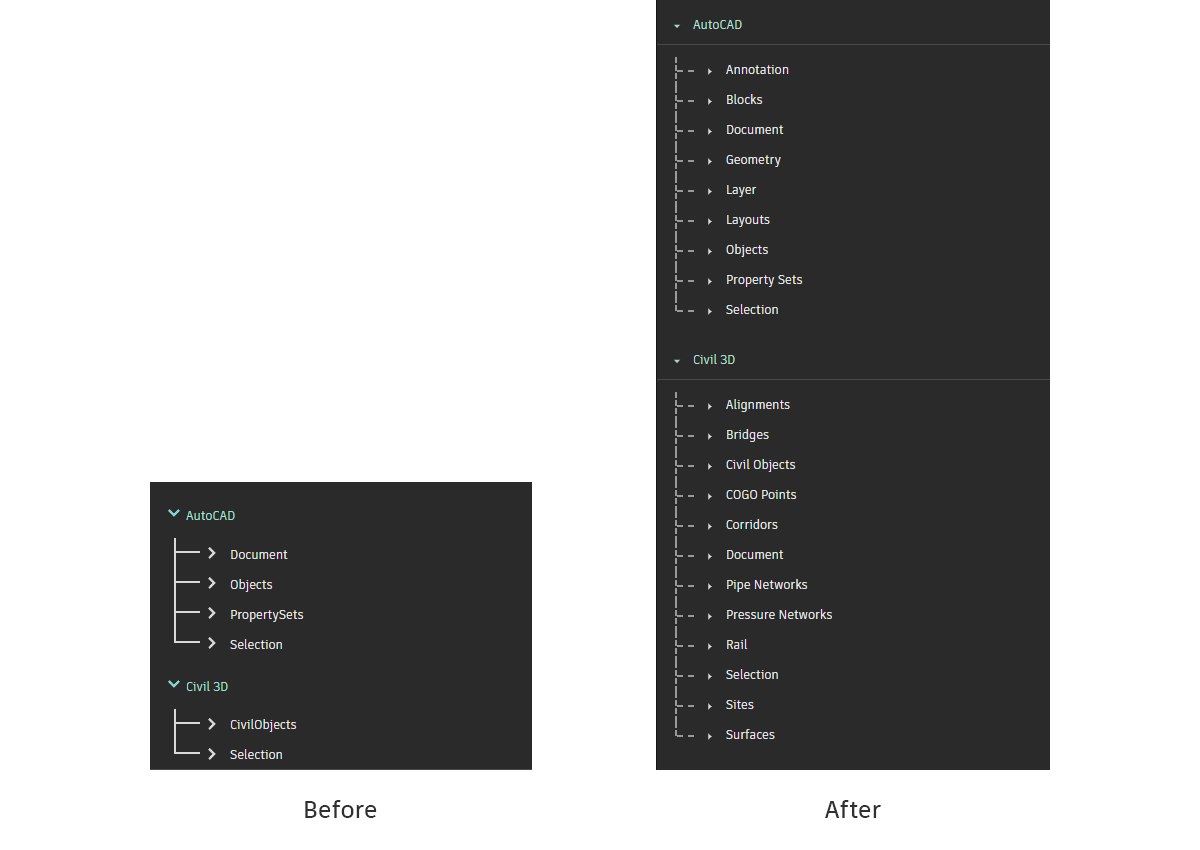
Improved library organization
Luckily for us, we didn’t have to come up with this on our own – there is an awesome community of Dynamo users like you that jumped in to help us out! Big shout-out to everyone that contributed to the user research surveys that we sent out related to this effort.
Fresh new icons
As you browse through the new library layout, you’ll find some new eye candy in the form of updated node icons. The icons are consistent within each node category so that it’s easier to quickly identify nodes when searching.
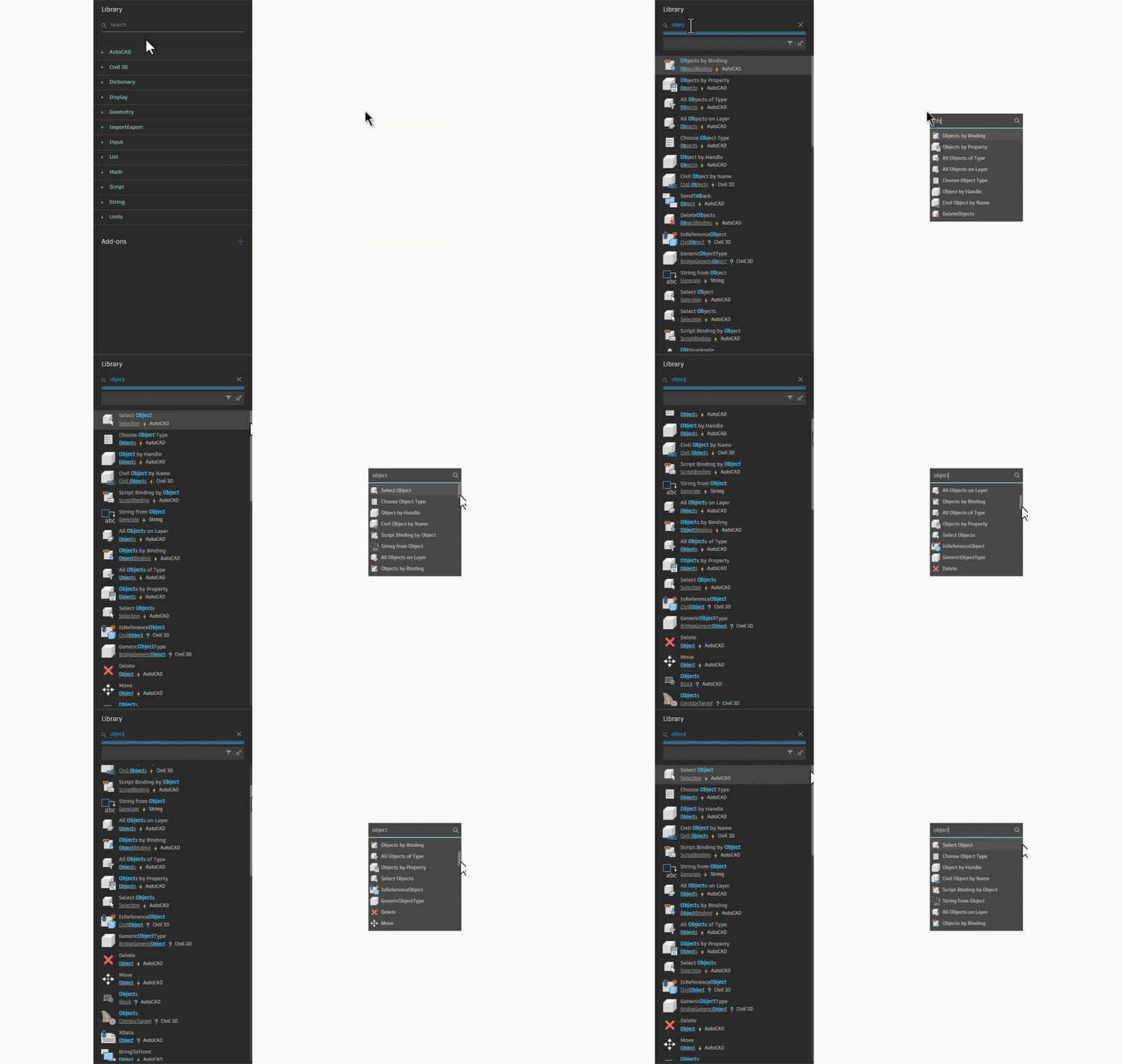
New node icons
Improved node documentation
In this release, we put in a ton of work to add more documentation to each node so that you can find all the information you need without leaving Dynamo. The first thing we did was to improve the consistency and clarity of the descriptions for each node. In addition, we’ve ensured that every input and output port has a helpful tooltip when you hover your mouse over it. Our goal with these improvements is to make it easier for you to understand how each node works.
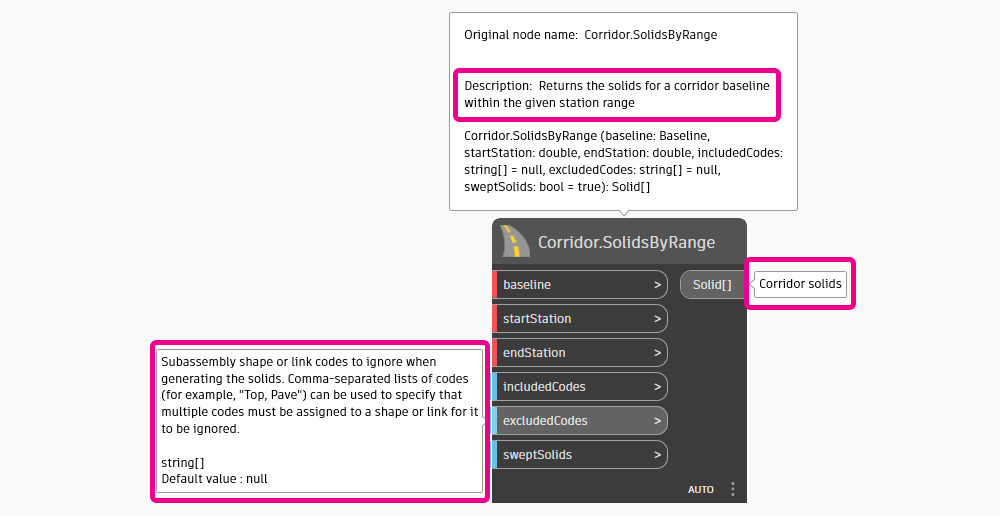
Example of improved node description and port tooltips
New nodes and features
Let’s dive into the different areas of the node library and explore what’s new. We’ll cover the highlights, but we won’t talk about every new node. Download the Civil 3D 2025.1 update today to get the full experience!
Corridors
Prior versions of Dynamo for Civil 3D laid the groundwork for automated corridor modeling. In this release, we’re cranking up the power in a big way, with over 80 new nodes that enable you to automate tasks like these:
- Create corridors with the
Corridor.ByNamenode - Import assemblies from other drawings with the
Assembly.Importnode - Add baselines from alignments and profiles with the
Corridor.AddBaselineByAlignmentProfilenode - Add regions along a baseline with the
Baseline.AddRegionnode - Modify the frequency settings for baseline regions with the
BaselineRegion.SetHorizontalBaselineFrequency,BaselineRegion.SetVerticalBaselineFrequency, andBaselineRegion.SetOffsetTargetFrequencynodes - Set subassembly targets with the nodes in the
CorridorTargetcategory - Get corridor solids directly in Dynamo with the
Corridor.SolidsByRangenode, without needing to extract them to the drawing first
Put all of this together, and you can fully automate the generation of an entire corridor model (or several!) completely from scratch.
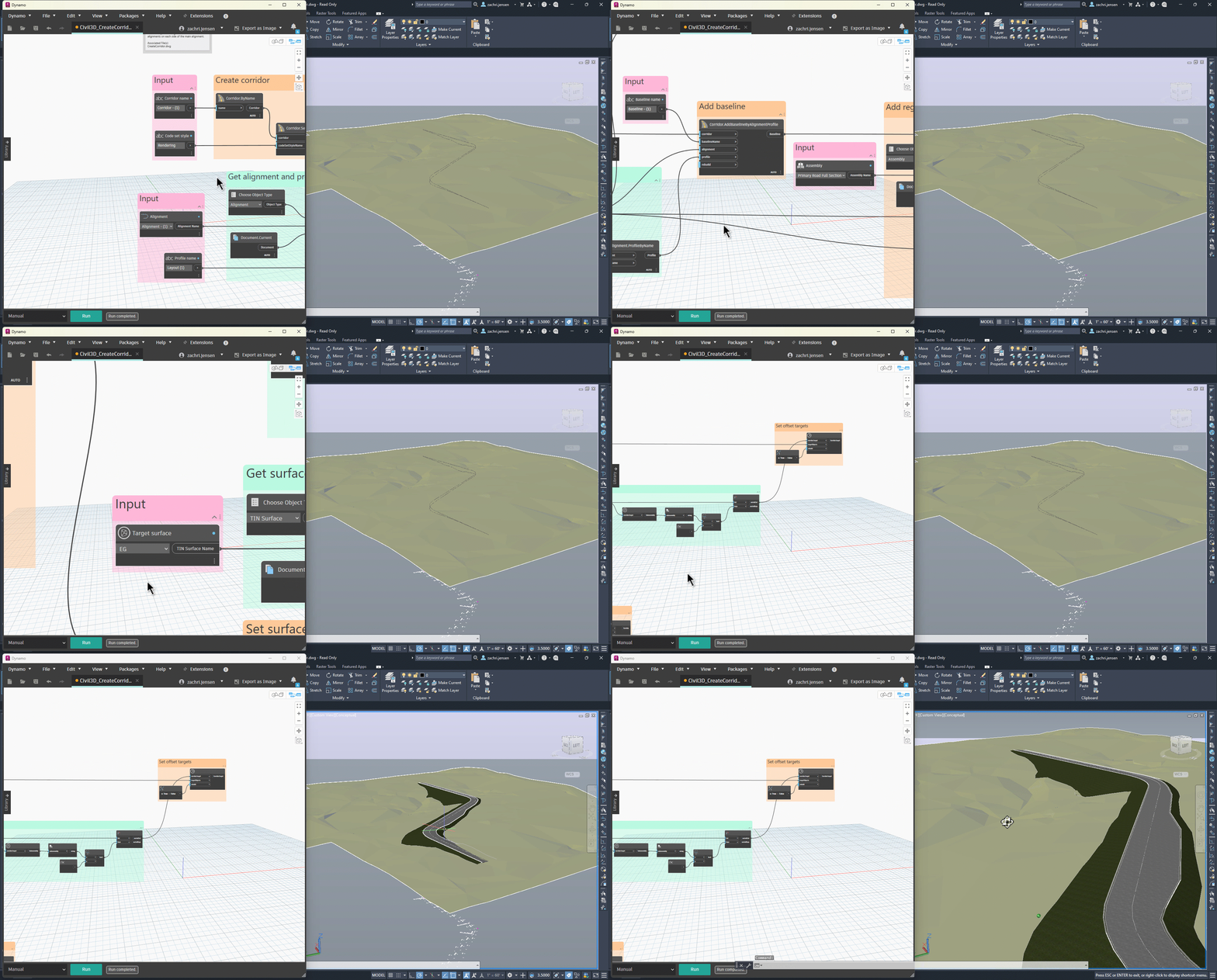
Creating a corridor, adding baselines and regions, and setting targets
Oh, and one more thing. You can now work with corridors that have feature line baselines, which was not supported in prior versions.
Alignments and profiles
Alignments and profiles are the backbone of infrastructure projects. That’s why we wanted to make a splash with this release and give you a truckload of new nodes for working with alignments, profiles, and sections. There are over 280 new nodes in this area, and here are some things you can do with them:
- Create basic alignments from a set of PI points with the
Alignment.ByPointsnode - Query the properties of alignment entities and sub-entities
- Easily compute the perpendicular distance from one alignment to another with the
Alignment.DistanceToAlignmentnode - Get alignment geometry as a polycurve with the
Alignment.PolyCurvenode - Add or modify cant and superelevation curve data
- Query the applied cant or superelevation parameters at any station with the
Alignment.CantInfoAtStationandAlignment.CrossSlopeAtStationnodes - Create surface profiles with the
Profile.BySurfacenode - Create basic layout profiles from a set of PVI station and elevation values with the
Profile.ByStationsElevationsnode - Easily get the high and low points along a profile with the
Profile.HighPointsandProfile.LowPointsnodes - Query and modify profile PVIs and entities
- Create profile views with the
ProfileView.ByAlignmentnode - Create sample line groups and sample lines
- Create section views with the
SectionView.BySampleLinenode

Creating an alignment with PIs derived from pipe network structure locations
Surfaces
Surfaces got a lot of love in this release as well, with a couple of super cool nodes for extracting geometry from surfaces:
- Get surface contours with the
Surface.ContoursByInterval,Surface.ContoursByRange, andSurface.ContoursAtElevationnodes - Get the paths of travel that a drop of water would follow along a surface with the
Surface.WaterDropPathsnode - Get the boundary geometry of all watersheds for a surface with the
Surface.Watershedsnode - Get the mesh geometry of a surface with the
Surface.Meshnode - Get solids from a TIN surface with the
TinSurface.SolidsAtDepth,TinSurface.SolidsAtFixedElevation, andTinSurface.SolidsAtSurfacenodes
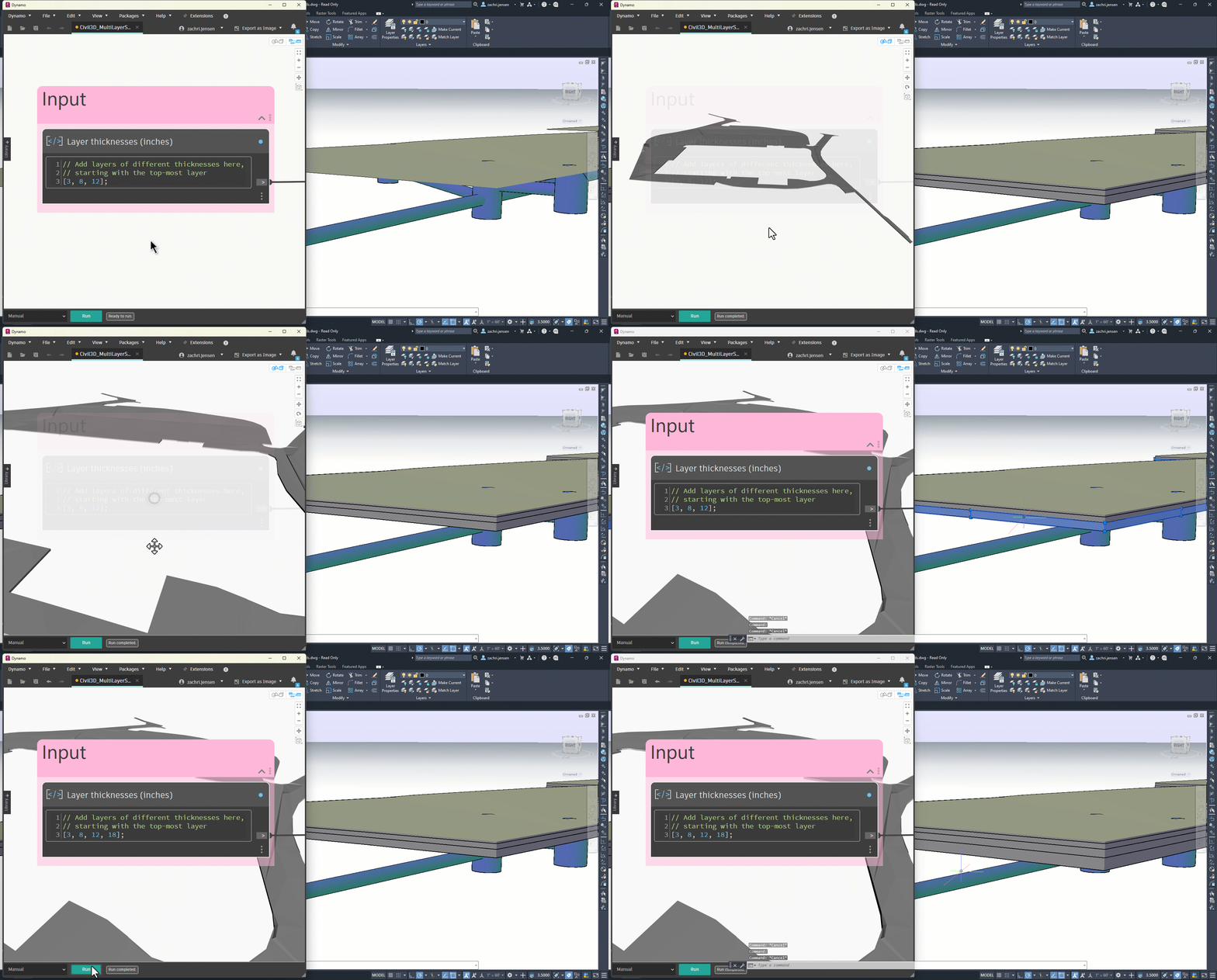
Extracting multiple solid layers from a TIN surface
Pipe and pressure networks
If you work with underground utilities, you might be thinking, “what about me?” Don’t worry, we’ve got you covered! We’ve flooded (pun intended) the node library with over 200 new nodes for working with pipe networks and pressure networks in this release. Here are some tasks that are now unlocked for you to automate:
- Create pipe networks and pressure networks with the
PipeNetwork.ByNameandPressureNetwork.ByNamenodes - Create linear pipes between structures with the
Pipe.ByStructuresnode - Create linear or curved pipes from Dynamo geometry with the
Pipe.ByInvertsnode - Create structures with the
Structure.ByPointnode - Swap part sizes with the
Pipe.SwapandStructure.Swapnodes - Add and remove parts from profile views
- Query or modify part data values
- Get all the parts that form the shortest path between any two parts with the
PipeNetwork.ShortestPathBetweenPartsnode - Get the 2D and 3D curve geometry of pipes and pressure pipes
- Extract the solid geometry of any part with the
Object.Geometrynode
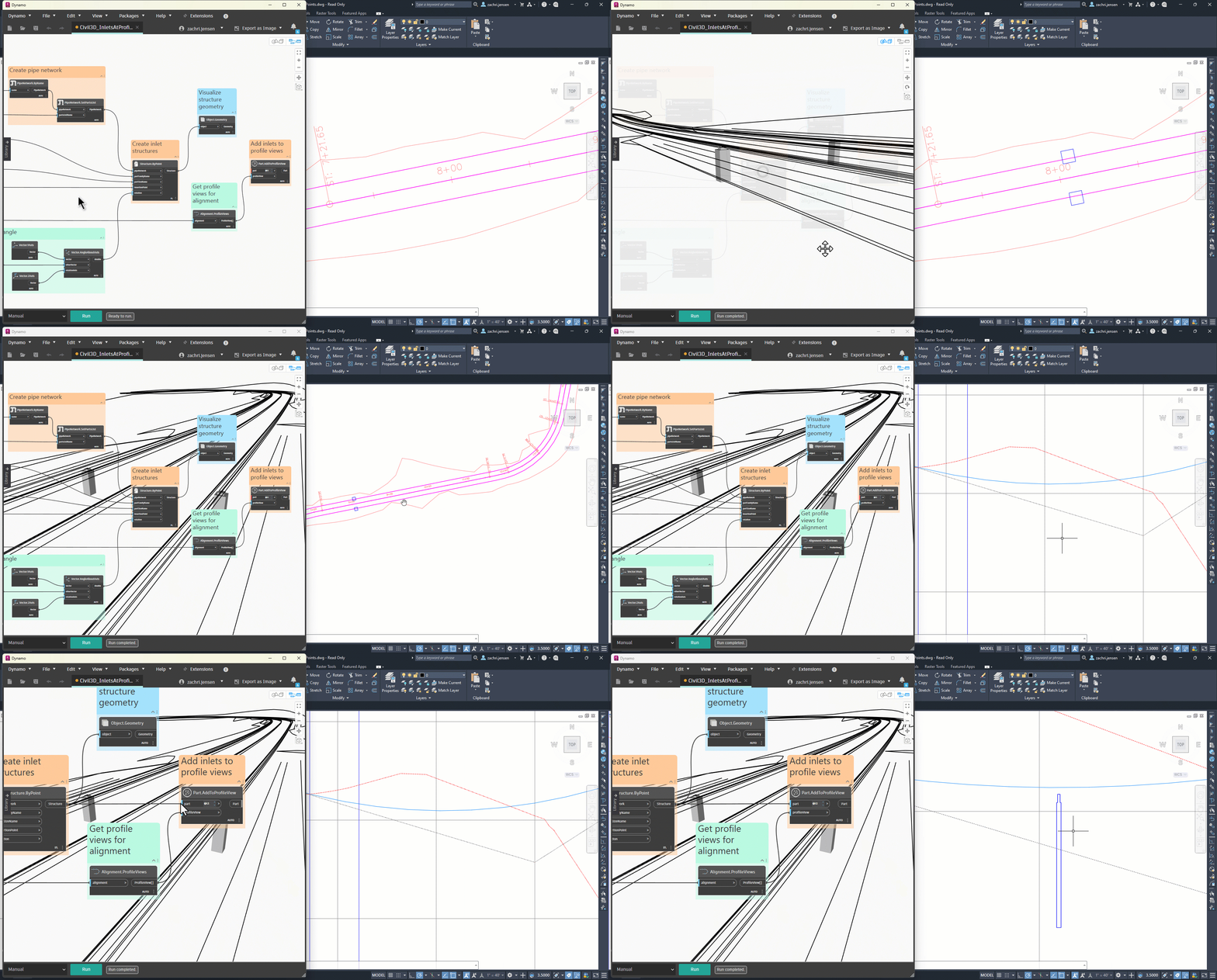
Creating inlet structures at profile low points and adding them to a profile view
Feature lines
Being able to work with feature lines in Dynamo has been a highly requested addition. This release gives you 24 new nodes for feature lines, enabling you to:
- Modify the absolute or relative elevations of feature line points with the
FeatureLine.SetPointElevationnode - Set feature line elevations from a surface with the
FeatureLine.SetElevationsFromSurfacenode - Get the 2D and 3D curve geometry of feature lines with the
FeatureLine.Curve2DandObject.Geometrynodes - Get a coordinate system at any station along a feature line with the
FeatureLine.CoordinateSystemAtStationnode - Query and modify feature line curve radii

Modifying building pad feature lines using elevations from a CSV file
Sites, parcels, and COGO points
Land development engineers and surveyors, rejoice! There is a lot more that you can do with sites, parcels, and COGO points in this release. Here are some of the highlights:
- Renumber COGO points with the
CogoPoint.Renumbernode - Modify the location and rotation of COGO point labels and markers
- Query and modify parcel properties, such as the number, address, and tax ID
- Set the location of parcel labels with the
Parcel.SetAreaSelectionLabelLocationnode - Create sites with the
Site.ByNamenode - Get user-defined property (UDP) data for COGO points and parcels with the
CogoPoint.UserDefinedPropertiesandParcel.UserDefinedPropertiesnodes
Bridges
This release also features the debut of bridges into the world of Dynamo. After you’ve imported an InfraWorks bridge model into Civil 3D, you can now retrieve the geometry of the bridge structures as Dynamo solids and meshes.

Bridge geometry as Dynamo solids and meshes
Geometry
And speaking of geometry…
Moving geometry between Dynamo and Civil 3D is core to so many computational design workflows. In this release, we’ve made big strides to give you more flexibility when working with geometry. First, the Object.Geometry node now supports 16 more object types, including the following:
- Appurtenance
- Arc
- Bridge abutment
- Bridge foundation
- Bridge generic object
- Bridge pier
- Feature line
- Fitting
- Pipe
- Point
- Pressure pipe
- Profile view
- Sample line
- Section view
- Structure
- Viewport
Also, the Object.ByGeometry node now supports creating arcs, polylines, and 3D polylines from Dynamo curves.
Hatches
You wanted nodes for hatches, and we heard you. In this release, you now have 23 new nodes for hatches that you can use to:
- Create basic hatches from closed curves with the
Hatch.ByCurvenode - Retrieve the boundary geometry of existing hatches with the
Hatch.BoundaryCurvesnode - Query and modify hatch properties, such as the area, pattern name, and pattern scale
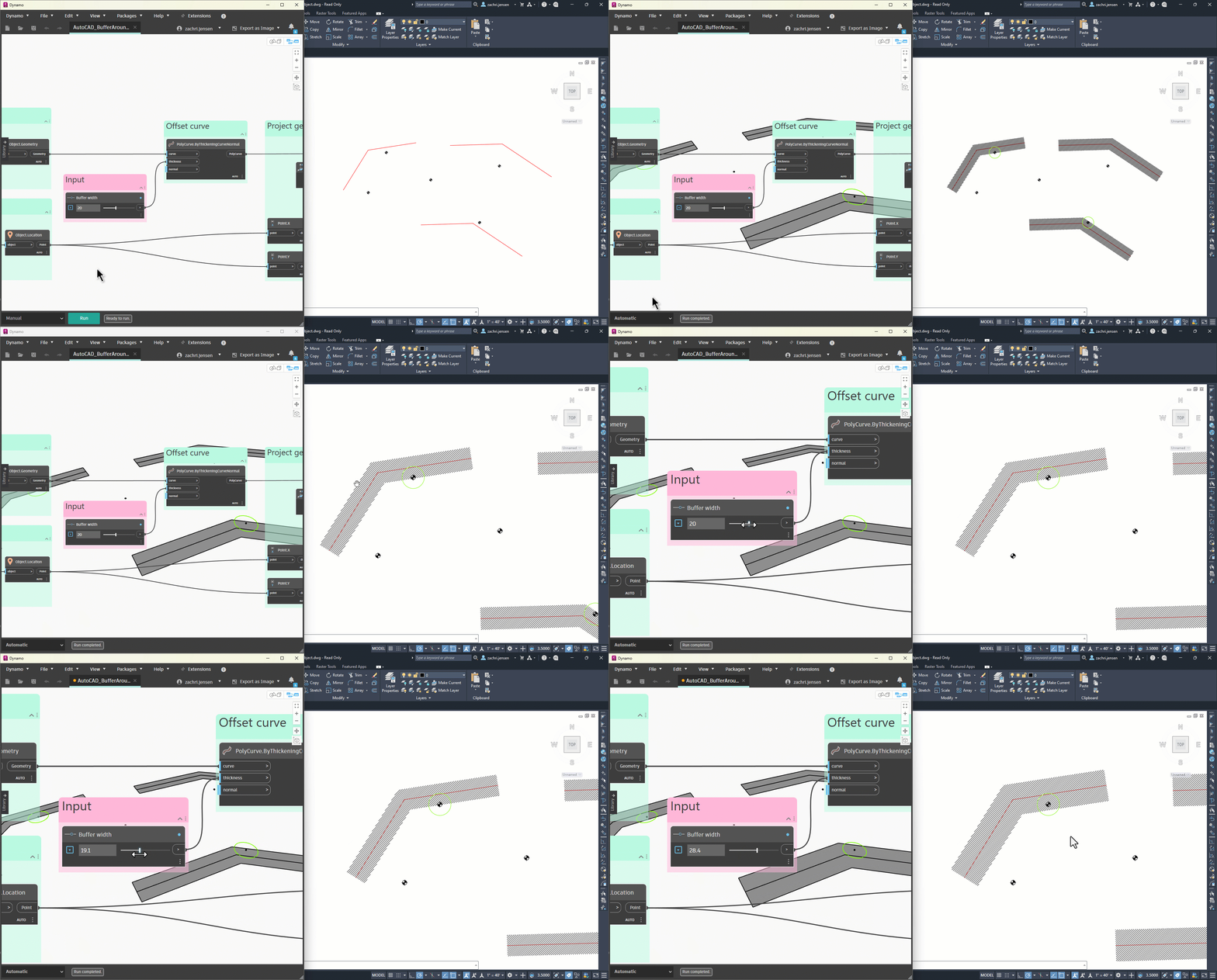
Creating a buffer hatch around polylines
Annotation
Say goodbye to spending late nights in the office updating all your sheets, and say hello to going home at five because Dynamo did all the tedious work for you. What if you could use Dynamo to automatically label multiple objects in your drawing with key information, and create a summary table with the exact information that you want? With the new nodes in this release, you can do all of that and more.
- Automate the creation of text-based or block-based multileaders with the
Multileader.ByPointsTextandMultileader.ByPointsBlocknodes - Set multileader block attribute values with the
Multileader.SetBlockAttributeValueByTagnode - Summarize data using the new table nodes
- Create text and MText with the right styles to match your standards
Layouts and viewports
There are over 40 new nodes for layout and viewport management, enabling you to:
- Rename layouts with the
Layout.SetNamenode - Set the order of layout tabs with the
Layout.Reordernode - Apply named page setups to layouts with the
Layout.ApplyPageSetupnode - Create rectangular viewports with the
Viewport.ByCenterHeightWidthnode - Query and modify viewport properties, such as the height and width, scale, twist angle, and target point
- Freeze and thaw layers inside viewports with the
Viewport.FreezeLayerandViewport.ThawLayernodes - Transform geometry between model space and paper space
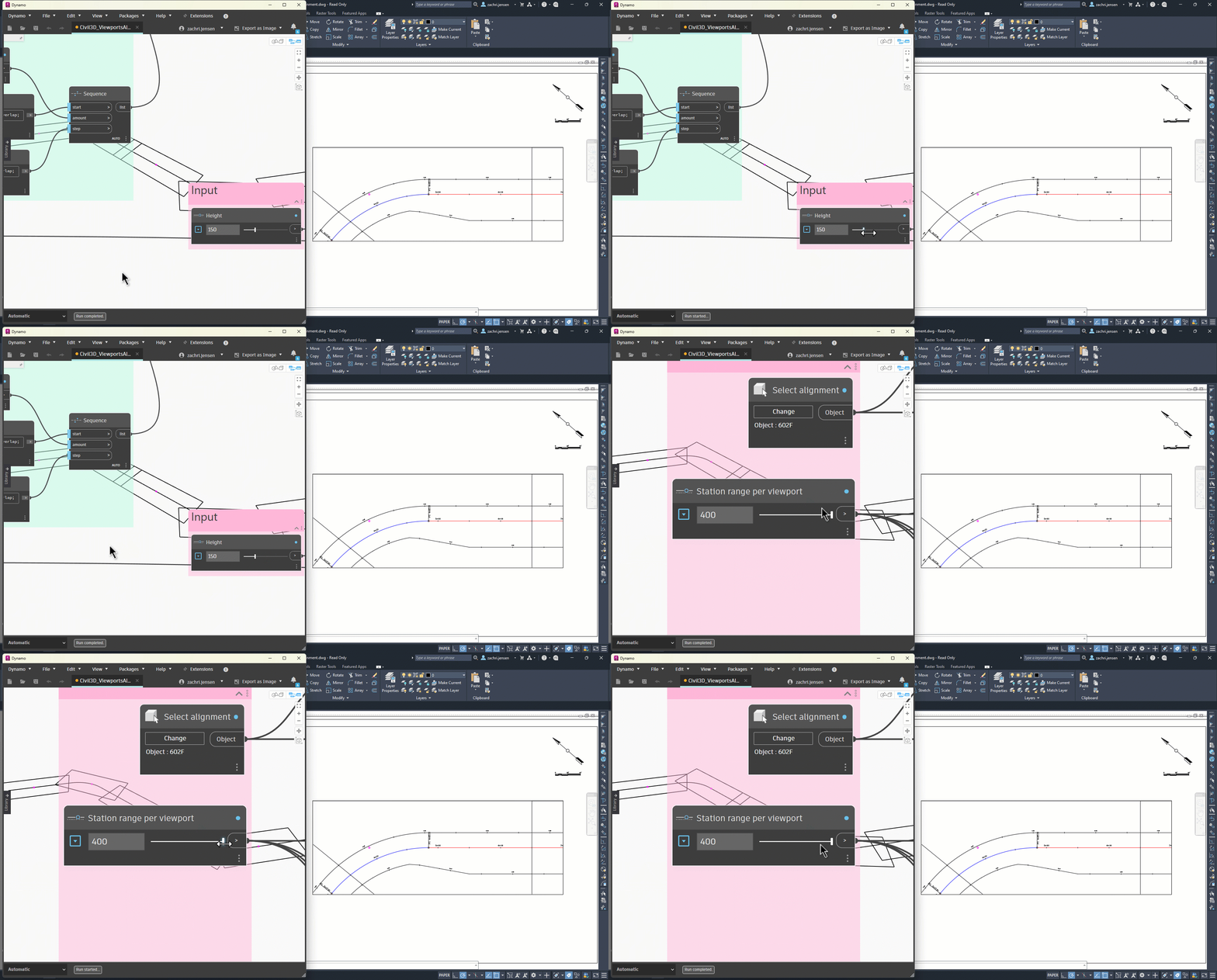
Creating a rectangular viewport along an alignment
Property sets
With this release, we wanted to unlock new ways for you to manage asset information in your models. There are 36 new nodes for working with property sets, enabling you to:
- Create property set definitions with the
PropertySetDefinition.ByNamenode - Create list definitions with the
ListDefinition.ByNameItemsnode - Add Automatic and Manual properties to property set definitions with the
PropertySetDefinition.AddAutomaticPropertyDefinitionandPropertySetDefinition.AddManualPropertyDefinitionnodes
We also made a key improvement to how data types are handled for property values. In prior versions, the Object.UpdateProperty and Property.SetValue nodes were limited to string values. In this release, both nodes now accept string, integer, double, and Boolean data types. This also includes the ability to set the values for auto-increment and list properties.
Blocks
Nodes for blocks and block references have been stalwarts in the library since the initial release of Dynamo for Civil 3D, but we still made a couple of valuable additions in this release. You can now create new block definitions with the Block.ByName node. Also, blocks can be exported to other DWG files with the Block.Export node. If you’re familiar with the WBLOCK command, then you already have a head start with this node.
Objects
The nodes in the Object category are very powerful because they are generic – they can be used with any object in your drawing. We’ve moved the needle in this release by giving you a new set of nodes for working with objects:
- Export any number of objects to another DWG file with the
Object.Exportnode - Attach reference documents, hyperlinks, and notes
- Perform common transformations like move, scale, and rotate
- Control the visibility, transparency, and render material of objects
- Change object draw order
Document
And last but definitely not least, this release gives you 38 new nodes for working with the active document, enabling you to:
- Query and modify custom drawing properties
- Assign a coordinate reference system with the
Document.SetCoordinateReferenceSystemnode - Get and set the value of any system variable with the
Document.SystemVariableandDocument.SetSystemVariablenodes - Write a message to the command line with the
Document.WriteMessagenode - Query and modify drawing scale and units
Smaller buckets of work
Phew…what a monster list! And that isn’t even all of it. There are a few more small improvements to be aware of that are lurking in this release.
Use the right color for the situation
In prior versions, working with object and layer colors was limited to “true color” RGB values. In this release, that limitation no longer exists. You can now control whether you want to use integer values for AutoCAD Color Index (ACI), Dynamo colors for true color, or string values for ‘ByLayer’ and ‘ByBlock’.

Setting various color values for an object
Dropdown nodes
We heard that having more dropdown nodes would be really useful when sharing graphs with Dynamo Player. Well, today is your lucky day! There are a plethora of new dropdown nodes in this release, and by plethora, we mean 41. As a reminder, right-click on any dropdown node and toggle on Is Input to make it show up in Dynamo Player. More information is available in the Dynamo Player documentation.

New dropdown nodes
Save time with default input values
Nodes that create new objects in Civil 3D now include default values for layerName, block, and document input ports, which helps save time when building new graphs. The default values are as follows:
layerNameinputs default to the current layerblockinputs default to model spacedocumentdefaults to the current document
Changes to be aware of
Besides the massive all the new features in this release, there are a few important changes that you should know about.
Renamed nodes
You’ll notice that a few nodes (20 to be exact) have been renamed to provide more clarity and to better fit with the new node library organization. You can review the full list of renamed nodes in the release notes. Note that existing graphs containing these nodes in the workspace or in a Code Block will be automatically upgraded when you open the graph. However, Python nodes that call these node functions will need to be manually updated.

Example of updating the Document.Layers call to Document.LayerNames in a Python node
Deprecated nodes
You may also notice that some nodes show a new info message like this:

Example deprecated node with info message
In this release, we’ve marked 23 nodes to be deprecated in a future release of Dynamo for Civil 3D. For now, they will continue to function the same as in previous versions. However, it is recommended to replace these nodes with their improved counterparts as listed in the release notes. Our plan is to upgrade the above Info messages to Warning messages after a few releases, then fully remove the nodes in a major yearly release of Civil 3D.
Bug fixes
Several bugs have been squashed in this release, and a few of the fixes are highlighted below. You can find the full list of bug fixes in the release notes.
- We fixed a bug where the
BlockReference.ByCoordinateSystemnode would sometimes fail because of non-uniform scaling, even though the source block definition allowed for this scenario. - We fixed a bug where the
BlockReference.Blocknode would return an anonymous block for dynamic block references instead of the source block definition. - We resolved an issue where incomplete meshes would be created by the
Mesh.ByGeometryorObject.ByGeometrynodes for large meshes with greater than 32,767 vertices.
Compatibility
There are a few things to keep in mind as you make the transition to Civil 3D 2025.1. Nodes that came out-of-the-box in prior versions of Dynamo for Civil 3D will continue to work in this release. But, this doesn’t hold true in the other direction. Any of the new nodes introduced in this release will not work in prior versions. In other words, graphs created in Civil 3D 2025.1 are not guaranteed to be backwards-compatible.
What’s next?
Thank you to everyone that shared their feedback during the work for this release. It makes a huge difference! Be sure to stay tuned to the Civil Infrastructure Roadmap, where you can take a look at current and upcoming work, express your support for features you want to see, and let us know what you think by adding a comment.
The Autodesk Civil Infrastructure Team