Welcome, dear Dynamites, to another exciting release full of new features, enhancements, and bug fixes sure to elevate your Dynamo experience. So grab a beverage of your choice, sit back, and read all about release 3.5.
NEW: Want to learn about these updates in video format instead? Check out this video summary, featuring our superstar product managers Sol and Achintya!
TL:DR
This release introduces a new step-by-step package publish wizard, a powerful Curve Mapper node with nine curves in one node, two new nodes for better list manipulation, trim condition for paneling nodes, and more. We’ve also made several quality-of-life improvements, including a resizable String node, more group options, and easier wire interactions. The ImportExcel and ExportToExcel nodes have been deprecated in favor of more stable OpenXML nodes. Additionally, we’ve fixed several bugs and made strides in our development process for faster and more reliable updates.
What is Dynamo and its flavors?
What is Dynamo Core?
Dynamo Core is a collection of bundled components that consist of the graphical interface, the compute engine, the scripting language DesignScript, and the out-of-the-box nodes that are not specific to another program like Revit or Civil 3D.
What is Dynamo for <INSERT HOST HERE>?
Dynamo for [Revit, Civil 3D, FormIt, Advance Steel, Alias or Robot Structural Analysis] is a collection of host-specific nodes that work with Dynamo Core and run inside of said host.
What is Dynamo Sandbox?
Dynamo Sandbox is for package developers and other folks working with Dynamo code who want to stay up to date with the latest and greatest stuff coming out. Sandbox is Dynamo’s “Core” functionality distributed in a way that doesn’t interfere with other Dynamo installations and doesn’t require any other applications (except for a few windows components and some optional extras). You can read more about this distinction here.
So, what’s dropping with Dynamo 3.5?
Making package publishing magical with the new step-by-step wizard workflow
Recently, we’ve been on a mission to improve the package management experience in Dynamo. In release 3.4, we introduced a way for package authors to add version compatibility information for their package via the Package Manager website. This in turn enabled a “magic install button” experience for those packages with compatibility info, as the Package Manager in Dynamo now identifies and highlights which packages are compatible with your version of Dynamo and/or host program, allowing you to install the right version with one click. You can read more in this blog post.
Release 3.5 brings more magic on the package author side: a new step-by-step wizard that walks you through package creation, including an opportunity to add version compatibility information within Dynamo! Let’s take a closer look at this major batch of updates.

On the Publish a Package tab, you’ll find a new step-by-step wizard [ 1 ] that guides you through publishing a package. On the first step, you’ll fill in various details for your package. While only name, description, and version are required, you have the opportunity to add various other details about your package to help your users find and understand it better. Familiar options remain from previous releases, and we’ve also added two useful new fields: repository link [ 2 ] and release notes link [ 3 ]. These optional fields help you share more information about your package with your users without having to cram everything into the description field. We highly recommend adding keywords as this helps package users search and find your packages easily.

Next up is the new Compatibility step, where you can designate which versions of Dynamo Core and/or a host program such as Revit or Civil 3D your package is compatible with. For a detailed explanation of this brand-new process, check out this section of our dedicated blog post. Here are the key areas: [ 1 ] First, select if your package version is compatible with a host program only, both host program and Dynamo Core, or Dynamo Core only. Depending on your selection, different drop-down fields appear under Host version compatibility [ 2 ]. Here, you can select a host (if compatible with a host), a range of versions using the From and To fields, and/or individual versions. To add your version selections to the All compatible versions table [ 3 ], click Add. If you have struggled in the past to inform your users which version of the package to use and had to cram compatibility info with description, with this new step, we hope to make your experience more joyful!

Steps 3 and 4, for adding and previewing files, are largely unchanged from previous releases. On these steps, you can add your package files, choose if you want Dynamo to reorganize your files or retain your own folder structure, and then preview to make sure everything looks as expected before proceeding.

You’ll also notice an improvement when you publish your package online: While previously it took 15 minutes for a package to become available to use after publishing, we’ve reduced this delay to 1–2 minutes.
Known issues:
- There’s a visual glitch impacting the compatibility version picker drop-downs in step 2. This is causing the drop-down menu to briefly jump around when triggered. This will be fixed in a future version of Dynamo.
- There is currently an issue where, when you go to publish a new version of a package after editing the compatibility information for a previously published version from the Dynamo Package Manager website, existing compatibility information is not carried over to the new version in the publish wizard. You will have to manually enter the compatibility information. But don’t sweat, package users are able to access the compatibility info when they search. This is just limited to the publishing workflow only and requires manually entering the compatibility information by package authors rather than populating the files from the previous version. This will be addressed in the future.
We hope you find this latest batch of package experience improvements helpful. Package authors, we encourage you to try out this new workflow and especially the compatibility settings to help the entire Dynamo community enjoy packages that are useful and compatible!
Why settle for one curve, when you can have nine? Introducing Curve Mapper
Curve Mapper is a powerful new node that enables redistributing numbers along a curve, providing a visual and intuitive way to define and manipulate data transformations.

Simply drag the control points [ 1 ] to adjust the shape of the curve, which makes it easy to experiment with different transformations and see the results in real time.
Once the shape is set, you can lock it by using the lock button. And if you want to go back to the starting point, simply click Reset [ 2 ].
Change the type of curve by using the Curve Type drop-down field [ 3 ]. If needed, you can also resize the node using the triangle icon on the bottom right of the node.
The node supports both list and singleton inputs. The following curve equations are available in the node:
- Linear curve
- Bezier curve
- Sine wave
- Cosine wave
- Parabolic curve
- Perlin noise
- Power curve
- Square root curve
- Gaussian curve
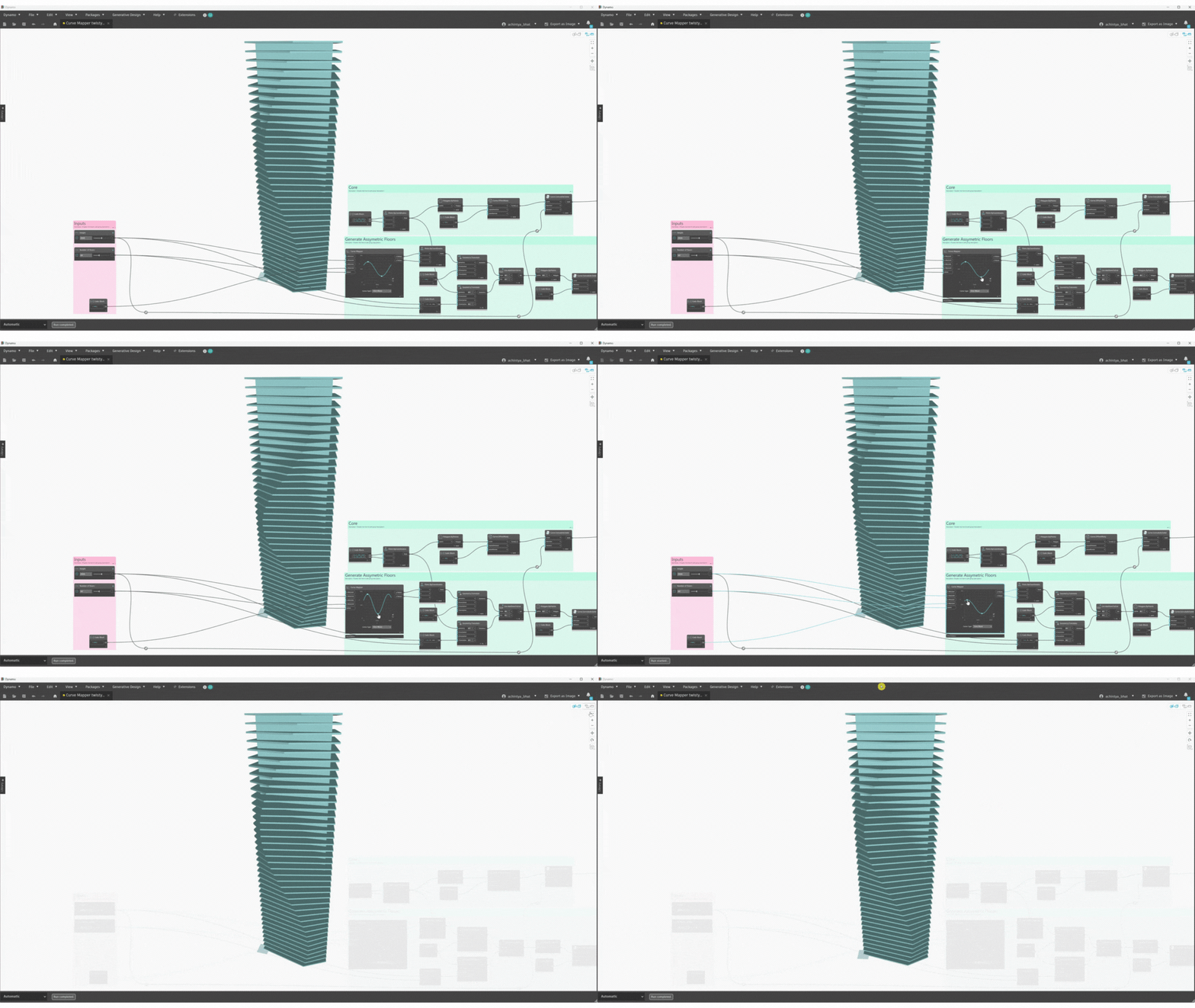

The node comes with documentation and a sample graph, so you can do some instant experimentation. Just place the node and press F1 to access it.
We also have a dedicated blog post focusing on the Curve Mapper! Be sure to check it out for more detail, use cases, and known issues.
New nodes for list manipulation
We’ve added two amazing nodes for better list manipulation:
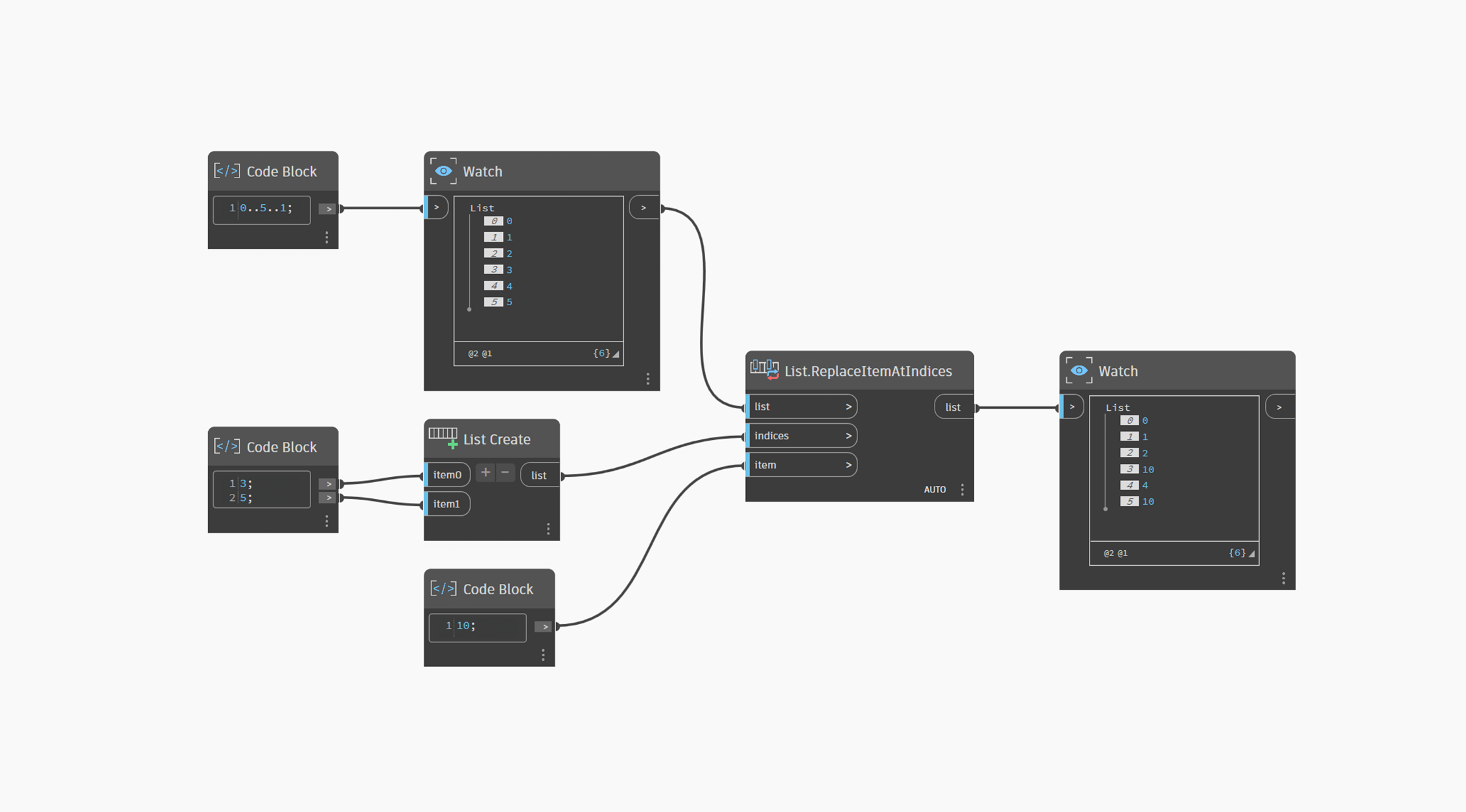
List.ReplaceItemAtIndices allows you to replace items at multiple indices, making list management more efficient. The previously available List.ReplaceItemAtIndex node works for replacing item at single index only. With the introduction of the new node, you don’t have to rely on the custom node for your list management workflows.
List.GroupBySimilarity enables you to group lists of numbers by adjacency of indices and similarity in value using tolerance, and group lists of strings using fuzzy logic. This means easier handling of lists such as coordinates, dimensions, or textual data like room names and types. This node is fantastic for helping with small tolerance values in numbers pulled in from Revit or Civil 3D.
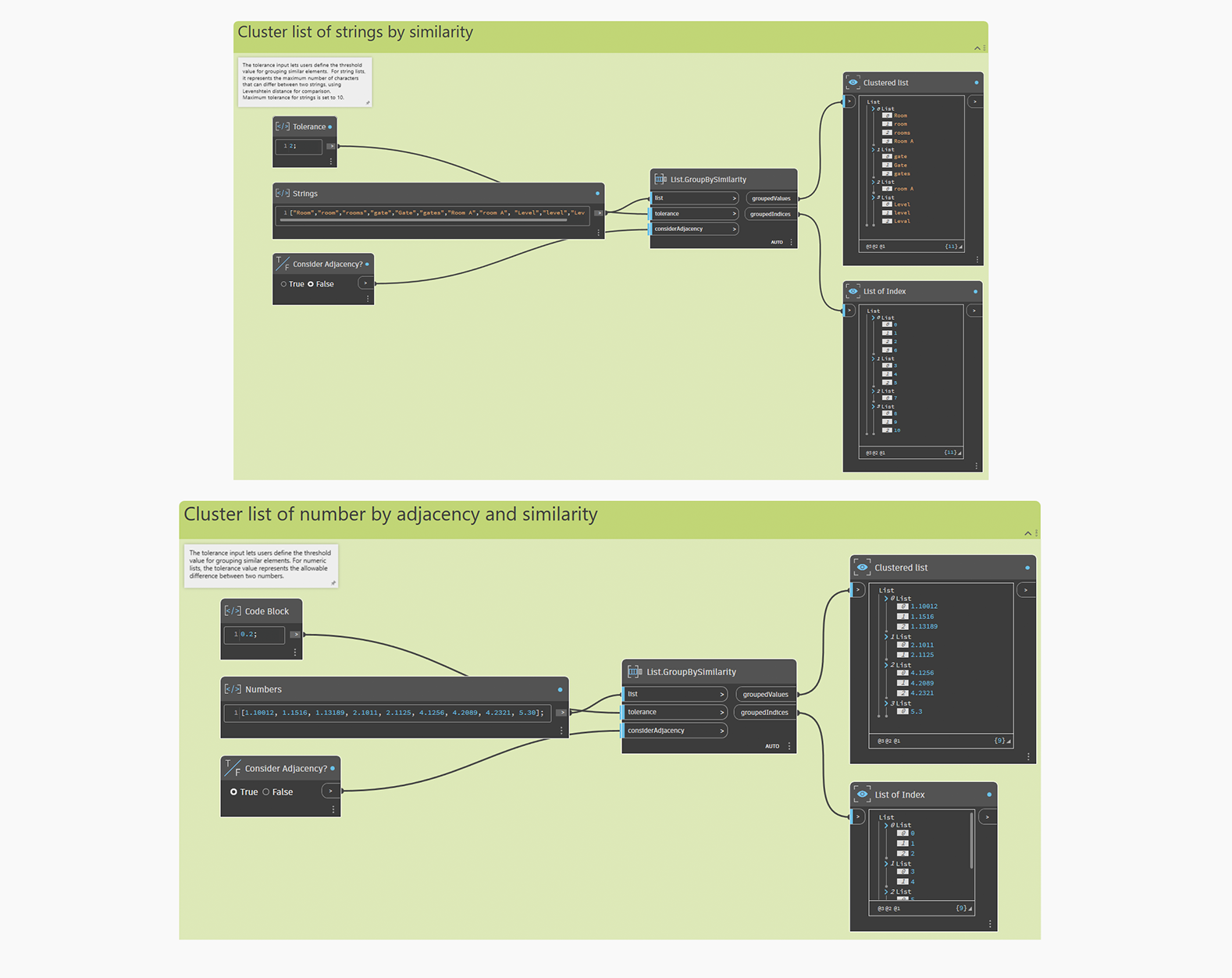
You can use a Boolean input to consider adjacency of the items in the list in addition to the similarity of value to group already sorted lists. By default, Consider Adjacency is set to True.
Use the tolerance input to account for inconsistencies. For example, it can be used to cluster survey points based on their proximity and similarity in elevation, aiding in terrain analysis and grading. First sort the list by proximity and then use the node to cluster by similarity of elevation using a tolerance value. Tolerance means that if you set a tolerance of 2 for integers, 45 and 47 will be grouped together.
For strings, a tolerance of 2 will result in strings like “room,” “rooms,” and “roomed” to be grouped together, as they have a difference of 2 characters or less. Using the List.GroupBySimilarity node, you can now group together entries like “portable water” and “potable water” using fuzzy logic. This way, you can avoid typo-related list management nightmares!
Clean boundaries with the new trim boundary condition
Paneling nodes are a set of nodes in experimental mode that allow you to create panels on surfaces. We’ve introduced a new Trim boundary condition for paneling nodes, providing more control and flexibility when working with boundaries in your designs.
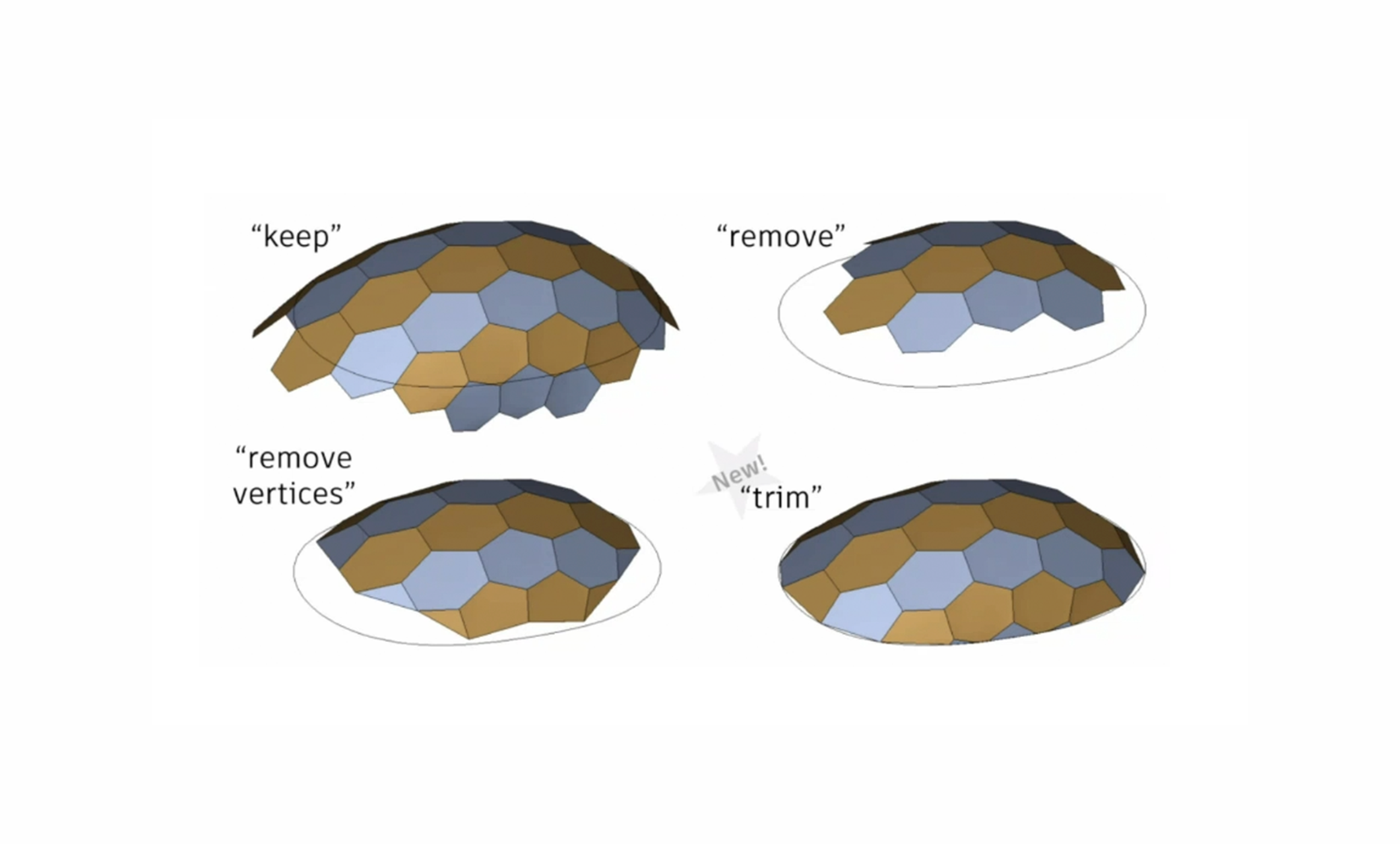

Since they are in experimental mode, you’ll need to enable paneling nodes by going to Preferences > Features > Experimental, toggling Enable Paneling Nodes, and restarting Dynamo. Once they’re enabled, you can find them under Geometry > PanelSurface.
Solar Analysis package
The Solar Analysis for Dynamo package has been updated. This package allows you to conduct solar insolation analysis in Dynamo. Previously, this package had an expiration date, which we have now removed. This means you no longer need to keep updating to the latest version after the expiration date, since one no longer exists!
With this update there is also one behavior change: Previously, the daylight saving time (DST) setting had no impact on the analysis result. Now, it does, so results will vary if you have DST on. The Solar Analysis for Dynamo package is available in the Package Manager.
Quality of life improvements
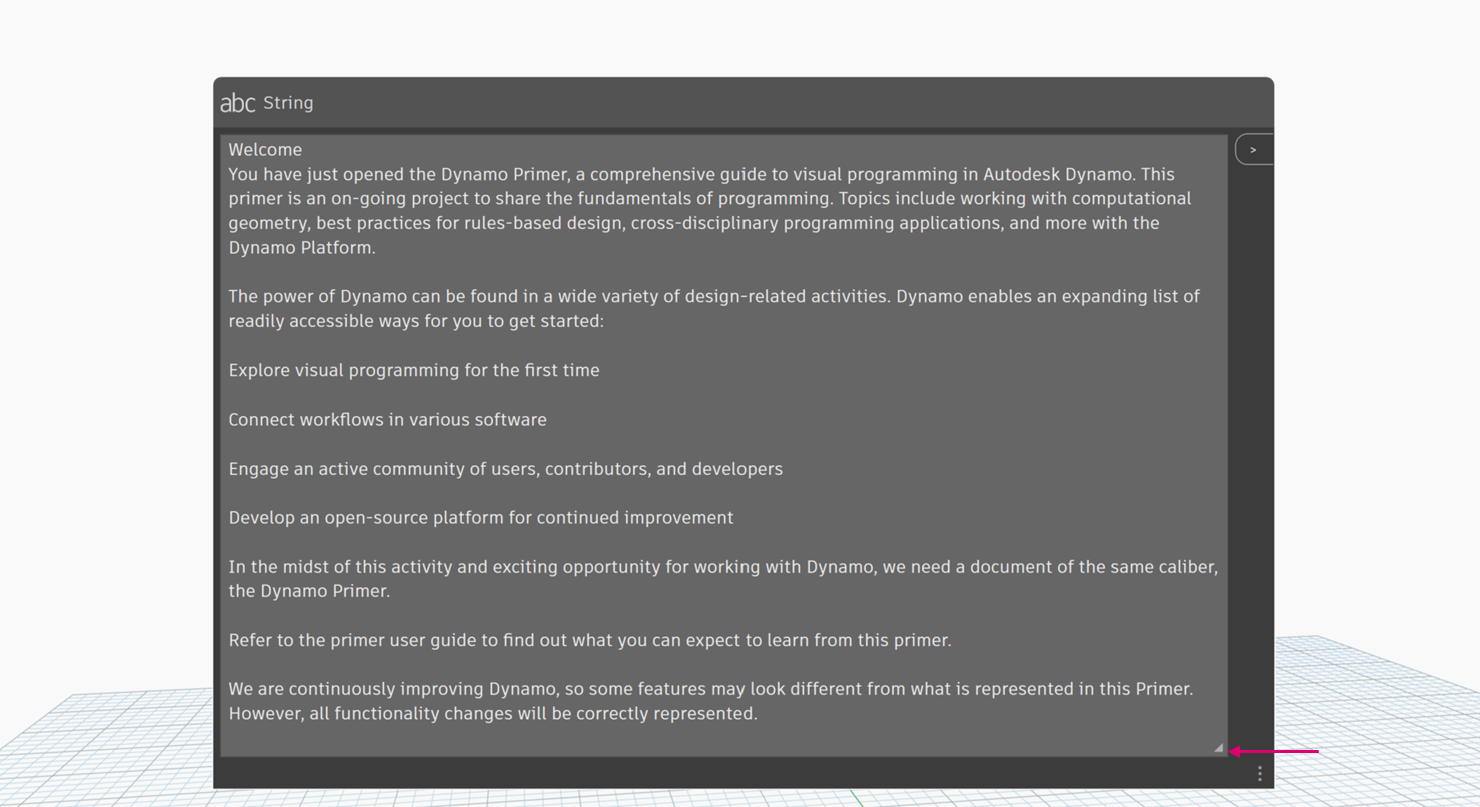
Resize String nodes
The String node is now resizable, making it easier to manage long strings.
Snappier pins and wires
It’s now easier to work with pins and wires, with these following improvements:
- Perform wire actions with more ease.
- The hit target on wire actions was doubled, meaning you no longer need to be as accurate. This translates to a much smoother experience, allowing you to pin wires and add Watch nodes from a non-hyper-zoomed-in-state.
Group enhancements
Not a fan of default group descriptions? You can now turn them off in the preference settings, so you don’t have to manually delete them every time. Go to Preferences > Visual Settings > Groups and toggle the new Show default group description setting. This is enabled by default.

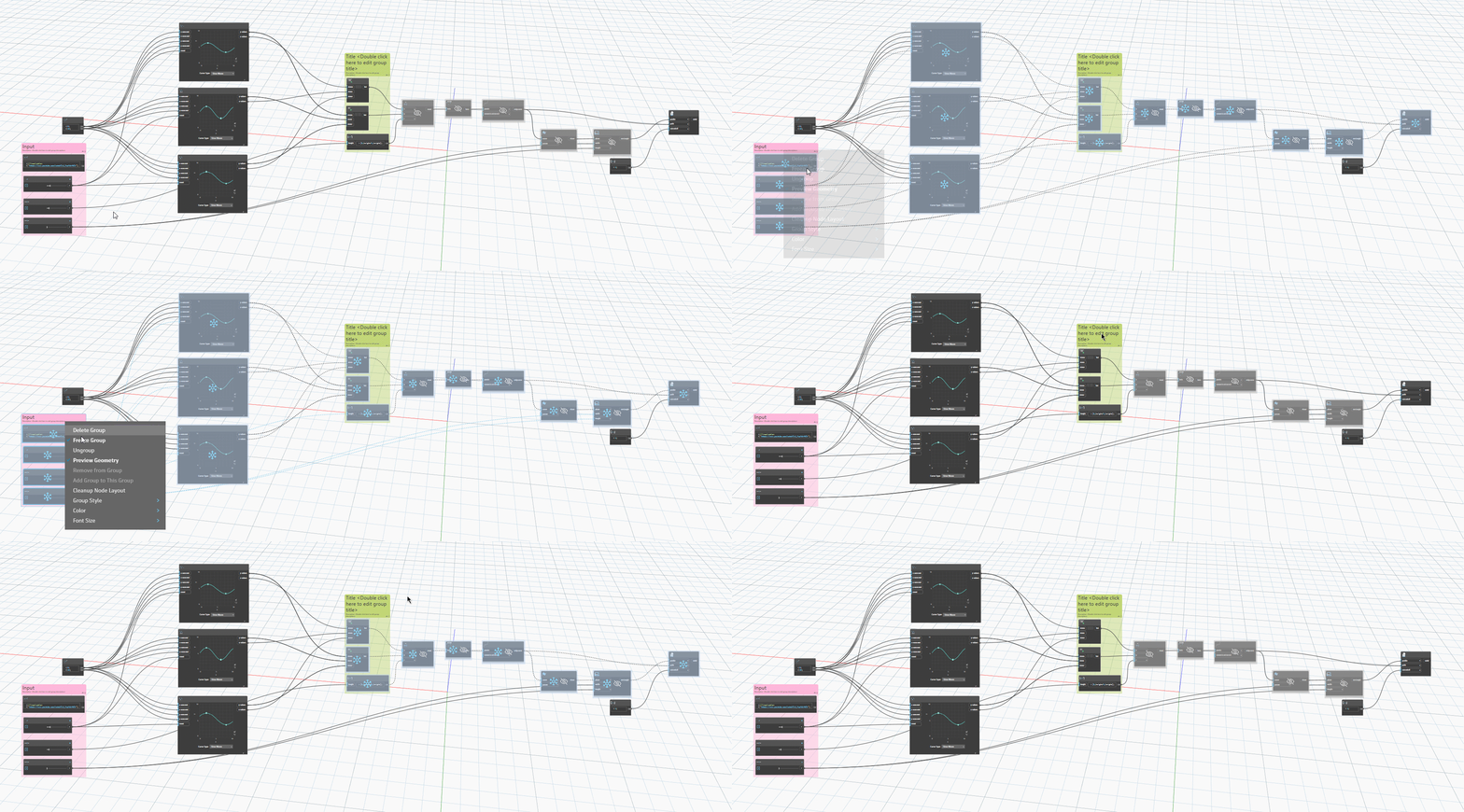
You can now freeze groups for better control over your workspace. Right click the group and select Freeze Group. All nodes in the group are frozen, and all nodes that are connected downstream to the nodes in this group are also frozen. You can unfreeze individual nodes from the group, or click Freeze Group again to unfreeze them all.
Export image notification
When using the Export as Image feature to export your workspace or background 3D preview as an image, you’ll now see a message informing you that the image has been exported, along with the location of the file.
Node Autocomplete improvements
Node Autocomplete helps you build graphs faster and with more efficiency. Double click a port to trigger a pop-up window with a selection of suitable nodes, then click one of the nodes to auto-wire it to the port. Learn more about it in this blog post.
We are actively working to make the Node Autocomplete experience even better, and in the meantime, here is a pair of smaller improvements:
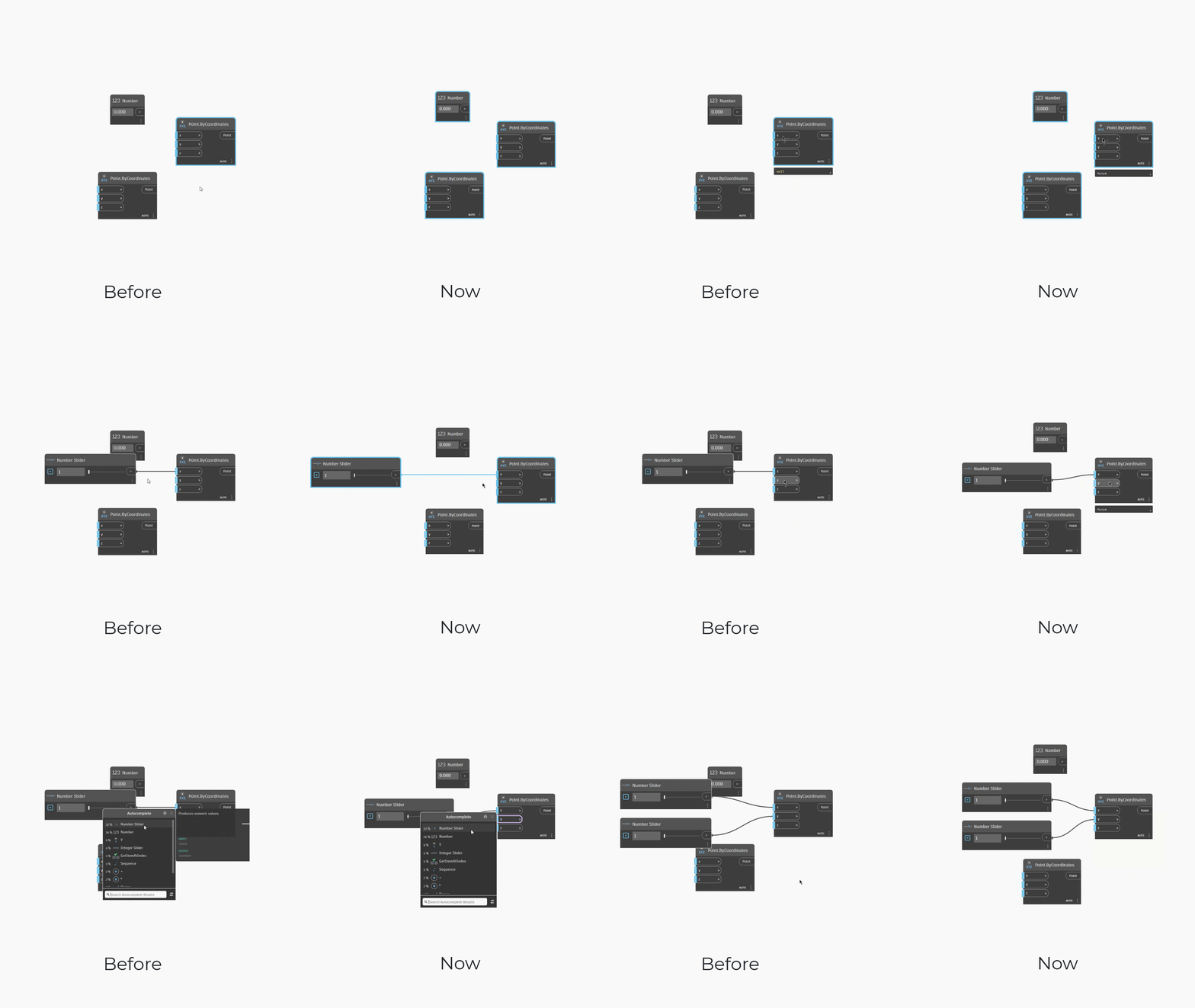
- Nodes placed by node autocomplete no longer overlap.
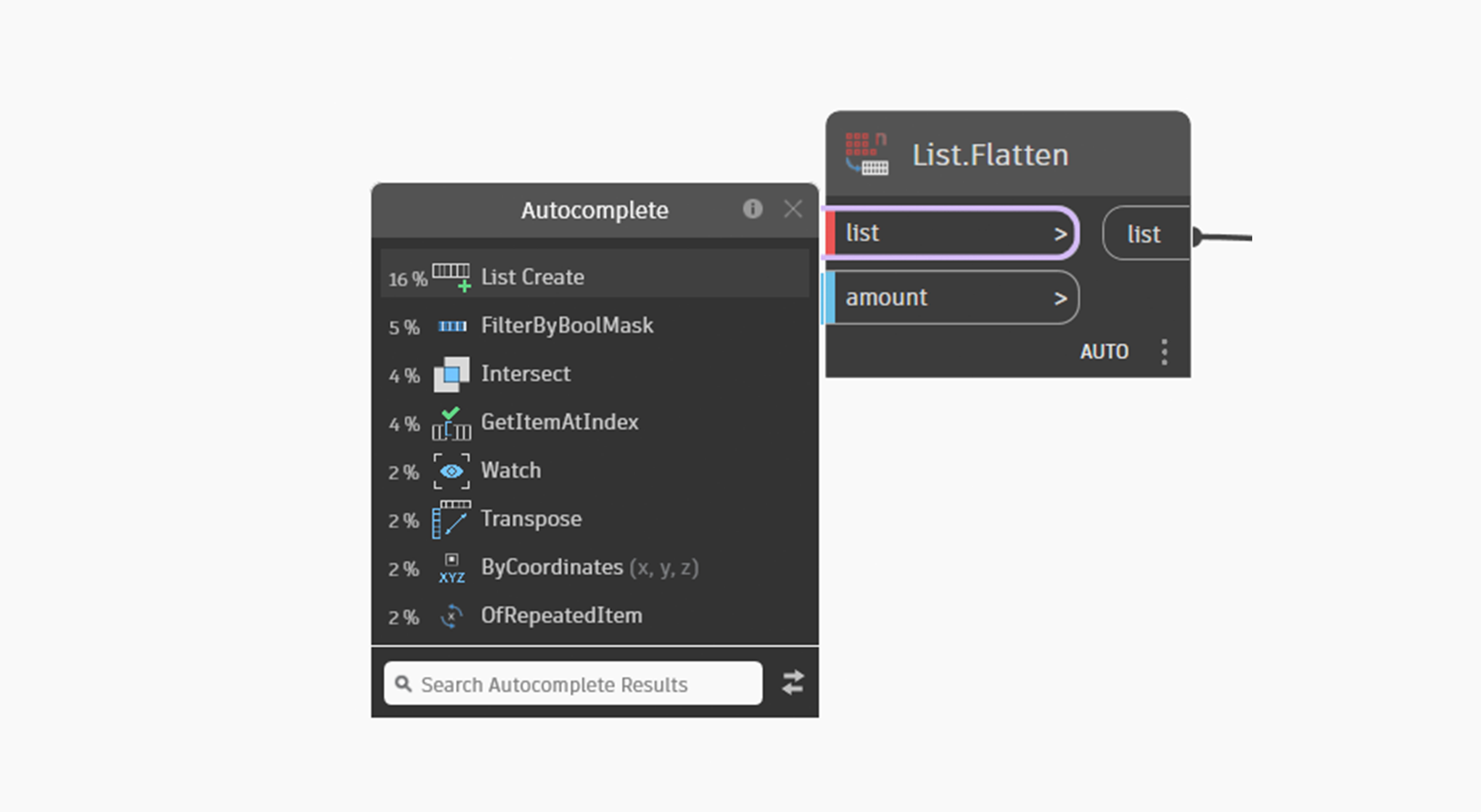
- A new purple highlight indicates the port where Node Autocomplete was triggered from.
ImportExcel and ExportToExcel nodes deprecated
The ImportExcel and ExportToExcel nodes have been deprecated. This decision was made to streamline our approach and make Dynamo more reliable and stable. The new OpenXML nodes were introduced in Dynamo 2.0 as part of this strategy to ensure better interaction with Excel using the OpenXML standard.
The legacy nodes relied on the local installation of Microsoft Office, and when not compatible, it led to issues in some cases and wasn’t very stable. Refer to this forum post for more details. But this move came with some trade-offs like needing to close the Excel file while running the script.
If you have graphs that are currently using these nodes, and you would like to continue to use them, they won’t be affected. But we recommend you start using the OpenXML nodes.
There are a few bugs and limitations with OpenXML nodes (such as recalculating Excel tables once updated based on formulas) that we are actively working on to bridge the gap before completely obsoleting the legacy Excel nodes. You’ll see improvements in future releases.
Bug fixes
- You may have run into an issue where the Dynamo window did not appear if it was previously placed on a screen that is no longer available. Now, if the previous location is not available, Dynamo will launch on the primary screen.

- If the Python node editor was minimized, it will now be maximized when you double click on the Python node or right click > Edit.
- Inconsistent zoom state behavior of frozen nodes has been resolved.
- Opening files from the home app now checks for unsaved changes in the workspace and alerts users to save their files, preventing loss of unsaved changes.
- Dynamo will no longer crash when you pass custom class instances into the “UnwrapElement()” within a Python Script Node running the CPython3 engine.
- The “Install to folder” option now works correctly while using Package Manager search.
- Wire and input port pop-up locations in collapsed groups are now accurate.
Process improvements for the future
We also want to share an update on some important work we’ve been doing this quarter. While it may not be a visible feature, we’ve been making significant strides in improving our development process through CI/CD, which stands for Continuous Integration and Continuous Delivery.
What does this mean for you?
- Faster Feature Releases: As we continue to set up and refine our CI/CD processes, you’ll start seeing new features being released more quickly and efficiently. This is because our code changes are tested and localized more smoothly. Localization helps us make Dynamo accessible to more people, breaking down language barriers and ensuring everyone can benefit from our features.
- Reliable Dynamo Integration: You’ll benefit from more frequent and faster Dynamo updates in host environments as we move forward.
Very cool! Where can I grab Dynamo 3.5?
Dynamo 3.5 will be made available in our host integrations at a future date and can be explored right now through the dynamobuilds.com website or the GitHub build page – available in the Sandbox version of Dynamo. Then, drop us a line on the forum!
Want more detail? Check out the release notes
For more information on other minor features, bug fixes, and known issues in Dynamo 3.5, take a look at the release notes!
Thank you for joining us on this journey! We hope you’re as excited as we are about the new features and improvements. Your feedback and support are invaluable to us, and we can’t wait to see what amazing things you’ll build. Curious to see what else we’re working on? Visit Dynamo Roadmap, where you can take a look at current and upcoming work, express your support for features you want to see, and let us know what you think by adding a comment.
The Dynamo Team