Hello, Dynamo friends! In this post, we’ll dive into the top features from our latest release, version 3.1. Alongside a delectable selection of new and improved features, this release includes several bug fixes and quality-of-life improvements. Read on to learn all about what Dynamo 3.1 has in store.
If you’d like to experience the new version first-hand, head over to dynamobuilds.com to download it now. We value your feedback and would love to hear your thoughts on our forum.
TL:DR
This release brings you new workspace templates, paneling nodes in experimental mode, and T-spline nodes out of experimental mode. Other improvements include notification center updates, new node icons, and a variety of other improvements and bug fixes. For a detailed rundown, make sure to check out the release notes!
What is Dynamo and its flavors?
What is Dynamo Core?
Dynamo Core is a collection of bundled components that consist of the graphical interface, the compute engine, the scripting language DesignScript, and the out-of-the-box nodes that are not specific to another program like Revit or Civil 3d.
What is Dynamo for <INSERT HOST HERE>?
Dynamo for [Revit, Civil 3d, FormIt, Advance Steel, Alias or Robot Structural Analysis] is a collection of host-specific nodes that work with Dynamo Core and runs inside of said host.
What is Dynamo Sandbox?
Dynamo Sandbox is for package developers and other folks working with Dynamo code who want to stay up to date with the latest and greatest stuff coming out. Sandbox is Dynamo’s “Core” functionality distributed in a way that doesn’t interfere with other Dynamo installations and doesn’t require any other applications (except for a few windows components and some optional extras). You can read more about this distinction here.
So, what’s dropping with Dynamo 3.1?
Save time by starting with a template
You now have the option to create a new workspace based on a template. You can use the shortcut Ctrl + T, or go to File > Open > Template, to create a template-based workspace that inherits all graph elements from the template, including graph properties. This way, if you have certain graph elements you want to reuse, you no longer have to implement them from scratch every time to create a new workspace. Simply set up a template once, and you’re good to go!
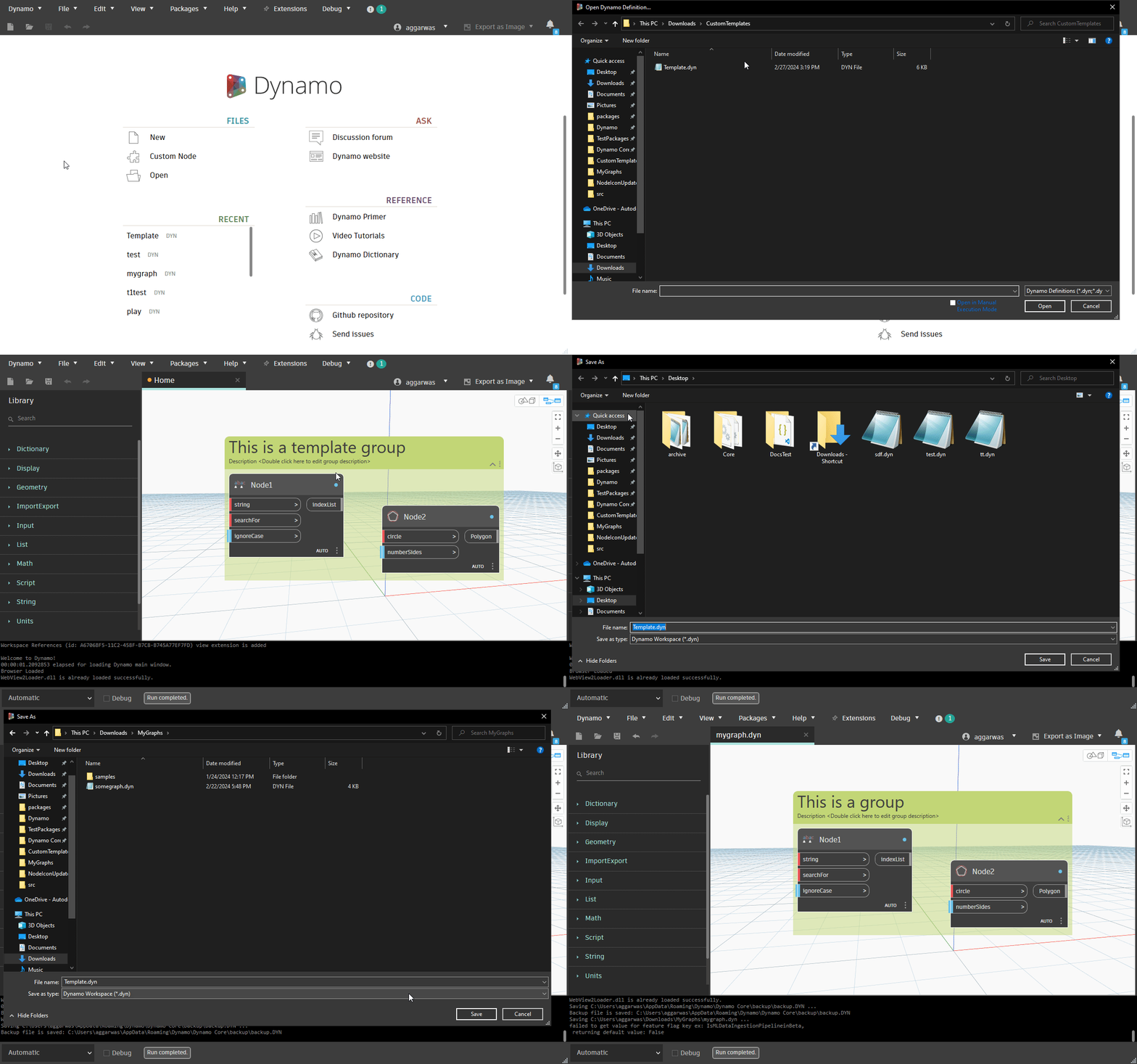
To set up a template, you need a .DYN file with your desired graph elements set up. Move or paste that file into your templates folder. Note that you can’t save directly to this folder from Dynamo. This is to avoid accidentally overwriting existing templates. You can look up your templates folder location in Preferences, under General > Templates. You can also edit the path here.

Once you’ve set up your templates in this folder, you can select them when opening a template, saving you time when you get started on a new workspace!
Paneling nodes in experimental mode
We’re excited to introduce new paneling nodes in experimental mode. With these nodes, you can create panels on surfaces. Since these nodes rely on a 2025 or newer version of Revit or Civil 3D, you’ll need to have one of those installed on your machine to use these nodes, even in Dynamo Sandbox.

Since they are in experimental mode, you’ll need to enable paneling nodes by going to Preferences > Features > Experimental, toggling Enable Paneling Nodes, and restarting Dynamo. Once they’re enabled, you can find them under Geometry > PanelSurface, each with help documentation, image, and sample graph in the Documentation Browser (accessed by right-clicking a node and selecting Help).

T-spline nodes out of experimental mode
Previously available in experimental mode only, T-spline nodes are now available by default in Dynamo. A T-spline allows you to sew together smaller surfaces into continuous, smooth elements using minimal sets of control points or cages. More specifically, a T-spline is a surface type that is typically useful for modeling organic or topologically complex forms. You can read more about T-splines in this blog post.

Images courtesy of Deyan Nenov
You’ll find the nodes in the Geometry > TSpline node library, as well as in search and Node Autocomplete results. To help you get started, each node comes with in-depth descriptions and sample files in the Documentation Browser. These nodes rely on a 2025 or newer version of Revit or Civil 3D, so make sure to have one of those installed first before trying to use T-spline nodes, even in Dynamo Sandbox.

Iconic improvements: Node icons and library look and feel
In this release, you’ll find some new eye candy in the form of updated node icons. These icons are larger and higher resolution, making them crisp, legible, and clear both in the library and node contexts. In addition, the library now has reduced spacing, which ensures that more content is visible on your screen.


Notification Center improvements
This release adds several improvements to the Notification Center:
- You can now dismiss the Notification Center by clicking outside of the panel.
- All links will open in an external browser.
- If you use Dynamo in a language other than English, you’ll notice a new translated message when there are no notifications.
- Finally, we’ve made some updates to font size and styling for an improved look and feel that better leverages screen real-estate.

Performance improvements
- Loading speed for graphs with lots of Watch nodes has improved by up to 50%.
- You can turn the Geometry Instancing feature on in the Preferences panel, which allows some graphics to render faster. In one example of 30,000 spheres, enabling this setting reduced the tessellation and render time from 23 seconds to 2 seconds.
Smaller buckets of work
We’ve made several improvements to increase efficiency and ease of use, including:


- Pins are now included in the selection when using the Tab key to select neighboring nodes.
- A node will remain selected when you drag it into a group. This allows you to more easily move it around in the group after dropping it.
Bug fixes
This release resolves several bugs, with a few of the fixes highlighted below. You can find the full list of bug fixes in the release notes.
- We resolved a bug where undoing renaming in a nested group caused visual artifacts.
- We ensured that the Node Autocomplete popup disappears after deleting the node it was triggered from.
- We fixed a bug where a large text string in Custom Selection nodes overlapped with controls on the left side.
- We fixed a bug where the close button on the splash screen wasn’t working.
Good stuff! So where can I grab Dynamo 3.1?
Dynamo 3.1 will be made available in our host integrations at a future date and can be explored right now through the dynamobuilds.com website or the GitHub build page – available in the Sandbox version of Dynamo.
If you’re curious, you can also read our Release Notes
For more information on other minor features, bug fixes, and known issues in Dynamo 3.1, take a look at the release notes!
We’re grateful to everyone who made this release possible and to the entire Dynamo community for continuing to support our work. Be sure to stay tuned to the Dynamo Roadmap, where you can take a look at current and upcoming work, express your support for features you want to see, and let us know what you think by adding a comment.
The Dynamo Team