Hello, Dynamites, and welcome to Dynamo’s next chapter with release 3.0.3! This is the first major release since Dynamo 2.0 way back in 2018 (has it really been six years?). Below, we’ll go into more detail on what precipitated this change and what it means for users, along with a link to a blog post with the full scoop. To celebrate this milestone, we’ve added a stunning new splash screen image that depicts mountains reminiscent of lunar landscapes, generated with a NurbsCurve surface and colorized with a gradient. As a sneak preview, it’s also this blog post’s featured image.
In this post, we highlight a selection of the top features and fixes in Dynamo 3.0.3. Ready to try it out? Download it from dynamobuilds.com. Got questions, comments, feedback, or just want to join the conversation? Join us on the forum!
TL:DR
Dynamo 3.0.3 targets .NET8 and updates Dynamo’s major version to address technical needs, with impact to package authors. This release consolidates the package management experience, with a single Package Manager dialog to search, install, publish, and maintain packages. This release also adds improvements to node search, makes long text in Watch nodes more readable, and adds a suite of updated Revit sample graphs. You’ll find out-of-the-box Gate and Remember nodes, additional data type support for Data.ParseJson and Data.StringifyJson, updates to the Graph Node Manager, more predictable Zoom Extents for background previews, and other fixes and improvements.
For full details on this release, check out the release notes!
What is Dynamo and its flavors?
What is Dynamo Core?
Dynamo Core is a collection of bundled components that consist of the graphical interface, the compute engine, the scripting language DesignScript, and the out-of-the-box nodes that are not specific to another program like Revit or Civil 3d.
What is Dynamo for <INSERT HOST HERE>?
Dynamo for [Revit, Civil 3d, FormIt, Advance Steel, Alias or Robot Structural Analysis] is a collection of host-specific nodes that work with Dynamo Core and runs inside of said host.
What is Dynamo Sandbox?
Dynamo Sandbox is for package developers and other folks working with Dynamo code who want to stay up to date with the latest and greatest stuff coming out. Sandbox is Dynamo’s “Core” functionality distributed in a way that doesn’t interfere with other Dynamo installations and doesn’t require any other applications (except for a few windows components and some optional extras). You can read more about this distinction here.
So, what’s dropping with Dynamo 3.0.3?
.NET 8 upgrade and major version 3.0
Starting with version 3.0.0, Dynamo is targeting .NET 8. This allows Dynamo to take advantage of the latest improvements from the .NET community, including improved performance and stability, and unlock new features that were not possible until now. Along with Dynamo, most Autodesk hero products (Revit 2025, AutoCAD, Civil3D, etc.) will be migrating to .NET 8 as well. As this brings about backwards incompatible API changes, we are upgrading Dynamo’s major version, following the Semantic Versioning scheme. This change unlocks exciting possibilities, and the Dynamo team is currently working on performance gains that we hope to unveil soon.
While there are no significant disruptions to graph authors and users, there is impact for both authors and consumers of packages. The Dynamo team has reached out to those package authors whose packages will be affected.
Check out this blog post to learn more about the technical aspects of what this transition means for Dynamo package users and authors, including how to migrate packages.
A new world of package management
Dynamo 3.0.3 introduces a consolidated package usage and upload experience, delivered through the new Package Manager dialog. The Package Manager serves as a one-stop-shop for all your package-related needs, making it more efficient than ever to find, install, upload, and manage packages. Access it in the top menu under Packages > Package Manager. The new Package Manager is packed full of features both familiar and new, so let’s take a quick tour into the world of better package management.
- Package search, available in the Package Manager’s first tab, includes some new goodies:
- [ 1 ] We’ve added filters for package status and dependencies. For example, if you only want to see new stand-alone packages with no dependencies, this will help you narrow down the search.
- [ 2 ] Package details now open in the same window, as opposed to a separate panel.
- [ 3 ] You can select a version directly from the search results by using the version selector drop-down. The versions are listed in descending order, with the latest version at the top.
- [ 4 ] We’ve brought back a feature that went missing for a while: You can select the folder to install the package to by clicking the arrow next to the Install button.
- [ 5] Voting is back! You can vote for installed packages from the package details by clicking the heart icon (but exercise caution—at this time, you can’t unvote once you’ve cast your vote).

- Publishing a package has a new workflow, along with some smaller improvements:
- [ 1 ] With the updated version picker, you can either type a number or use the convenient up/down buttons to increment or decrement the number.
- [ 2 ] We’ve renamed the Dependency field to Host, to better describe the options available in the drop-down.
- [ 3 ] A brand-new package file upload workflow helps you manage the intricacies of package files! This is especially helpful if you’re uploading a package with a complex file structure.
- [ 4 ] A new feature of note is the Retain Folder Structure toggle. This toggle is helpful for package authors whose packages rely on a specific folder structure that’s different from Dynamo’s default.

- If you’ve uploaded any packages online, they will be listed in the My Packages tab based on your logged-in username. You can install your packages from here directly, without having to search for them. You can also publish a new version or deprecate the package. When publishing a new version, you’ll enter a similar workflow as when publishing a new package, with the existing details filled in. You again have the option to Retain Folder Structure to ensure your package remains functional in the new version.
- The Package Manager also includes a tab to view your Package Settings. Here, you can view your package download path and package/library search paths. To change the settings, click the link to open the Preferences panel.
As you can see, the entire package experience has undergone a major overhaul, and we can’t wait to have you try it out. Let us know what you think!
An even better node search
Dynamo users have been enjoying a vastly improved node search since version 2.19, but we’re not done making improvements. In our latest release, you can use a period to specify node categories. For example, typing in “list.r” will return nodes that belong to the List category and start with the letter R.
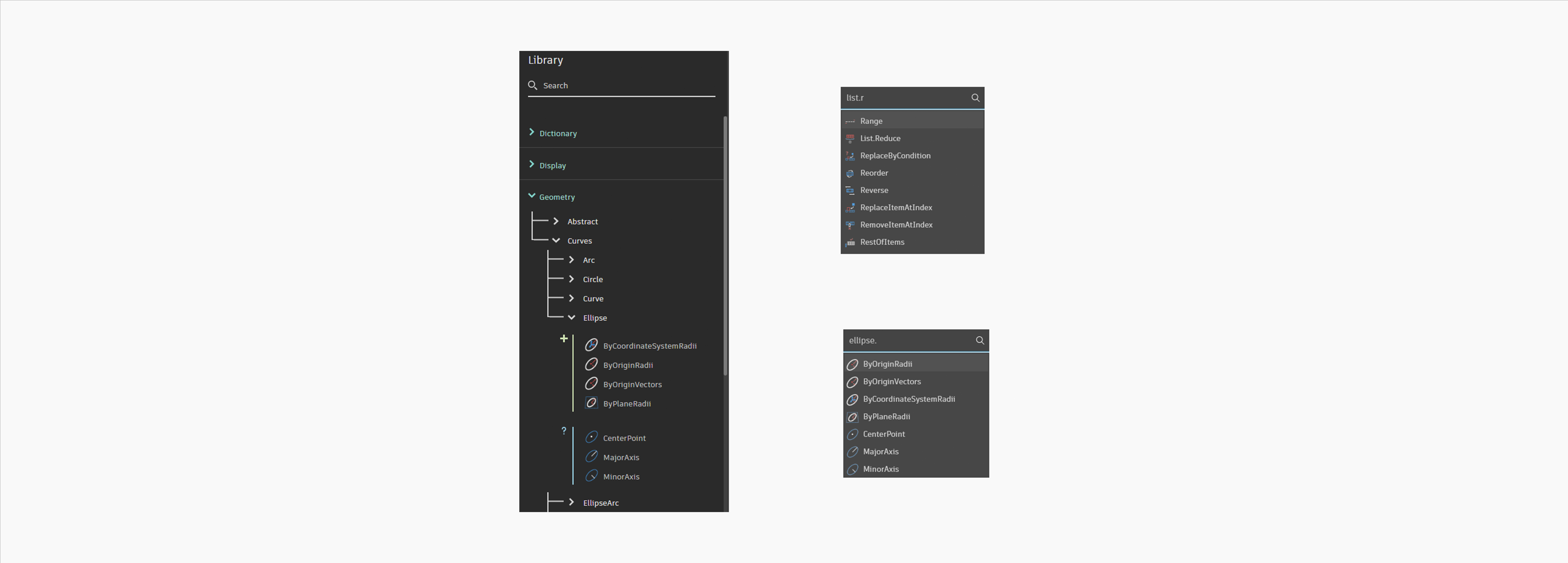
Node search is now also able to return nodes that it previously struggled with, such as “And,” “+”, and “*”.

More predictable Zoom Extents
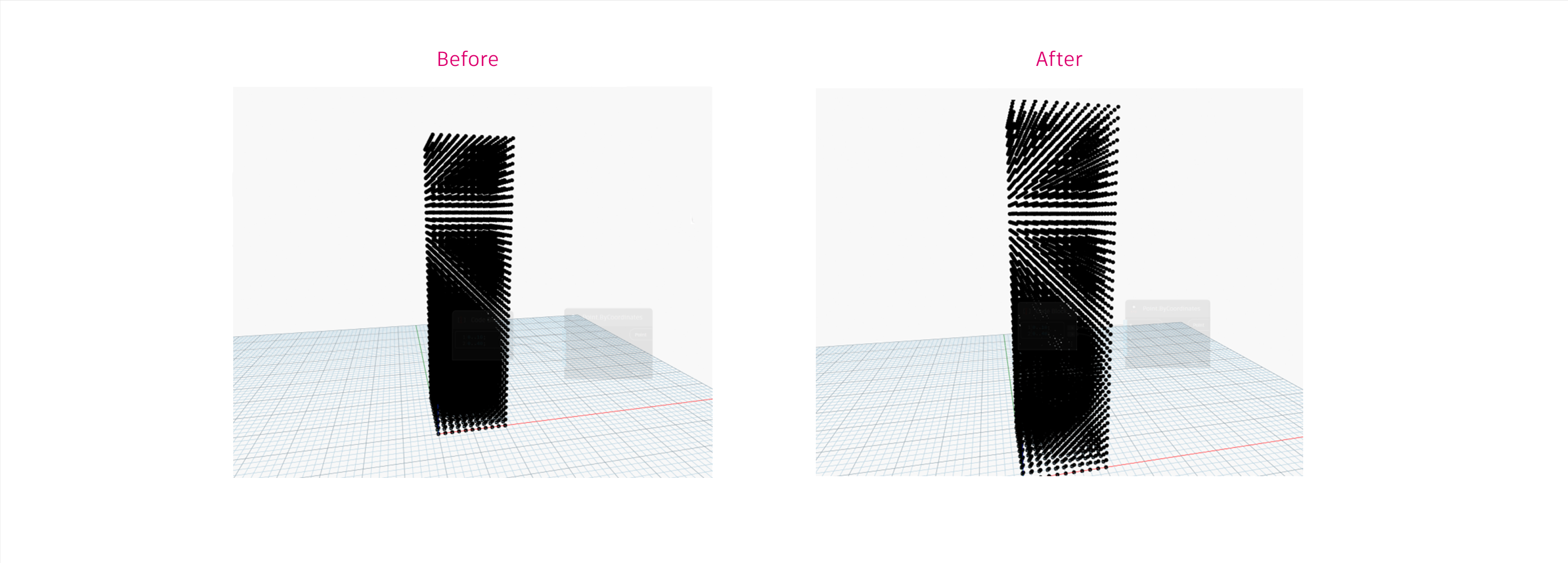
Zoom Extents for the background preview are now more accurate and predictable regardless of the size of the Dynamo application window. Previously, results would vary depending on the size and height/width ratio of background preview view window, making Zoom Extents appear fully incorrect in some cases. In this release, we have dramatically improved the algorithm for Zoom Extents, making it fully predictable regardless of background preview view window size or height/width ratio.
Data collection for machine learning features
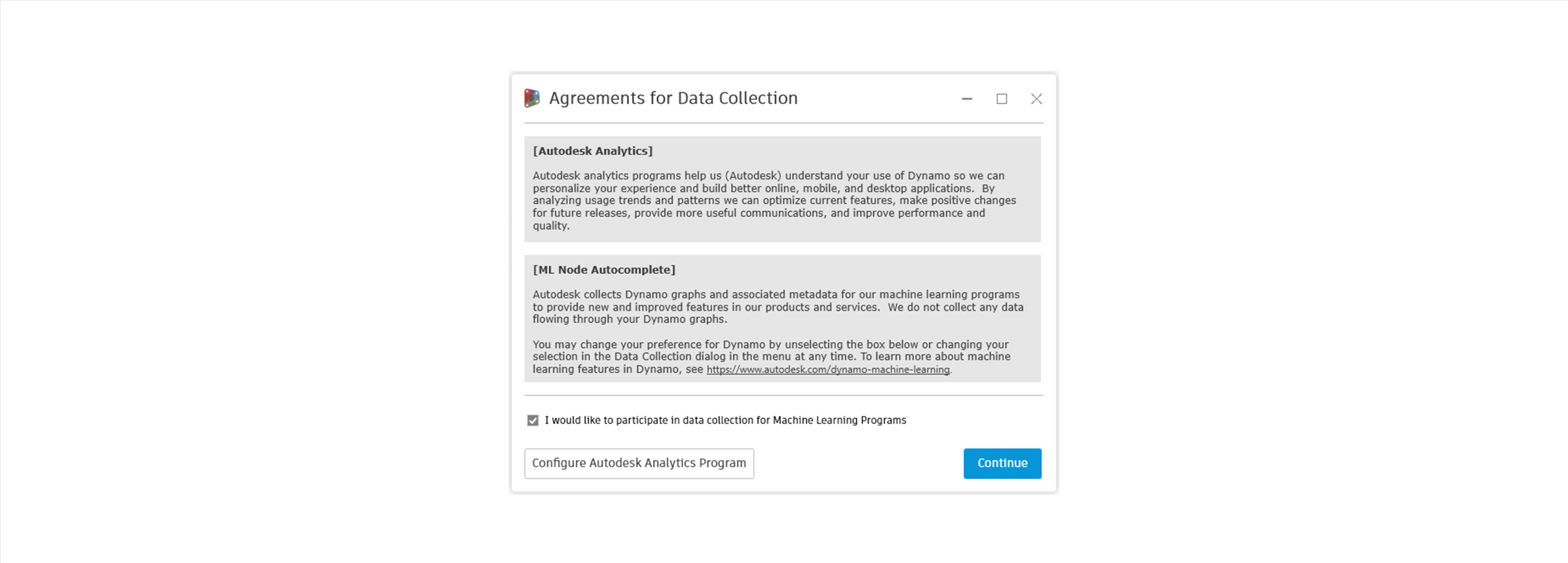
Autodesk collects Dynamo usage data to personalize and improve our users’ experience. But we want to keep you informed and help you stay in charge of your data. That’s why we’ve added new Agreements for Data Collection in the top menu under Dynamo. This dialog provides information about how and why data is collected during Dynamo usage.
In the new section about Node Autocomplete, you can click a link to read more about how the Node Autocomplete feature works and what data is and isn’t collected to power it.
At the bottom of the dialog, you can select the checkbox if you’d like to participate in data collection, or you can click the button to Configure Autodesk Analytics Program for more granular control. It’s up to you if you want to participate in data collection, but please note that the Recommended Nodes ranking method of Node Autocomplete is powered by machine learning and will only be available to those users who have opted in. You can still use the Node Type Match method without opting in. And you can change your selection at any time from this dialog.
Graph Node Manager improvements
The Graph Node Manager extension is your command center for graph management, giving you an at-a-glance view of all the nodes in your graph and their current status. And now, Graph Node Manager is better than ever, with a selection of quality-of-life improvements:
- [ 1 ] There’s a new way to examine node outputs. In the Outputs column of Graph Node Manager, new icons show if the output is a single item or a list, and for lists shows the number of top-level items (up to 9).
- [ 2 ] When copying error or warning text to clipboard, the text now includes both the original and renamed node name. This makes it easier to troubleshoot issues with colleagues and the Dynamo community.
- [ 3 ] The Function icon has a new, more legible appearance.
- [ 4 ] The Export option for exporting node data in CSV or JSON format has been moved to the bottom right.

Refreshed Revit sample files
Good news for users of Dynamo for Revit: We’ve cleaned up and improved the suite of sample files available in the top menu under Help > Samples. In addition to eliminating deprecated nodes and overlap, we’ve added helpful groupings and notes to explain how the graph works. With this update, it’s never been easier for new users of Dynamo for Revit to start exploring Dynamo’s possibilities!
More readable Watch nodes
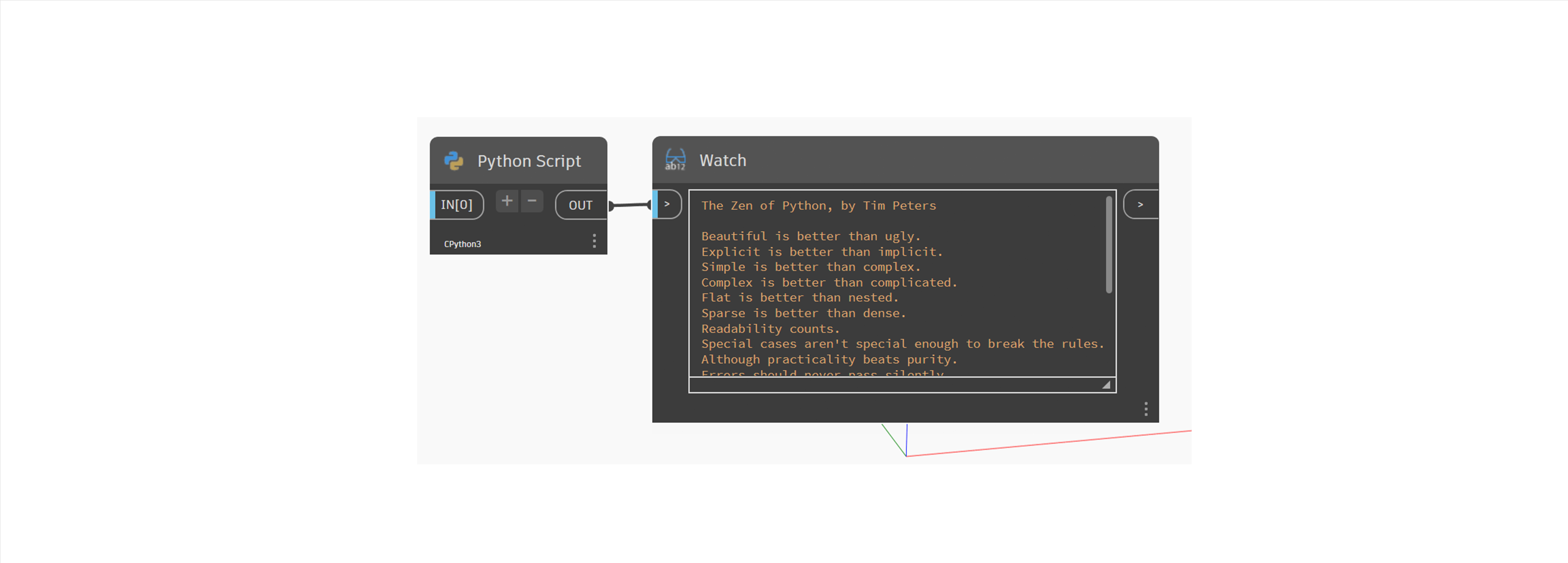
Using long text in Watch nodes? With this release, you’ll find it’s more readable than ever! Scroll bars now appear by default, without needing to hover, and you can use the resize handle to display more text without scrolling.
Data.ParseJson and Data.StringifyJson data support
Data.ParseJson and Data.StringifyJson nodes now support most Dynamo standard data types. This includes all Geometry types except Topology, Color, Location, and Image.
Gate and Remember nodes, right out of the box!
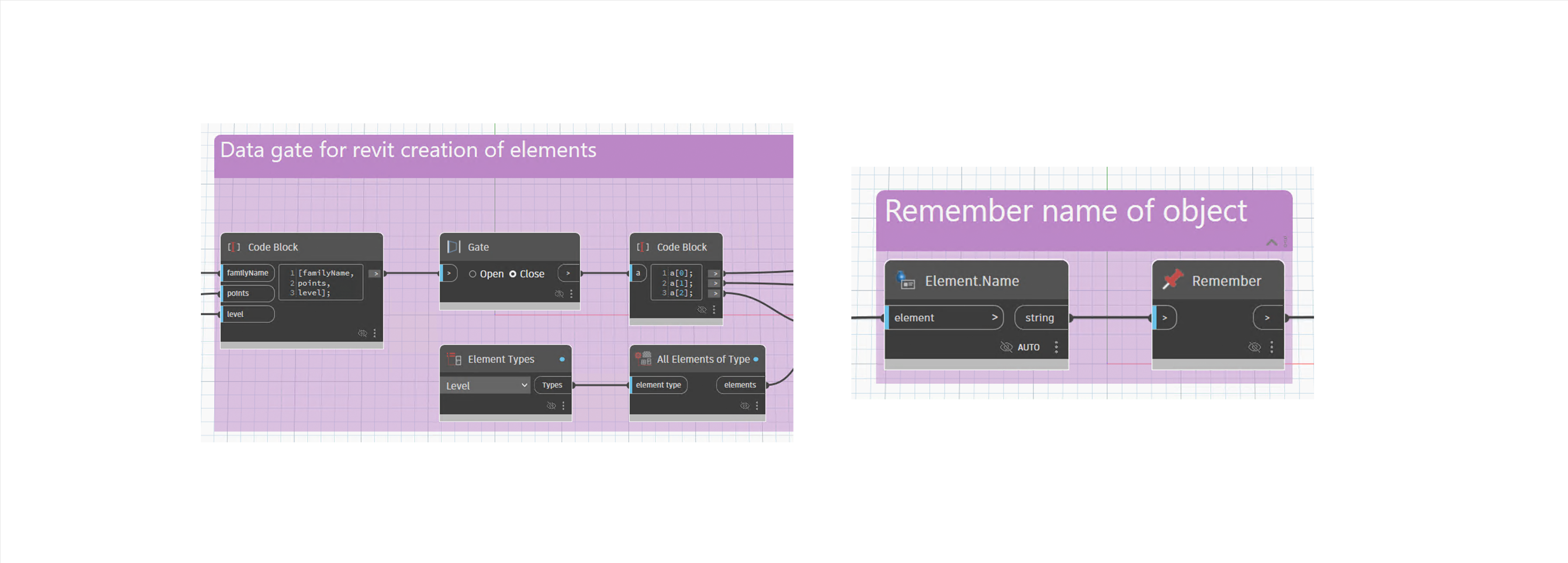
The standard Dynamo library now includes the Gate and Remember nodes. The Gate node allows you control the execution in sections of your graph. An open Gate passes data through unchanged, while a closed Gate sends no data downstream—similar to freezing a node, but in the form of a separate node. A Remember node stores the data passing through it to the Dynamo file and returns the stored data if the input is null.
Formula nodes auto-converted to Code Blocks
If you’ve been using Formula nodes, note that they have been deprecated and are no longer available due to the .NET upgrade. Any Formula nodes used in graphs will be automatically converted to Code Blocks where possible. A warning will alert you to converted nodes, as well as any nodes that failed to convert.
Better Node Autocomplete results for custom node output ports
Previously, Dynamo may have struggled when using Node Autocomplete with the Node Type Match method on custom node output ports, failing to find results even for valid type names. Now, you should start seeing improved results for custom node output ports.
Offline mode
We’ve added a new “NoNetwork” mode to command line arguments used in starting up Sandbox, DynamoCLI, and DynamoWPFCLI. This mode runs Dynamo offline and disables the following features:
- Sign-in and the ability to publish packages online
- Notification center
- Node autocomplete Recommended Nodes requests are blocked
- Usage agreement (consent dialog)
Additionally, the DisableAnalytics flag can be used to disable analytics even when Dynamo is running online.
Element Binding support
Element Binding has dropped support for the deserialization technique in older versions of Dynamo. Dynamo 3.0 and beyond uses Strings. To migrate existing graphs that contain Element Binding, you will need to resave them. If your graph contains element binding data in the legacy format, you’ll see the following message:

As a part of this change, Dynamo is discontinuing use of SoapFormatter and switching to JSON serialization. SoapFormatter was previously used to serialize element binding data and is no longer recommended due to security risks.
Bug fixes
- We fixed a bug that caused BoundingBox.ToCuboid to return null for a zero-height (2D) bounding box.
- The coordinate system of a bounding box created by BoundingBox.ByMinimumVolume is now less likely to flip its axes when the input geometry varies.
Good stuff! So where can I grab Dynamo 3.0.3?
Dynamo 3.0.3 will be made available in our host integrations at a future date and can be explored right now through the dynamobuilds.com website or the GitHub build page – available in the Sandbox version of Dynamo.
If you’re curious, you can also read our Release Notes
For more information on other minor features, bug fixes, and known issues in Dynamo 3.0.3, take a look at the release notes!
We’d like to extend a huge thank-you to everyone who made this release possible and to the entire Dynamo community for continuing to support our work. Be sure to stay tuned to the Dynamo Roadmap, where you can take a look at current and upcoming work, express your support for features you want to see, and let us know what you think by adding a comment.
The Dynamo Team