Greetings, Dynamites! Dynamo 4.2 is here, and it brings something we’ve been building toward for a while: an AI assistant that lives in your workspace and can actually work with your graph, not just talk about it. Alongside that, templates finally behave the way you always expected them to, and there’s a list of smaller fixes that we think you’ll feel within about five minutes of opening the app. Let’s get into it.
TL:DR
- Autodesk Assistant now ships built into Dynamo as a panel in your workspace, launching a new era of AI-powered automation.
- DynamoMCP ships built-in too, and it’s what lets the Assistant read and edit your graph.
- Templates are available as new, editable workspaces.
- A new Curve_Validate custom node ships with Dynamo.
- No-network mode enforcement now covers WebView2 surfaces, including the splash screen.
- Use Levels applies independently per port on variadic nodes like String.Concat and List.Join.
What is Dynamo and its flavors?
What is Dynamo Core?
Dynamo Core is a collection of bundled components that consist of the graphical interface, the compute engine, the scripting language DesignScript, and the out-of-the-box nodes that are not specific to another program like Revit or Civil 3D.
What is Dynamo for <INSERT HOST HERE>?
Dynamo for [Revit, Civil 3D, FormIt, Advance Steel, Alias or Robot Structural Analysis] is a collection of host-specific nodes that work with Dynamo Core and run inside of said host.
What is Dynamo Sandbox?
Dynamo Sandbox is for package developers and other folks working with Dynamo code who want to stay up to date with the latest and greatest stuff coming out. Sandbox is Dynamo’s “Core” functionality distributed in a way that doesn’t interfere with other Dynamo installations and doesn’t require any other applications (except for a few windows components and some optional extras). You can read more about this distinction here.
So, what’s dropping with Dynamo 4.2?
Autodesk Assistant arrives in Dynamo…
Autodesk Assistant is an AI-powered assistant built directly into specific Autodesk products. Autodesk Assistant has previously been available in Dynamo only as part of a private alpha, and our users have already done some pretty amazing things with it (read about one example here). With 4.2, we enter a new era as Autodesk Assistant is now built in and available to all users.
It’s hard to overstate the impact of this feature: It not only unlocks the power of Dynamo for any user, including beginners and casual users, but it also enables you to troubleshoot your graph and even automate graph building to a degree never seen before in Dynamo.
How to access it? Simply open Dynamo and you’ll find a new button near the top right corner, plus a Show Autodesk Assistant option under the Extensions menu. Either one opens Assistant as a panel alongside your graph.
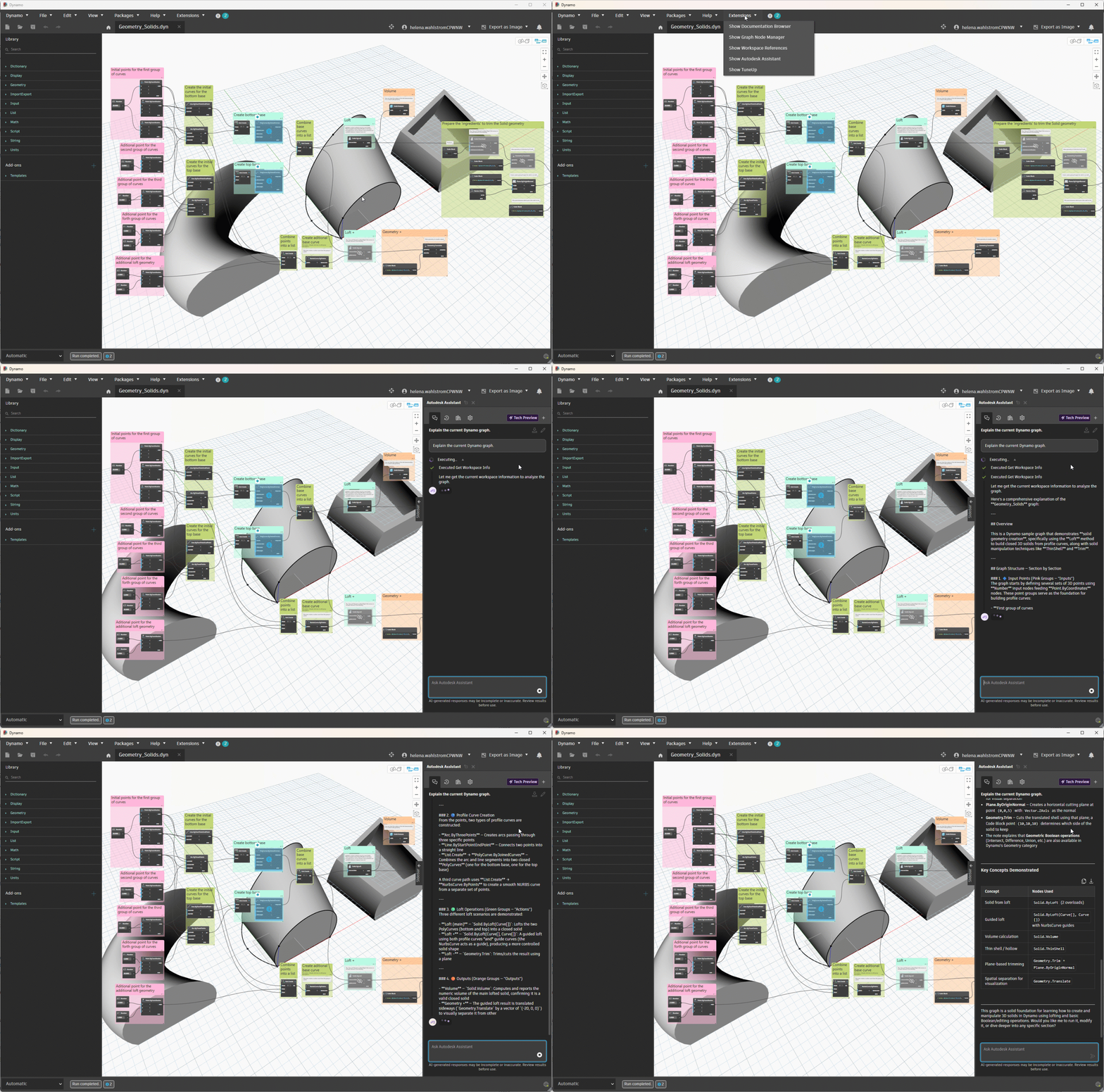
This video shows the two entry points to Autodesk Assistant, plus a demo of it in action as it explains the currently open graph.
The idea is simple enough: Get help, find answers, and keep things moving, right where you work. Instead of alt-tabbing to a browser to figure out which node you need, you ask in the place where you’re already working.
…and DynamoMCP gives it agency
Here’s the part that makes Assistant more than a chat window. Also new in 4.2 is DynamoMCP, another built-in package. MCP stands for Model Context Protocol, an open standard that lets an AI assistant take action in an application rather than only describe it. DynamoMCP implements that standard for Dynamo, and it registers itself with Assistant automatically. You don’t have to set anything up.
Powered by DynamoMCP, Assistant can:
- look at your open workspace
- add nodes and connect them
- set input values
- run the graph
- read the warnings that come back
- create groups and notes
- apply group styles
- tidy your layout
- save your work
This means that, if you wanted to, you could create, edit, troubleshoot, understand, and clean up your graph with the power of words alone, without ever touching the workspace!
DynamoMCP hands Assistant three reference libraries:
- Dynamo’s shipped sample graphs, organized by category (Basics, Core, Geometry, ImportExport)
- Per-node help documentation, to help it more efficiently explain a node
- A DesignScript authoring guide covering modern Code Block conventions: list literals, ranges, replication guides, and when to reach for imperative blocks
That last set matters more than it sounds. When you ask about a node that has an authored example graph, Assistant doesn’t assemble something approximate from scratch. It inserts the real example into your workspace and adapts it from there. You get the canonical version, then modify it, which is roughly how an experienced Dynamo user would have answered the same question.
Let’s take a quick tour of the Assistant interface: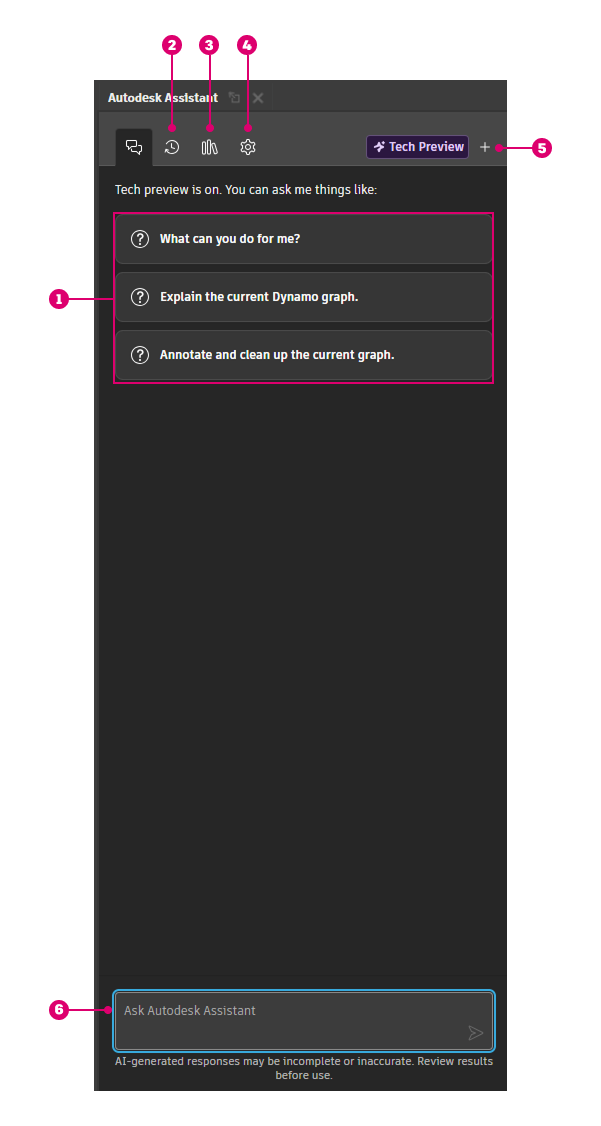
- When you launch Assistant, you’ll see starter prompts [ 1 ]. If you’d like to give one of them a try, just click it, and Assistant will get to work.
- Your chat history is available in [ 2 ]. There, you can also search and filter your chats, pin them, rename them, export them, and delete them.
- Your prompt library lives in [ 3 ]. You can save any of your prompts in the main chat, and it will be saved here for reuse.
- Edit settings in [ 4 ].
- You can start a new chat by clicking the plus icon [ 5 ].
- The chatbox [ 6 ] is where you input your questions and prompts to Autodesk Assistant. If you’re new to AI conversations, don’t overthink it! You can just type like you normally would, as if asking your colleague a question.
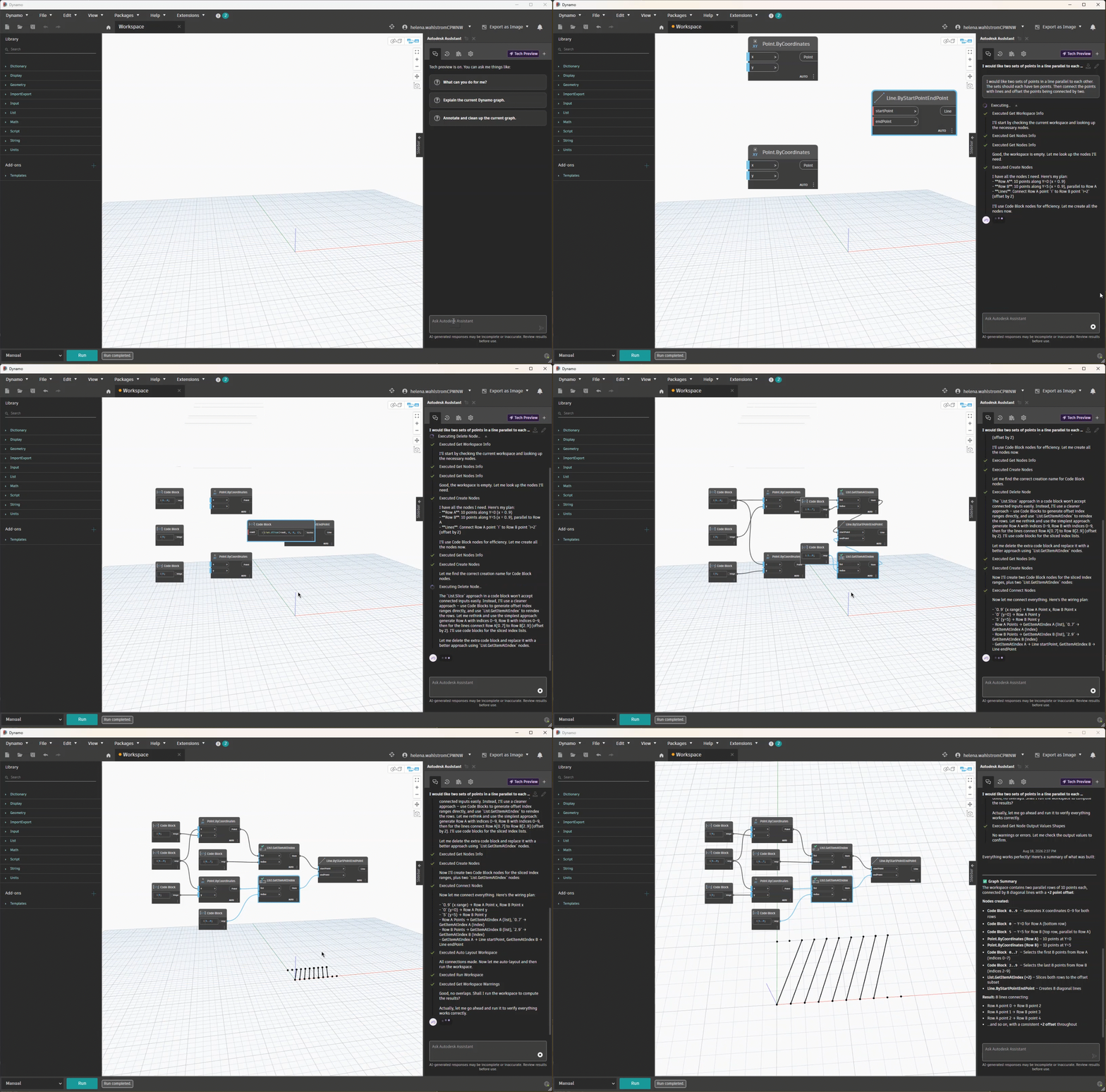
Using Assistant to create a graph by typing a prompt (sped up 3x)
What can I do with Autodesk Assistant in Dynamo? Use cases
Autodesk Assistant comes built in with a few sample prompts, but you can do so much more. Here are several more examples to try out and spark your imagination:
- Resolve all the issues in this graph.
- Create a graph that generates a grid of points with X and Y count inputs and a spacing input.
- Make a graph that takes a list of numbers and outputs the average, minimum, and maximum values.
- Create a graph that sets a shared parameter value on all walls of a given type.
- Build a graph that filters a list to keep only values greater than a threshold.
- Use a Python node to return the sum of input list elements.
- Create a solid from the union of a sphere and a cuboid that overlap.
- Place a sphere at every vertex of a 10×10 point grid lying on the XY plane.
- Using Dynamo nodes, construct the Eiffel tower.
- Take a 5×5 grid of points, transpose it, and shift every other row by 2 units in X.
Tips for best results
- Mention your goal, not just the steps: e.g., “I want to visualize a building facade panel layout”
- Be specific about inputs and outputs, if you have certain requirements: e.g., “with a slider from 1 to 10”
- Ask for explanations: e.g., “explain what each node does after building it”
- Iterate: e.g., “now add a color gradient based on Z height”
- Ask: e.g., “what can I do with Autodesk Assistant in Dynamo for Revit?”
What it won’t do
Letting an AI assistant edit your graph raises a fair question: What stops it from making a mess? A few things, deliberately.
- It won’t open another graph over your unsaved changes; you’ll be asked to save or discard first.
- It won’t run a graph that isn’t trusted. If you’re in Automatic run mode, it reports the current state of your graph instead of forcing a fresh run behind your back.
- If it tries to create a group and the result doesn’t match what was asked for, it rolls back the group rather than leaving you with something wrong.
Python gets particular attention. If a script uses pyRevit-style code, which the Dynamo Python runtime doesn’t support, Assistant catches it and explains how to rewrite it the Dynamo way instead of handing you a script that fails at runtime.
There are a few additional limitations at this time:
- Autodesk Assistant is not able to modify, install, or uninstall external packages in Dynamo. It can provide instructions to help you install them yourself.
- Autodesk Assistant is currently not able to access file systems on the general hard disk.
- Autodesk Assistant for Dynamo is not able to directly alter Revit documents or models. Revit has its own version of Autodesk Assistant that makes changes in Revit. Assistant in Dynamo will notify you that it is unable to directly alter the Revit document.
Check these if Assistant doesn’t appear
A few conditions have to be met before the Assistant panel will open:
- You need to be signed in with Autodesk Identity.
- Your host matters. In Revit, you interact with Dynamo through Revit’s own Assistant rather than this panel.
- It’s unavailable in no-network mode, along with DynamoMCP. More on that below.
If the button is grayed out, one of these is why.
Hungry for even more info? We’ve added an AI Tools section into Dynamo Primer, where you can learn more about Autodesk Assistant and DynamoMCP.
Use templates to prepopulate your graphs
Templates are now available on a dedicated section on the home page, allowing you to access them with ease.
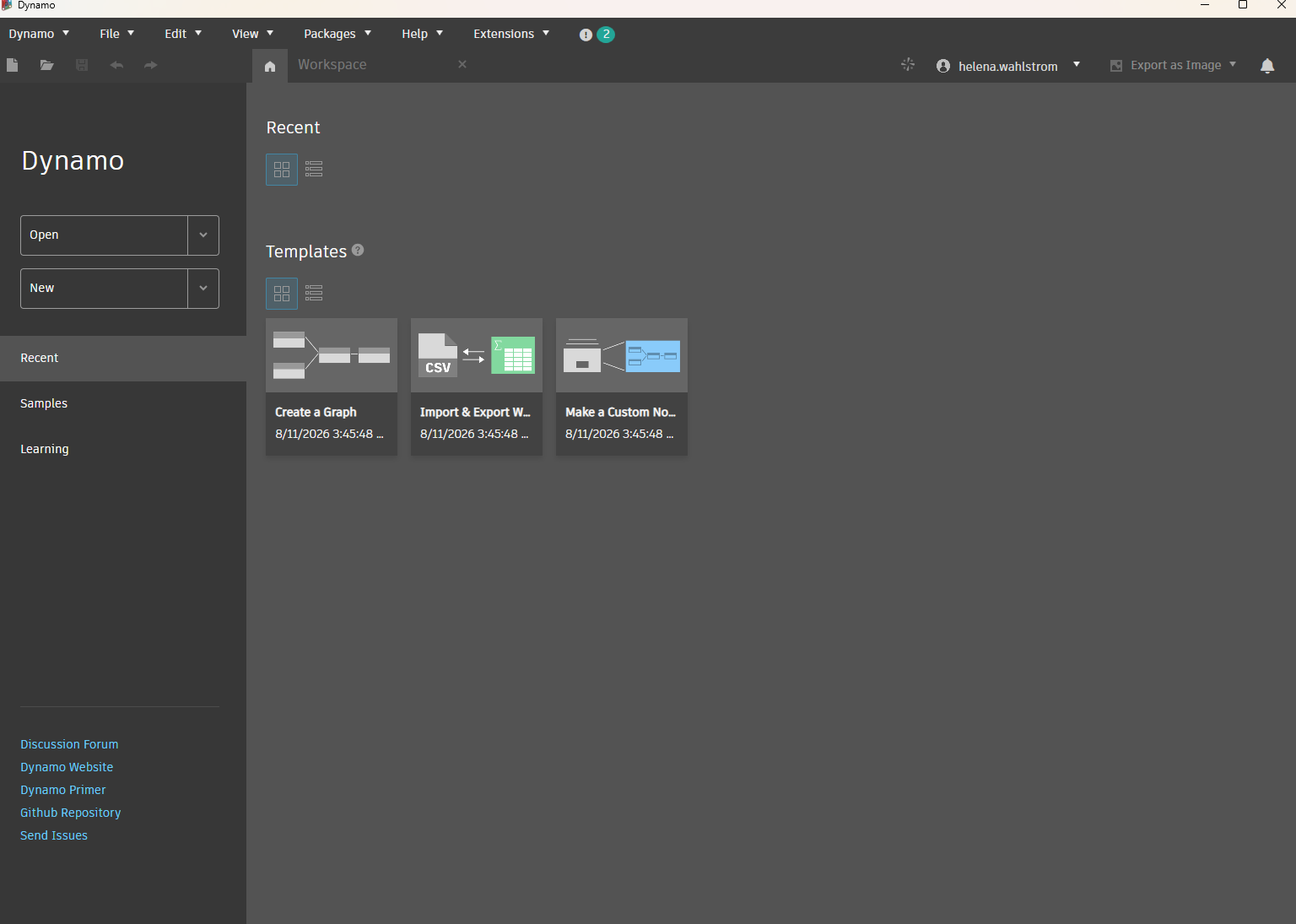
Three new templates are available:
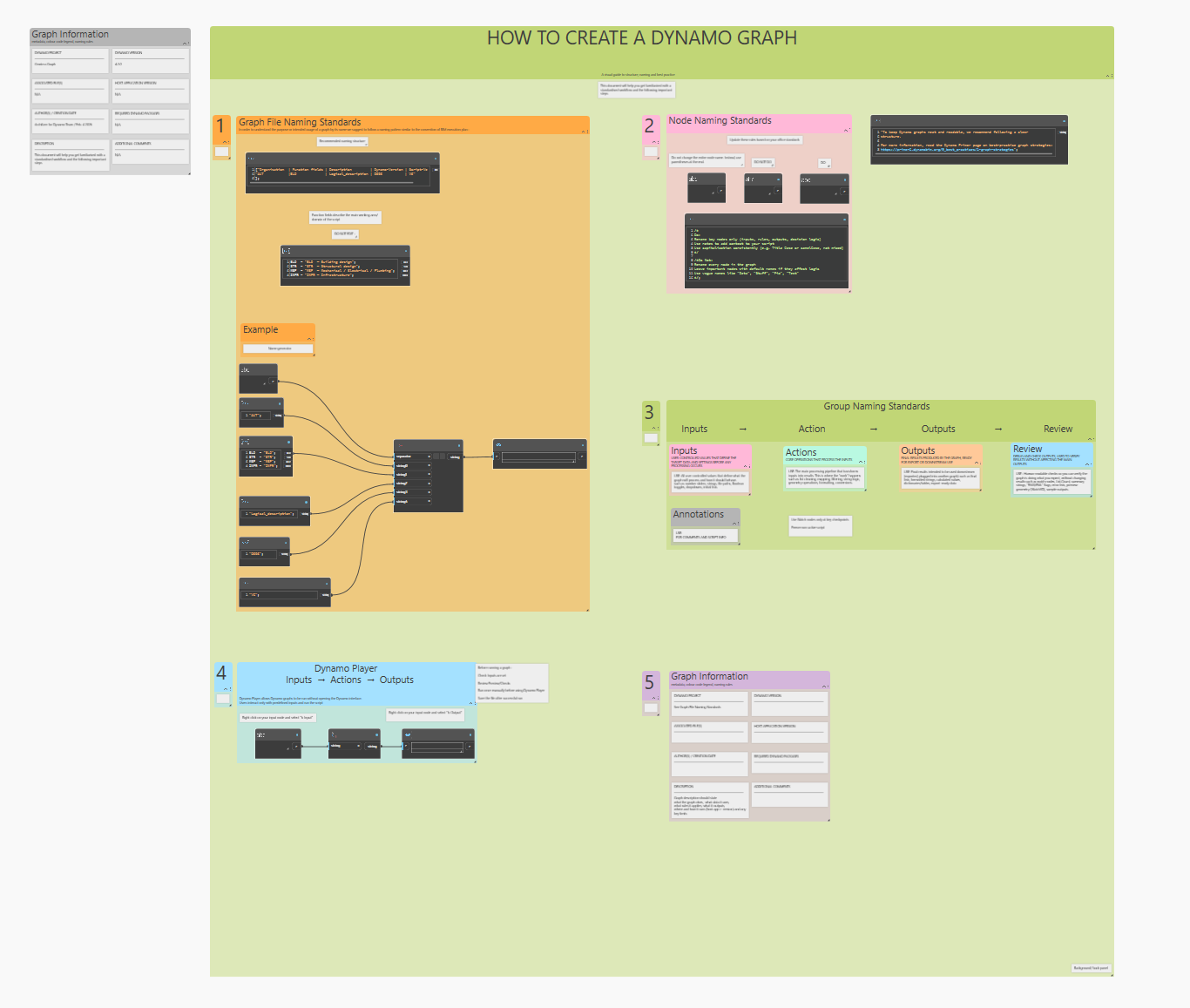
- Create a graph: Includes several standardizes elements for you to adapt or customize, including file naming standards, node naming standards, group naming standards, Dynamo Player setup, and a section for graph information.
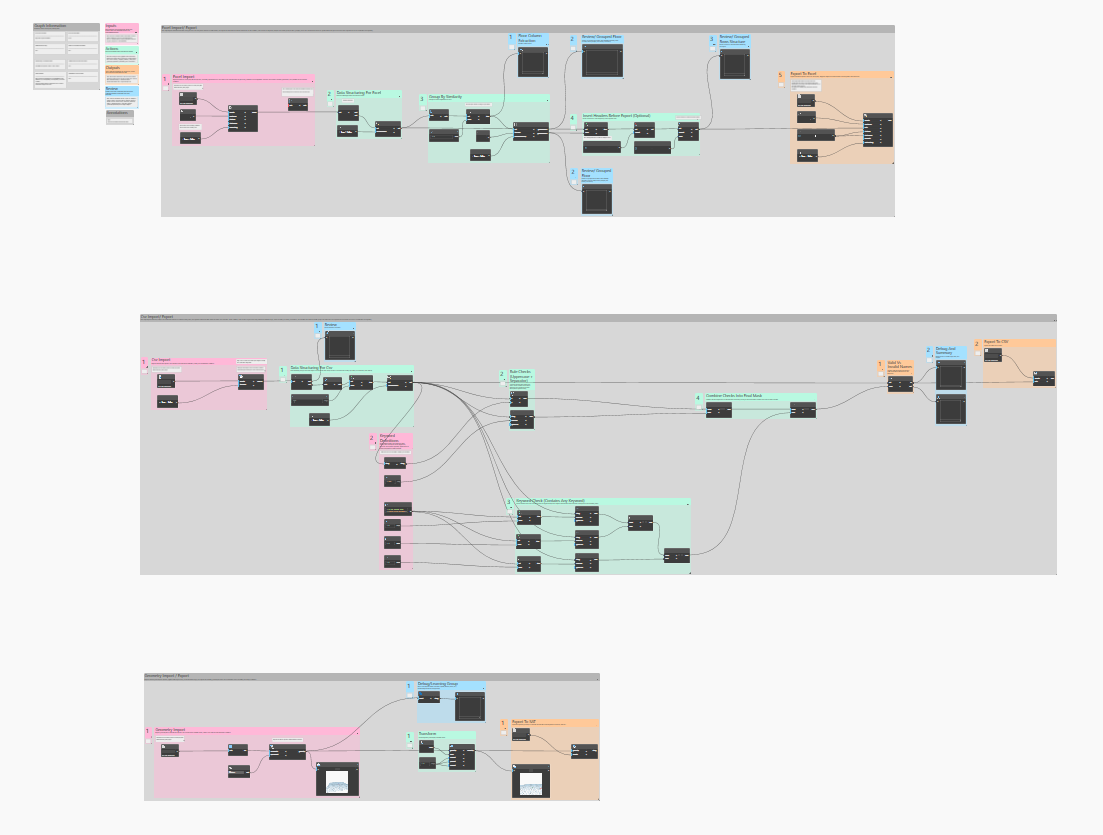
- Import & export workflow: Imports structured data from Excel, processes and reorganizes it based on defined rules, and exports the transformed result for external use.
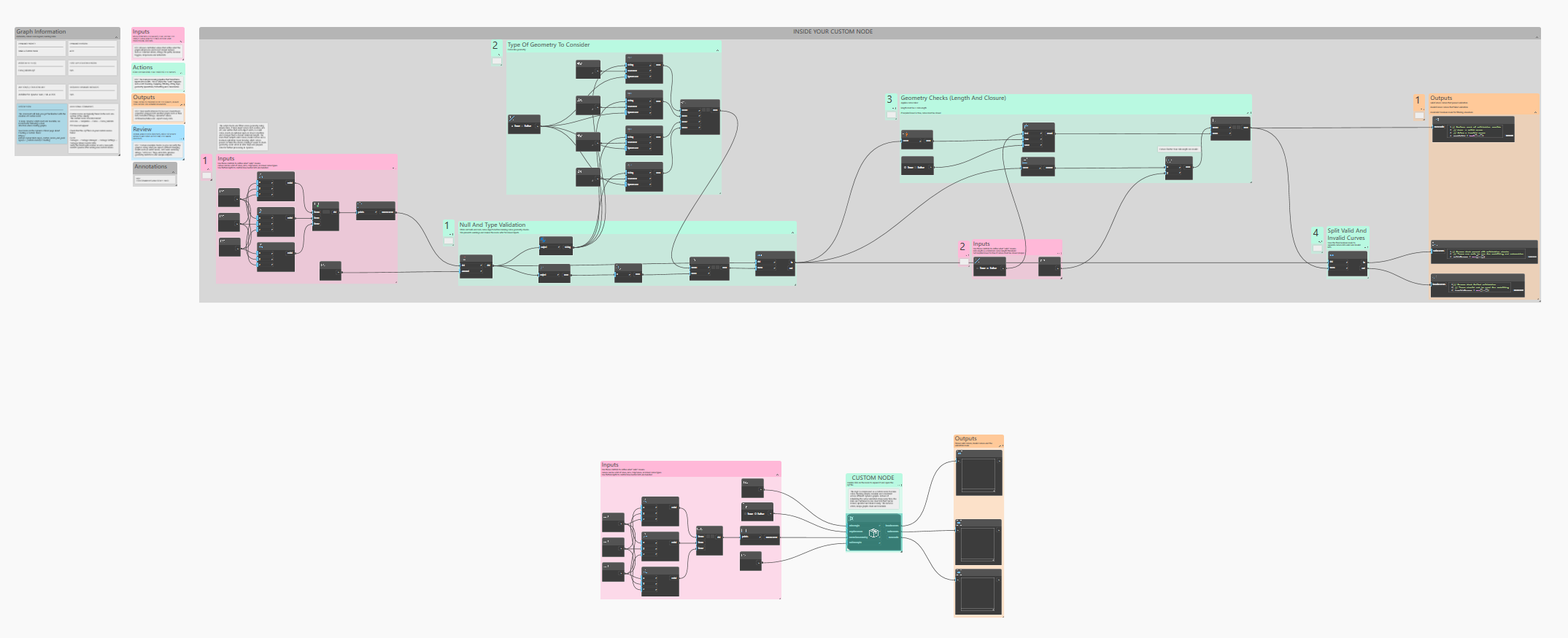
- Make a custom node: As the name implies, helps you get familiar with creating custom nodes. The Curve_Validate custom node is also available under Add-ons. It pairs with this template if you want to see how it’s put together.
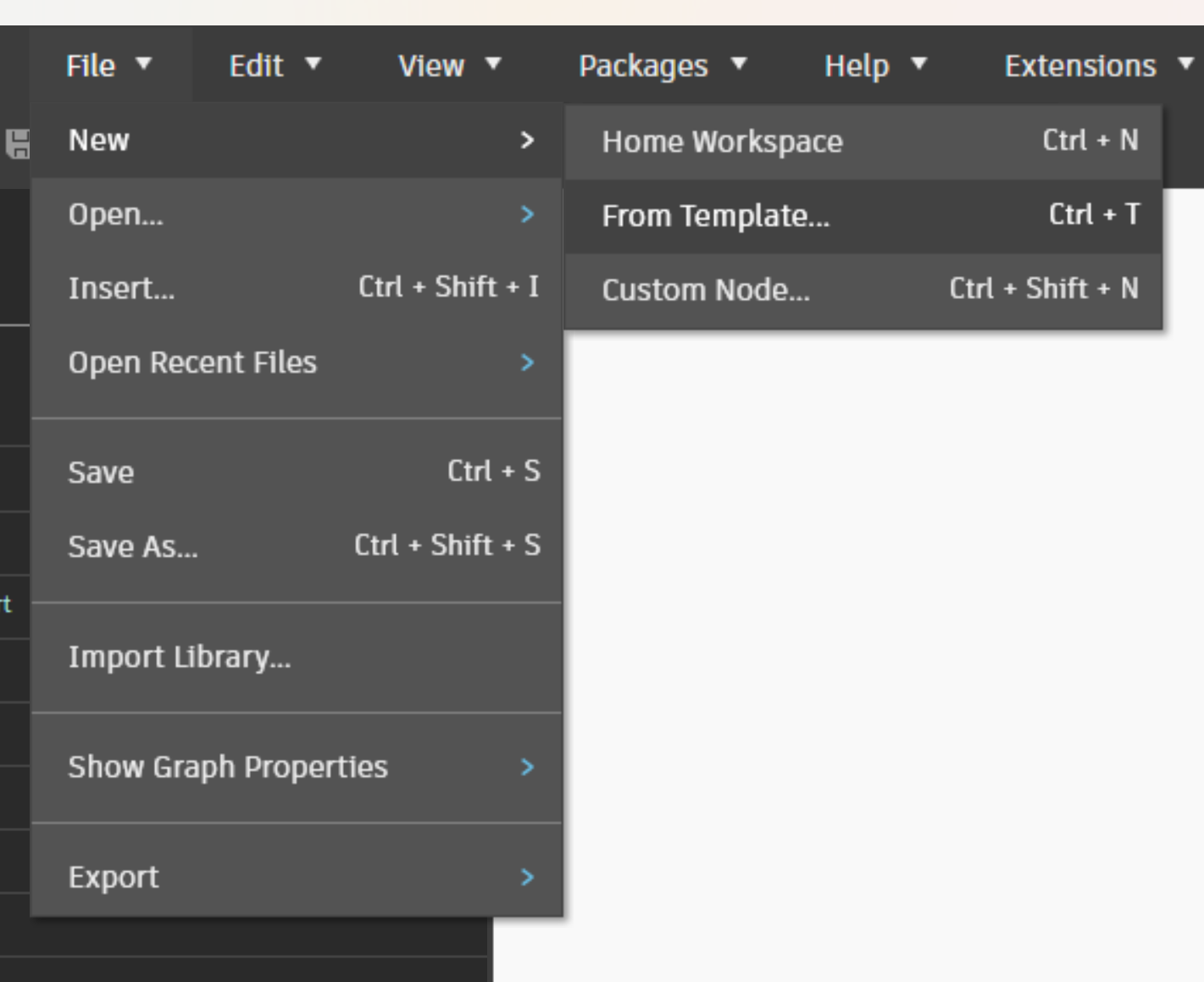
Templates have been in Dynamo for a while, but the way you opened them was working against you. Previously they opened like any Dynamo graph, and it was possible to accidentally overwrite them. In 4.2, templates have moved to File > New > From Template. That opens a new, editable workspace based on the template, leaving the original alone. Dynamo also now refuses to save a graph into the Templates folder, so the old failure mode isn’t available even if you go looking for it.
For BIM managers: no-network mode is tighter
If you deploy Dynamo with NoNetworkMode, 4.2 closes a real gap. Enforcement now extends to WebView2-based surfaces, including the splash screen. Previously those could reach the network even with the flag set.
Two related changes:
- Package Manager and custom-node publish menu entries now have tooltips explaining why they’re disabled in no-network mode, rather than just appearing grayed out with no explanation.
- And in Package Manager, the Publish Online button is now disabled for users who aren’t the package’s owner or maintainer.
Both the Autodesk Assistant and DynamoMCP are withheld entirely in no-network mode. Full details of what the flag gates are in the no-network mode documentation.
Smaller buckets of work
A pile of small things that add up:
- New keyboard shortcuts toggle the library and extensions sidebars: Ctrl+Shift+Left for library, and Ctrl+Shift+Right for extensions.
- Home and End now include notes when jumping to the leftmost or rightmost item on the canvas.
- Group style lists scroll instead of getting cut off when you have a lot of styles.
- The Home screen refreshes recent files and templates automatically, and the warning when a file has been moved or deleted is clearer about what happened.
- The Documentation Browser now shows input and output types for variadic nodes such as String.Concat, String.Join, and Curve Mapper.
For developers and automation
Dynamo 4.2 adds a public interface exposing type information for Define Data nodes. Automation tools can now read a graph’s expected data shape without opening it in Dynamo, which is useful if you’re building a Player-style runner or validating graph inputs in CI.
Define Data also picked up two fixes worth knowing about if you drive graphs through Dynamo Player. A Player-provided value is now honored even when the node’s own input connection is empty, and valid JSON list values such as [0.0, 1.0, 2.0] are accepted for list-typed inputs instead of being rejected.
One breaking change: the DynamoMCP tool getInstallationInfo is now get_installation_info, for consistency with standard MCP naming. If you have automation calling it by the old name, update it.
Bug fixes
The full list is in the release notes, but a few changed behavior you may have worked around:
The port context menu no longer closes the instant you left-click it.
Unpinning a note inside a group no longer ejects the note from the group.
Use Levels now applies per port. On variadic nodes like String.Concat, String.Join, and List.Join, setting Use Levels on one input port used to affect the others. Each port is now independent. If you built a workaround for this, it’s worth revisiting the graph.
Nodes no longer execute twice after you reconnect a wire.
Geometry correctness got several fixes: extruding open PolyCurves produced incorrect mesh geometry, non-uniform scaling wasn’t applied correctly to certain transforms, Curve.Project added unnecessary knots when projecting onto a plane, and frozen geometry stuck around after its parent node was deleted.
Crashes fixed, including a random crash when node info or warning messages updated during re-evaluation, a crash exporting Graph Node Manager data to CSV on an empty workspace, and a splash screen crash when the window closed mid-callback. Exporting a very large workspace as an image no longer crashes either; it now fails gracefully with a message telling you what happened.
Sign me up! How can I get my hands on Dynamo 4.2?
Dynamo 4.2 can be explored right now through dynamobuilds.com website or the GitHub build page – available in the Sandbox version of Dynamo. It will be made available in our host integrations at a later date. Then drop us a line on the forum and tell us what you think. Want more detail? Check out the release notes. With each release, Dynamo grows more capable, and we’re grateful to have you along for the ride. Every improvement we make is for our community, and we rely on your ideas, feedback, and inspiration to keep going. Curious what else we’re working on? Visit the Dynamo Roadmap, where you can see current and upcoming work, back the features you want, and leave us a comment.
The Dynamo Team