Summer is heating things up in the Northern Hemisphere, and the Dynamo team has been cooking up some smoking hot improvements to your experience! This release represents a culmination of long-standing efforts to improve Dynamo’s performance, with significant gains achieved that Dynamo users should notice. In addition to these performance gains, we’ve added exciting new features to our toolset. Read on to learn all about them!
TL:DR
This release introduces a revamped and more discoverable Node Autocomplete experience, enhancements to groups, and bug fixes. In addition, it adds significant performance updates that are all about turbocharging your Dynamo navigation experience, making it faster and more responsive, thus minimizing your wait time.
What is Dynamo and its flavors?
What is Dynamo Core?
Dynamo Core is a collection of bundled components that consist of the graphical interface, the compute engine, the scripting language DesignScript, and the out-of-the-box nodes that are not specific to another program like Revit or Civil 3D.
What is Dynamo for <INSERT HOST HERE>?
Dynamo for [Revit, Civil 3D, FormIt, Advance Steel, Alias or Robot Structural Analysis] is a collection of host-specific nodes that work with Dynamo Core and run inside of said host.
What is Dynamo Sandbox?
Dynamo Sandbox is for package developers and other folks working with Dynamo code who want to stay up to date with the latest and greatest stuff coming out. Sandbox is Dynamo’s “Core” functionality distributed in a way that doesn’t interfere with other Dynamo installations and doesn’t require any other applications (except for a few windows components and some optional extras). You can read more about this distinction here.
So, what’s dropping with Dynamo 3.6?
A new way to Node Autocomplete
In this release, we’re making Node Autocomplete much easier to find and amplifying it with a host of exciting improvements!
What’s Node Autocomplete? Node Autocomplete is an efficiency-boosting feature that, similar to how text processing tools suggest the next word, offers several node suggestions to connect to your selected port. These machine learning-powered node suggestions have the potential to vastly speed up your graph-building workflow, minimizing the need to spend time searching for the right node trial-and-error-style.
Sounds pretty great, right? Unfortunately, not all users stumbled upon this feature, as it was a bit hidden behind two clicks of an input or output port. In this release, we’re changing that by introducing a new icon that appears on port hover. Simply click it, and you’ll trigger the new Node Autocomplete toolbar!
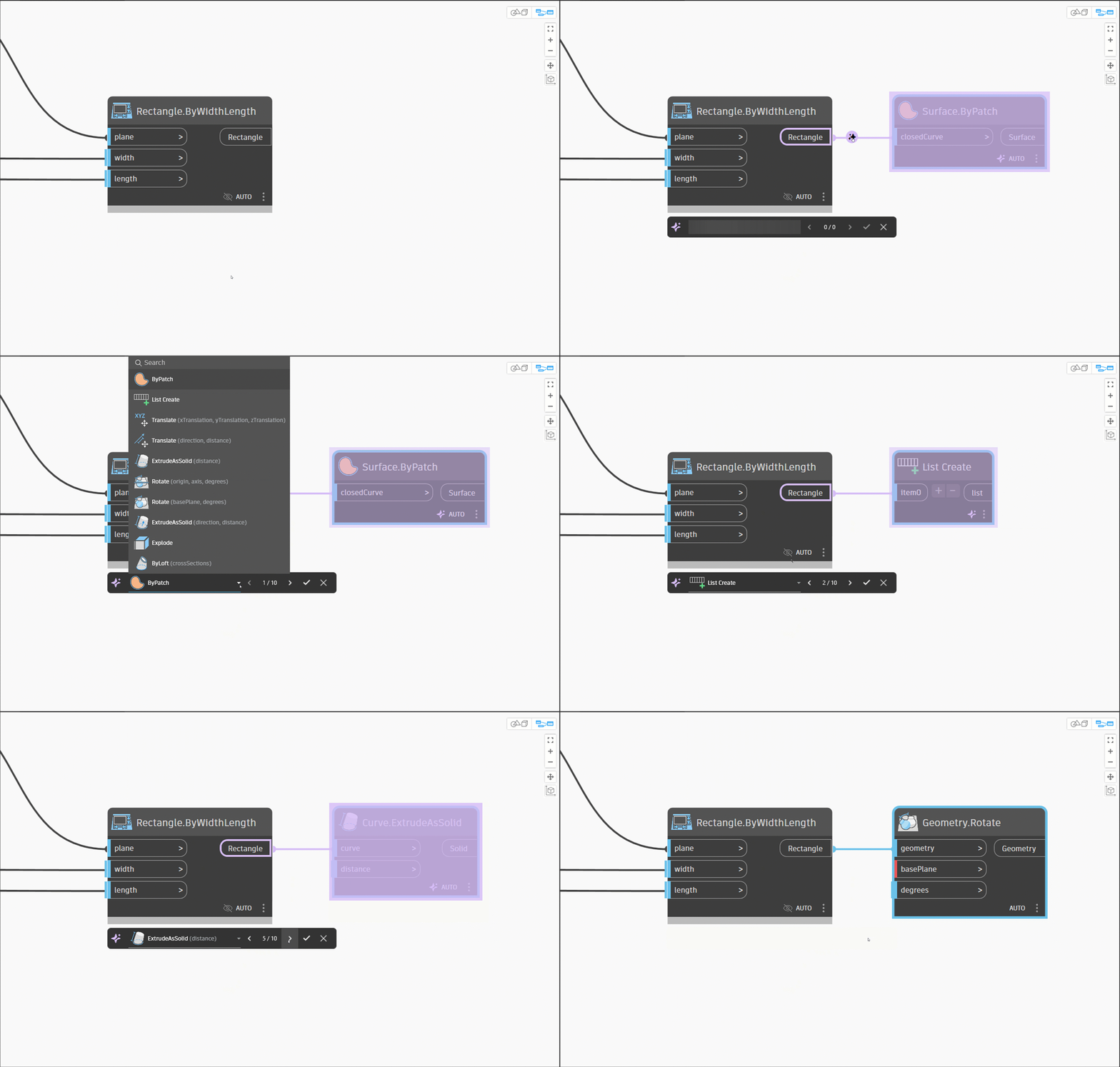
Let’s take a closer look at this new toolbar.
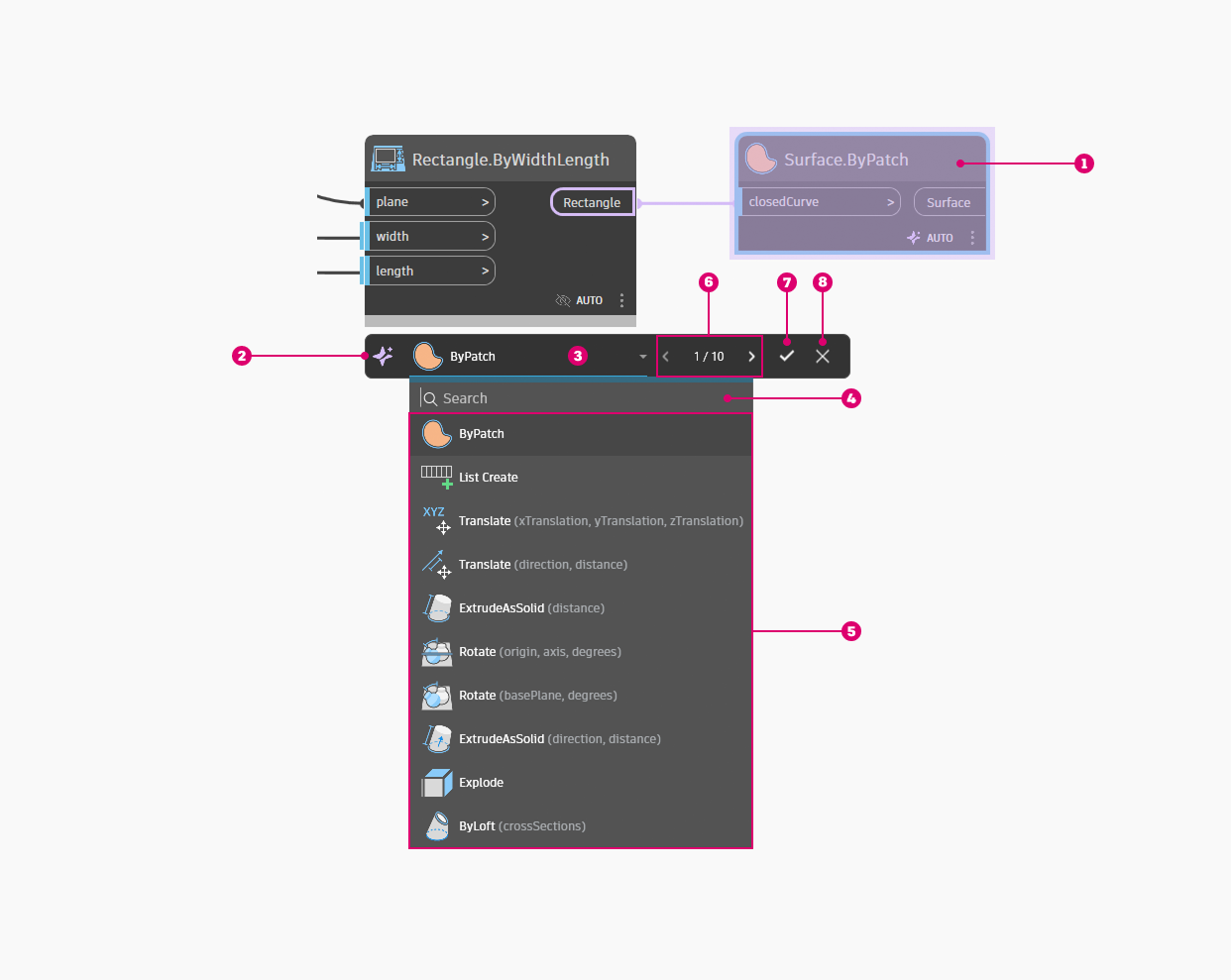
- [ 1 ] Ghosted node: The suggested node is shown in purple, with a purple connecting wire to indicate that it’s not yet placed. As you cycle through the suggested nodes, the preview updates. In this transient state, the node is not yet executing, so using this feature won’t slow down your graph. Once you accept the suggested node, it exits the purple “ghosted” state and is placed as a regular node.
- [ 2 ] Documentation link: Click this icon to open the Documentation Browser inside Dynamo and learn about Node Autocomplete in more detail.
- [ 3 ] Suggested node: Shows the icon and name of the currently shown suggested node.
- [ 4 ] Search: Narrow down the list of suggested nodes by using the search bar. Helpful if you see a lot of suggestions and/or if you know which node you want and want to skip right to it.
- [ 5 ] List of suggested nodes: If you’d prefer to see all the suggested nodes at once, click the drop-down [ 3 ] to view them as a list.
- [ 6 ] Forward and back arrows: You can click these to cycle through the suggested nodes. Alternatively, you can use the arrow keys on your keyboard.
- [ 7 ] Confirm button: Click this to place the suggested node. It will be auto-connected to the triggering port and placed using the auto-layout feature to keep your graph neat. You can also use the Enter key to do this.
- [ 8 ] Cancel button: To exit Node Autocomplete, click this button or the Cancel key.
Got double clicking in your muscle memory? No worries—if you double click a port, you’ll see a notification reminding you to click the new Node Autocomplete icon instead.
While we think the new toolbar is pretty exciting, you can go back to the old look and feel from the Preferences menu. Under Features > Node Autocomplete, disable the Enable Floating Toolbar toggle to revert to the old version of Node Autocomplete. Note that you’ll still trigger Node Autocomplete using the icon instead of double clicking a port even with the floating toolbar disabled.
Here’s a demo showcasing first the new Node Autocomplete experience, then the old.
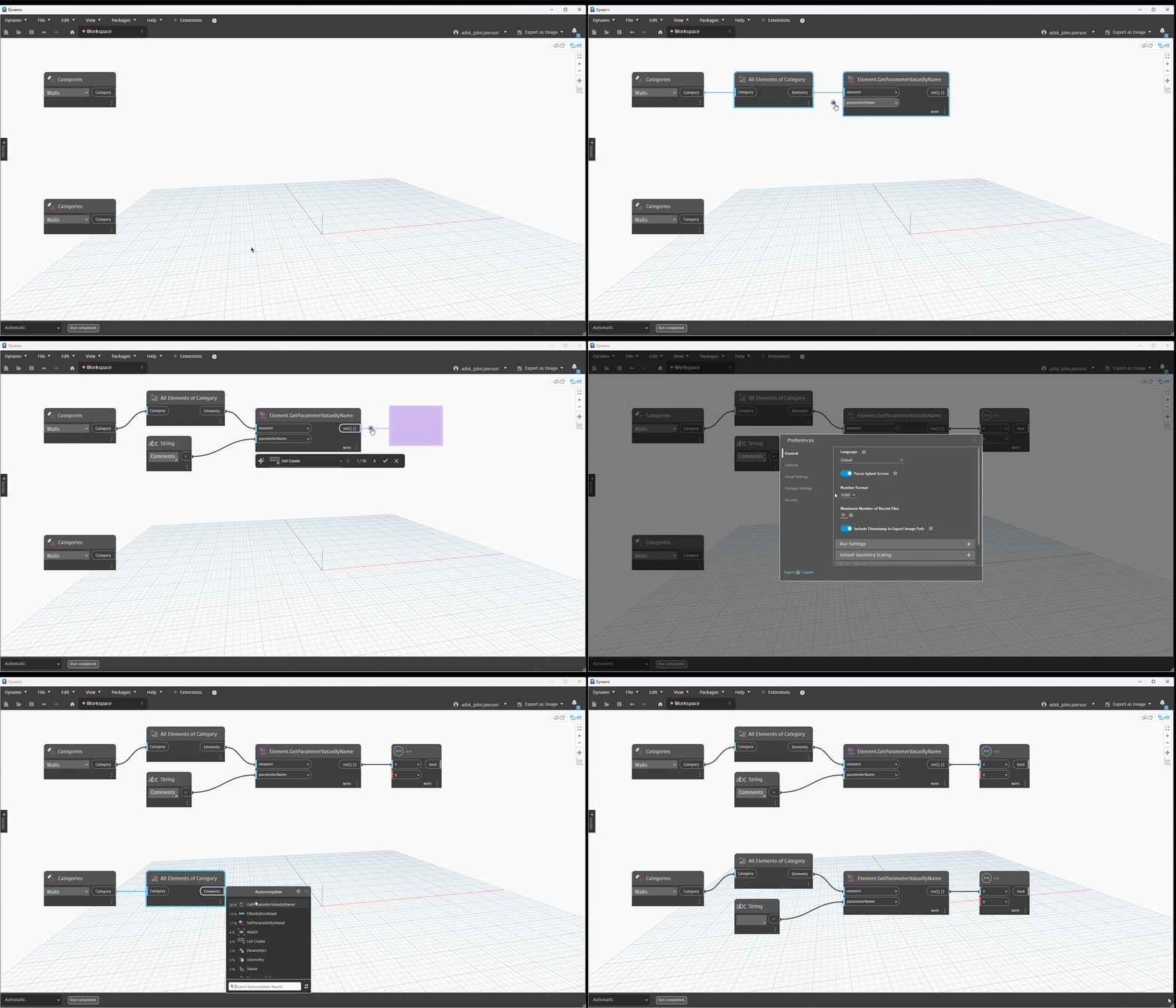
With this release, we’re entering a whole new world of graph-building efficiency. Give Node Autocomplete a try today!
A faster, more performant Dynamo
In this release, you may notice a smaller set of features. That’s because the Dynamo team has been putting a lot of focus and energy into significantly increasing Dynamo’s performance. We’ve been making steady performance improvements over time, culminating in the big push you’ll see in this version. We’re excited to introduce some of the major performance enhancements that will increase your quality of life.
Dynamo Loading
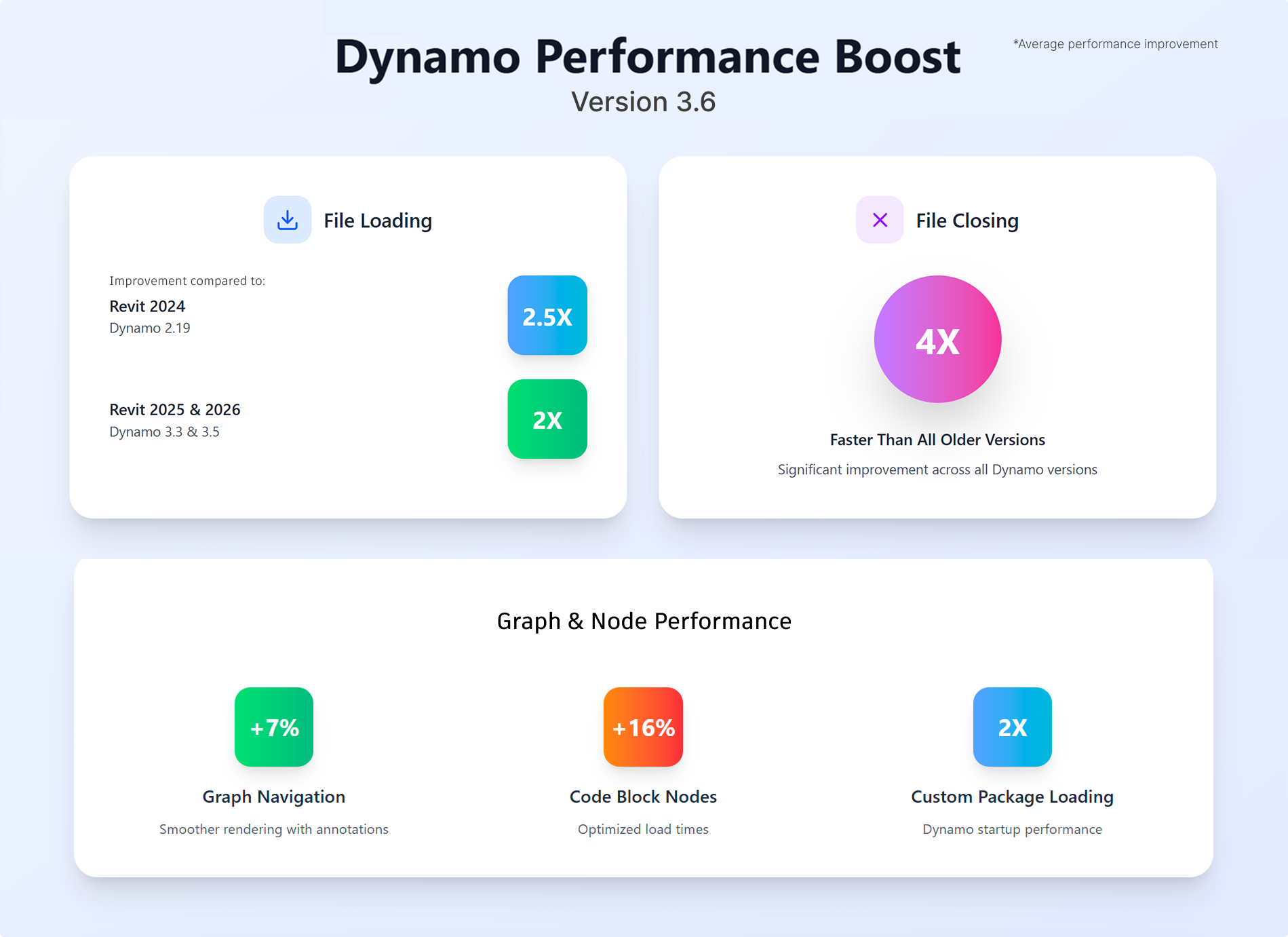
- Accelerated recent files loading: Dynamo now loads faster, thanks to optimized handling of your recent files. No more delays as your list of large graphs piles up—it’s been streamlined!
- Custom node optimization: We heard you love custom packages, but they slowed things down. Not anymore! Custom packages will now load twice as fast.
Graph navigation: Dynamo 3.6 is smoother and snappier!
- Navigating large graphs with annotations is now 7% faster.
- You will notice minimal waiting time as you zoom in and out of your large graphs.
Graph loading and closing:
- For users of Dynamo Core, you will notice ~2x faster file loading in Dynamo 3.6.
- For users of Revit 2025 & 2026 (Dynamo 3.3 & 3.5), you will notice 2x faster file loading in Dynamo 3.6.
- For users of Revit 2023 & 2024 (Dynamo 2.16 & 2.19), you will notice 2.5x faster file loading in Dynamo 3.6.
- We have enhanced the file saving and workspace closure processes. Closing a file is now up to 4x times faster. Previously, closing large graphs could take up to a minute. With this update, files now close within a few seconds.
- Code block nodes have been optimized, improving general node load times by an average of 16%.
Heads up: Auto-Backup Interval default is now 5 minutes (previously 1 minute). You can tweak it in Preferences under General > Backup Settings.
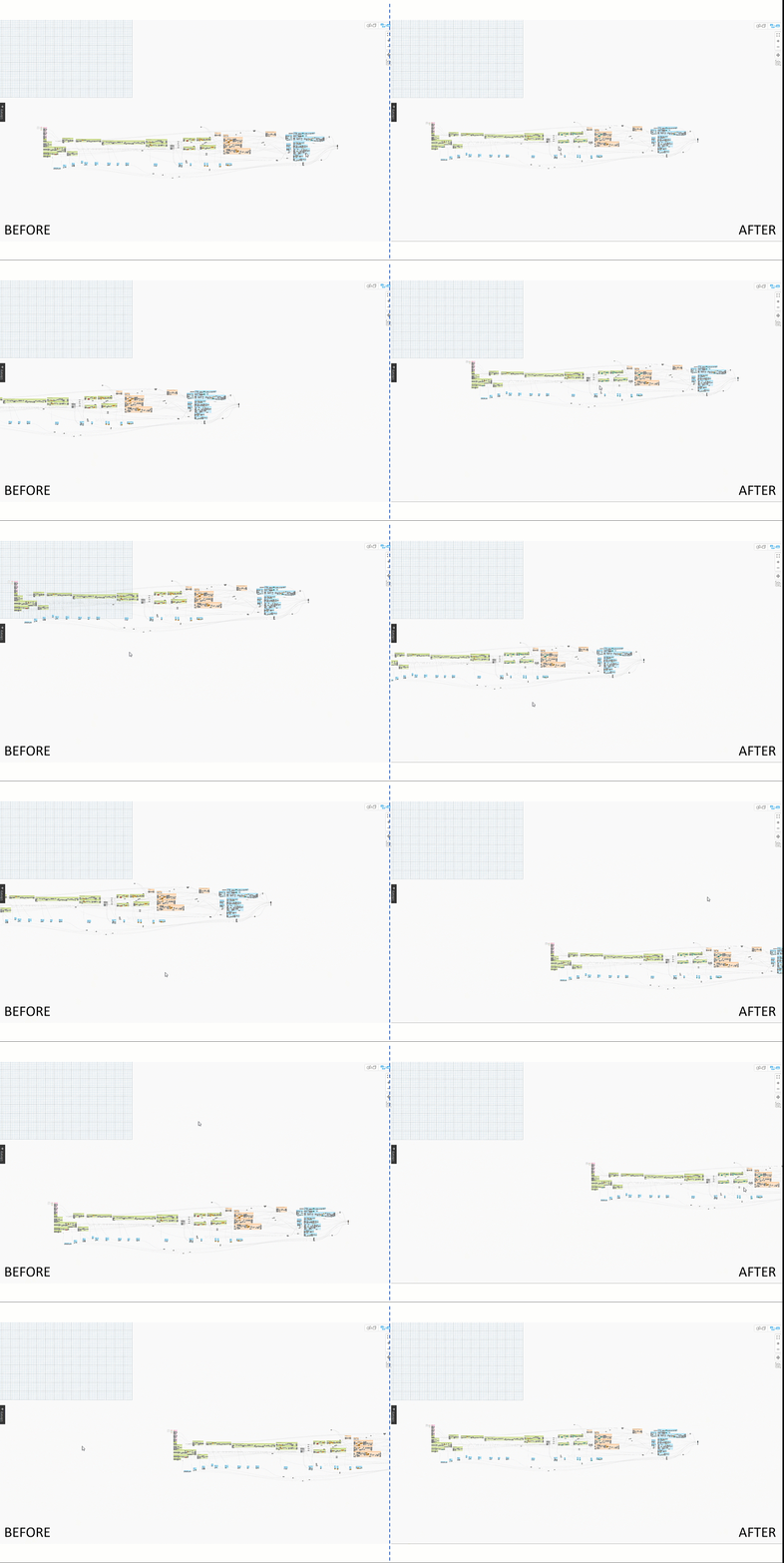
Over the years, Dynamo has seen some pretty awesome performance improvements, making it faster and more joyful, including better package search, and improved and faster node search. With the dramatic performance improvements in Dynamo 3.6, there has never been a better time to upgrade to a new version of Dynamo!

And we’re not done yet—we’re continuing work to boost Dynamo’s performance even further, so please stay tuned.
Group enhancements
Groups are a great way to annotate and organize your graphs, and this release introduces several improvements to the group experience. More to come!
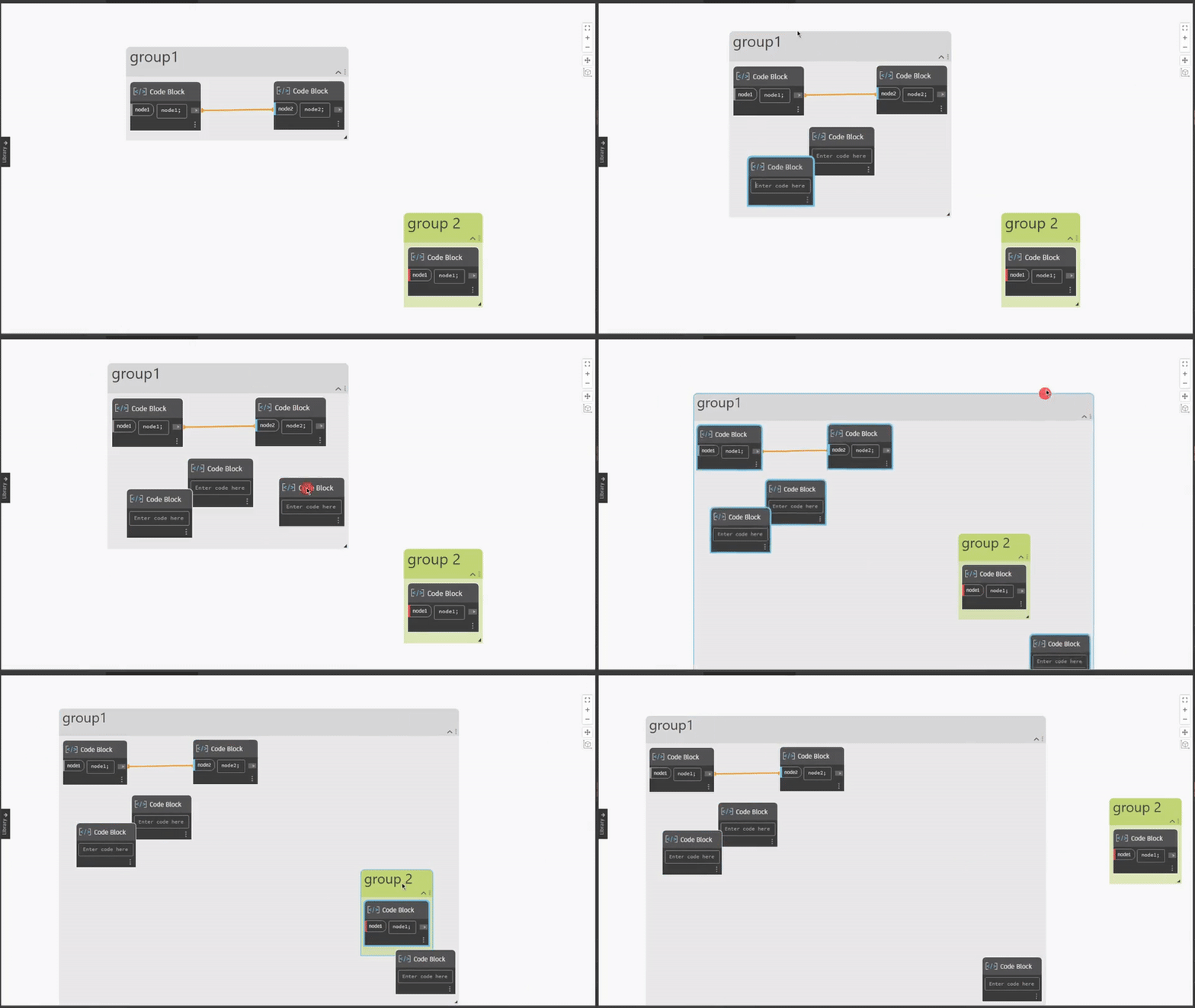
- You can now double click a group to add a Code Block to it.
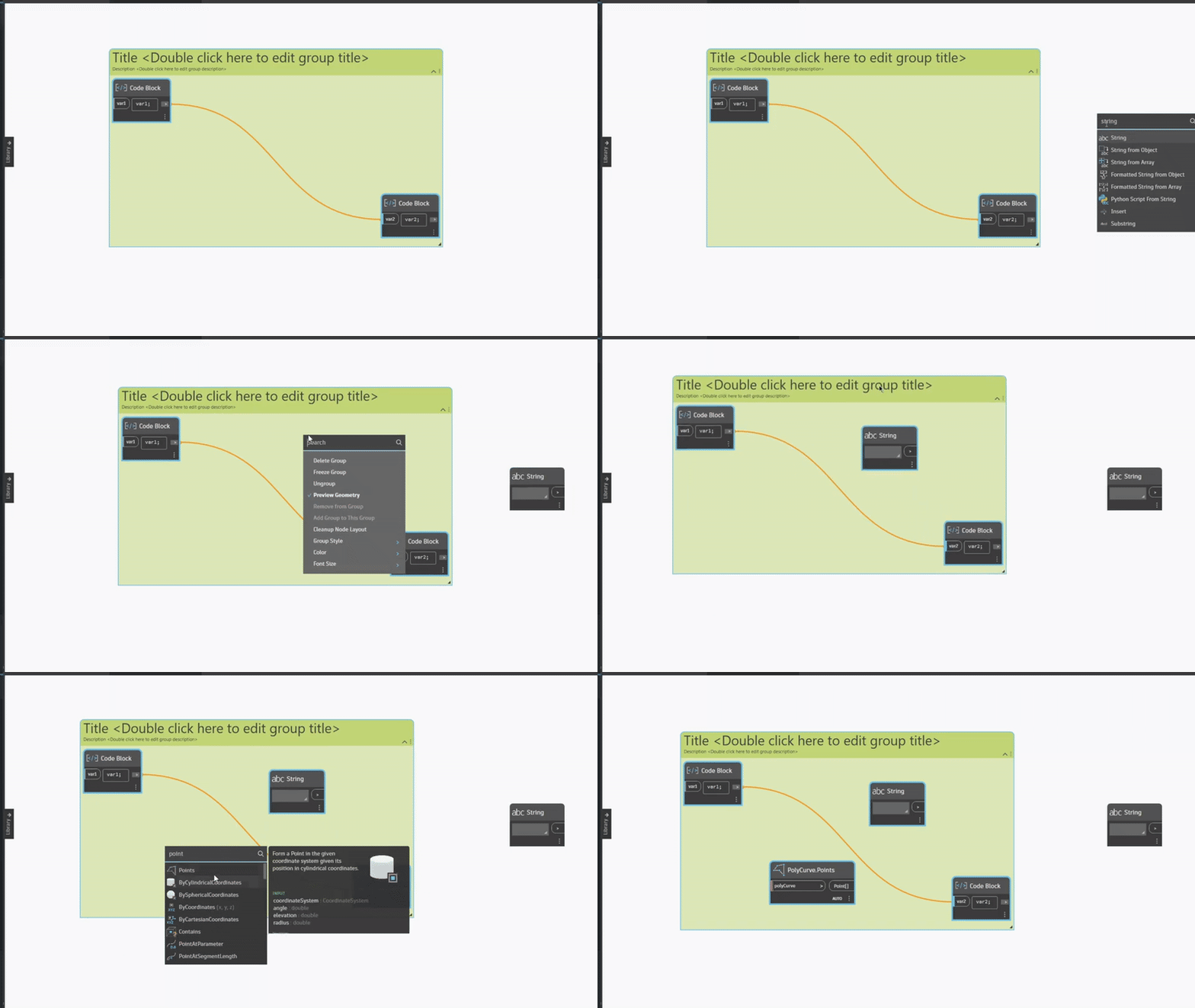
- When you right click on a group, you can now use the search bar to add a node directly to that group.
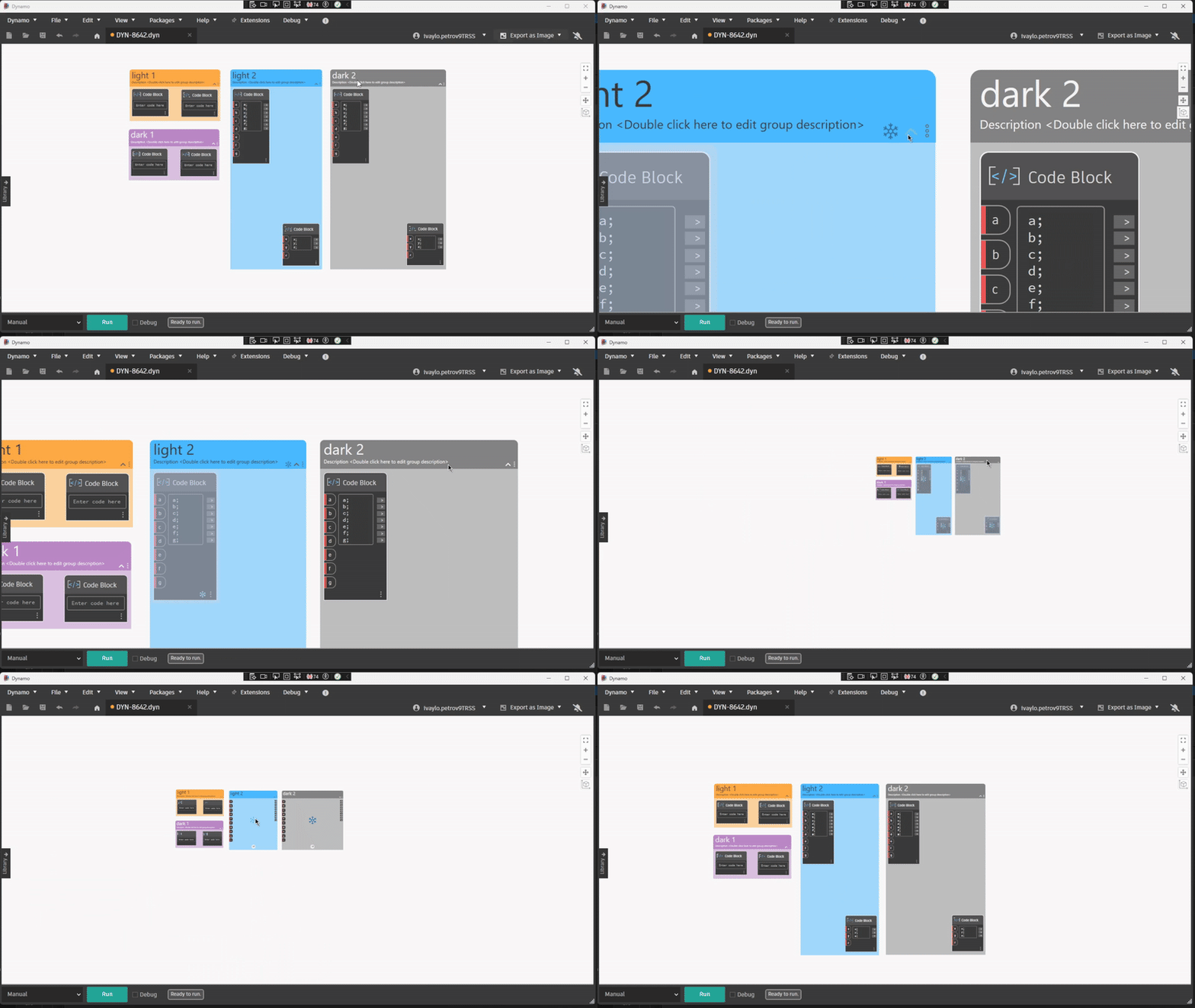
- Frozen groups are now marked with a snowflake icon. You can unfreeze the group by clicking the icon.
Bug fixes
This release includes a collection of bug fixes. Here’s a selection of highlights, and you can find the full list in the release notes.
- Previously, formulas would break after exporting new data using the OpenXML node to an existing Excel with formulas. Now, formulas will be recalculated when the user opens the file in Excel.
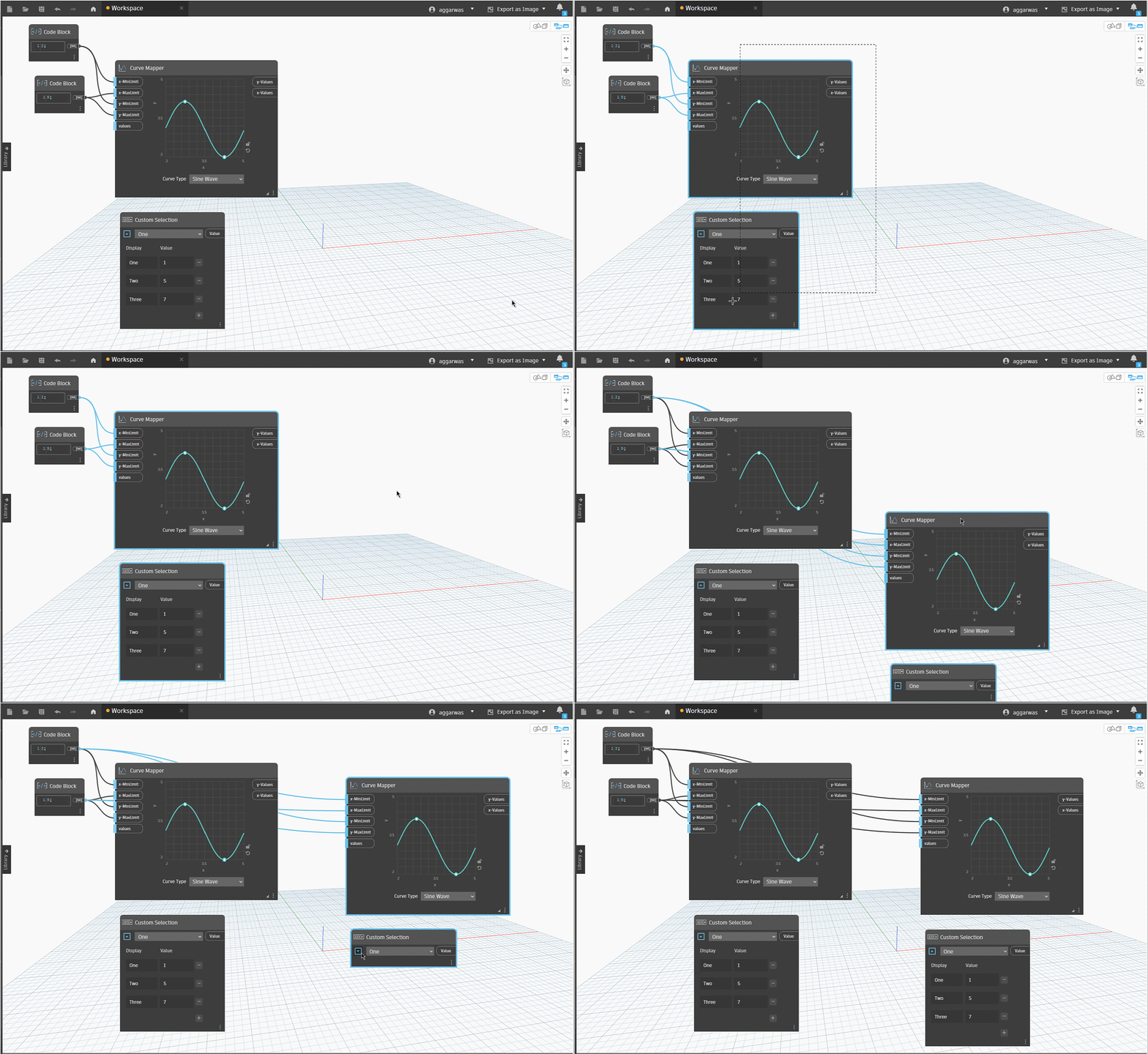
- The Custom Selection and Curve Mapper nodes now retain both the content and the selected item when the node is duplicated.
- Inaccurate tooltip placements for input and output ports and collapsed groups were fixed.
- We fixed an issue where Python engine references in workspace references were lost on restarting Dynamo.
I’m in! How can I get my hands on Dynamo 3.6?
Dynamo 3.6 will be made available in our host integrations at a future date and can be explored right now through the dynamobuilds.com website or the GitHub build page – available in the Sandbox version of Dynamo. Then, drop us a line on the forum!
Want more detail? Check out the release notes
For more information on other minor features, bug fixes, and known issues in Dynamo 3.6, take a look at the release notes!
We hope you are as excited as we are about the powerful improvements to Dynamo, including the performance gains. Thank you for being a part of this community—we notice and appreciate all your feedback, improvement ideas, and engagement! Curious to see what else we’re working on? Visit Dynamo Roadmap, where you can take a look at current and upcoming work, express your support for features you want to see, and let us know what you think by adding a comment.
The Dynamo Team