Greetings, Dynamites!
In today’s post, we’re coming at you with a smaller but no less mighty update: Dynamo Core 3.2.1! This update encompasses release 3.2, which introduces some exciting features and improvements, as well as 3.2.1, which focuses on bug fixes. Release 3.2.1 introduces a brand-new homepage experience for Dynamo, which will look familiar if you use other Autodesk products such as Revit, Civil 3D, or AutoCAD. In addition, this release includes new nodes, quality-of-life improvements, and smoother performance. Read on for the full details.
To try out these features right now, head over to dynamobuilds.com to download and install the release. Then, share your thoughts and feedback on the forum.
TL:DR
In this release, you’ll find a new Dynamo homepage, two new paneling nodes and the DefineData node for validating input data, improved performance, and several quality-of-life improvements. For a detailed rundown, make sure to check out the release notes!
What is Dynamo and its flavors?
What is Dynamo Core?
Dynamo Core is a collection of bundled components that consist of the graphical interface, the compute engine, the scripting language DesignScript, and the out-of-the-box nodes that are not specific to another program like Revit or Civil 3d.
What is Dynamo for <INSERT HOST HERE>?
Dynamo for [Revit, Civil 3d, FormIt, Advance Steel, Alias or Robot Structural Analysis] is a collection of host-specific nodes that work with Dynamo Core and runs inside of said host.
What is Dynamo Sandbox?
Dynamo Sandbox is for package developers and other folks working with Dynamo code who want to stay up to date with the latest and greatest stuff coming out. Sandbox is Dynamo’s “Core” functionality distributed in a way that doesn’t interfere with other Dynamo installations and doesn’t require any other applications (except for a few windows components and some optional extras). You can read more about this distinction here.
So, what’s dropping with Dynamo 3.2.1?
Dynamo Home sweet home
In this release, you’ll be greeted with the new Dynamo Home, a refreshed homepage that helps you access your graphs and learning resources with more efficiency. It’s also consistent with other Autodesk programs such as Revit and Civil 3D.

In the sidebar, you’ll find the Open and New buttons, each with a default action and other options nested in the drop-down menu.
- Click Open, and you’ll see a dialog to open a graph. Under the drop-down, you can choose if you want to open a file, a template, or backup locations, where you can access backup files if Dynamo closed unexpectedly before you could save. You can also simply drag and drop a .dyn or .dyf file to the homepage open it.
- Click New to create a new workspace. Or, click the options in the drop-down to create a workspace or a custom node.
The sidebar also gives you access to three tabs:
3. Recent: This tab lists recently opened files. You have the option to view the files in grid or list view. Grid view displays thumbnails for each graph that has one, while list view offers a more compact layout with more information about the graph. You can change the number of recent files shown in the Preferences panel under General.
4. Samples: In this tab, you’ll be able to access Dynamo’s sample graphs when running Dynamo with a host program, such as Revit. This version will launch in Revit and other host programs at a later date, so stay tuned.
5. Learning: This tab offers Dynamo learning resources, including interactive guides and video tutorials.
Below the tabs you’ll find links to useful external resources, including the Dynamo forum, website, Primer, and issue reporting.
We hope you enjoy the new homepage, and be sure to let us know if you have ideas on how to make this experience even more useful to you.
Node updates
Two new paneling nodes
In the last release, we introduced a suite of paneling nodes, and in this one, we’ve added two new nodes to the Geometry > PanelSurface library. PanelSurface.ByCustomOrthogonalLattice creates custom panel patterns, and PanelSurface.SetTransform applies translations, rotations, and scaling to panels. As a reminder, paneling nodes are still in experimental mode, so to find them in the node library and search, they need to be enabled under Dynamo > Preferences > Features > Experimental.

Validate data types with the DefineData node
The new DefineData node validates the type of incoming data and can be used to make sure that local data is of a desired type.
The node can be used in two modes:
- Toggle “auto-detect type” on to automatically set the data type based on the incoming data, as long as it’s one of the accepted data types, or
- Toggle “auto-detect type” off to manually set the expected data type from the drop-down.
Accepted data types are listed in the drop-down menu. Attempting to bring in a data type that’s not on the list will result in a warning.
You can also specify if the data should be in list format by using the List toggle. When toggled on, the node expects incoming data to be a single flat list containing items of a valid data type. When off, the node expects a single item of a valid data type. In auto-detect mode, this toggle will update automatically based on the incoming data.
The image below showcases the various options that DefineData offers. The top node is in auto-detect mode and analyzes the incoming data to determine it’s a list of strings. The bottom node is manually set to accept only a list of strings, so the incoming mixed list of strings and a cuboid triggers a warning. This warning helps you identify what kind of data the node was anticipating and what it received instead.

If the incoming data type is on the list of accepted types and, in the case of manual mode, matches the specified type, DefineData will output the specified or auto-detected data type.
This node is designed to work nicely with the upcoming Engine node that will enable you to run Dynamo graphs within your Dynamo graphs. Learn more about it in our Roadmap, add your comments, and stay tuned for future updates.
Performance
We’ve improved performance in graphs that have errors, warnings, and info states. This improvement reduced the test case time from 1 minute to 3 seconds.
Quality of life improvements
Shortcut to unpin all node preview bubbles
There’s a faster way to unpin all node preview bubbles. Go to Edit > Unpin All Preview Bubbles, or just use the shortcut CTRL + K.

Convert Python tab indentations
A new button in the Python Script editor allows you to convert tab indentations to space indentations (spaces or dots instead of tabs). This allows you to open a graph with legacy IronPython code and ensure consistent formatting. The indentation spaces are needed in Python to structure your code for logical operations such as (if/else, try/catch) and loops (for, while etc.).

A setting controls whether empty spaces or dots are shown for spaces in your Python Script editor. To toggle this, go to Dynamo > Preferences > Features > Python > toggle Show Whitespace in Python Editor.
The animation below showcases how the Convert Indentation Tabs to Spaces button can be used to quickly update legacy tab indentations.
Show/hide axes in background 3D preview
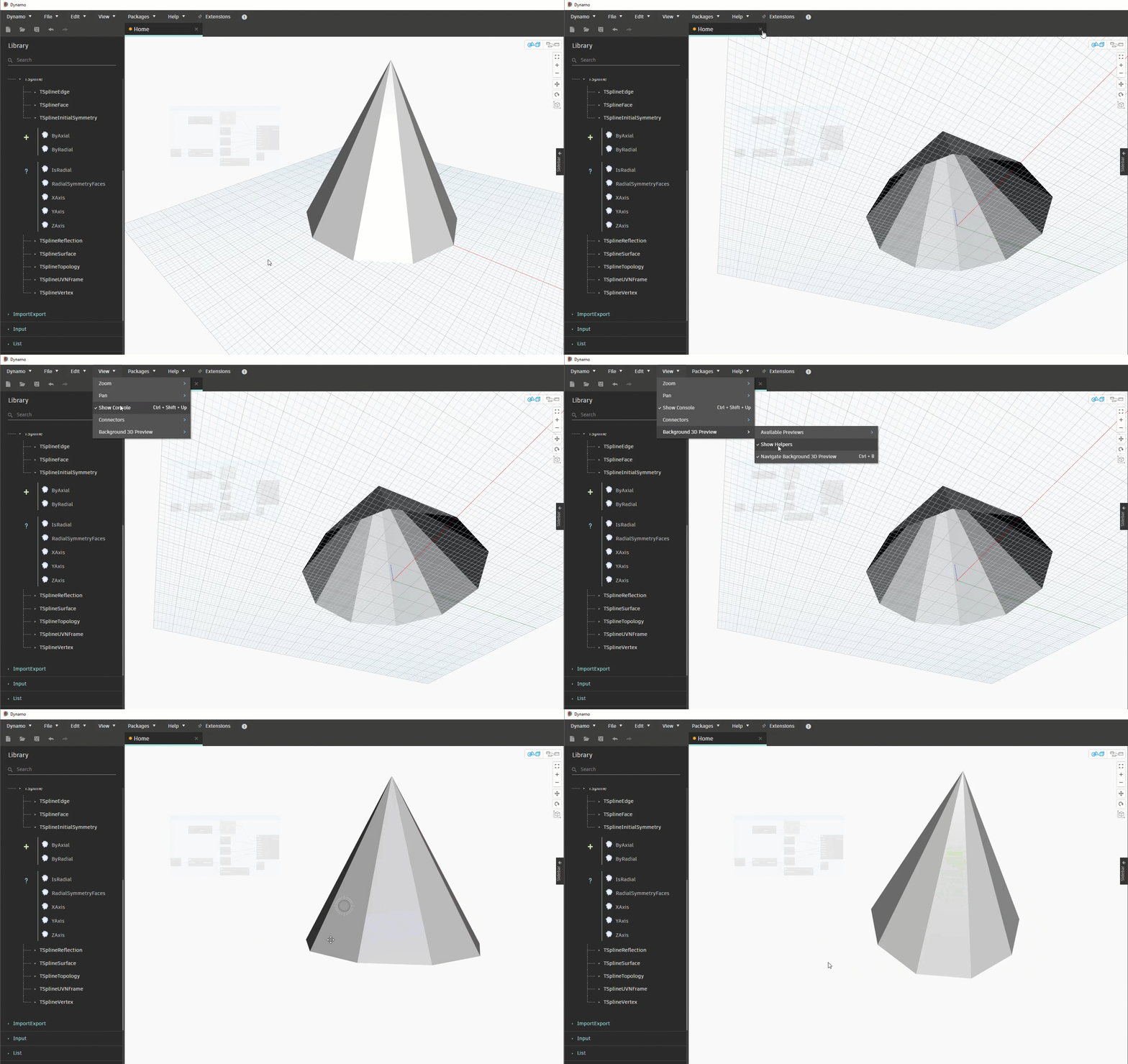
The Show Helpers setting now allows you to hide axes in the background preview, leaving you with a nice blank canvas to showcase your 3D creations. To toggle this, go to View > Background 3D Preview > Show Helpers.
Default name for input nodes in custom workspaces
Previously, an input node (also known as a symbol node) created in a custom workspace would lack a default name. If the node was left in this state and saved, a warning would be raised, and you would not be able to save the node the next time you opened it. Now, input nodes in custom node workspaces have a default name to prevent the warning state.
Good stuff! So where can I grab Dynamo 3.2.1?
Dynamo 3.2.1 will be made available in our host integrations at a future date and can be explored right now through the dynamobuilds.com website or the GitHub build page – available in the Sandbox version of Dynamo.
If you’re curious, you can also read our Release Notes
For more information on other minor features, bug fixes, and known issues in Dynamo 3.2.1, take a look at the release notes!
We’re grateful to everyone who made this release possible and to the entire Dynamo community for continuing to support our work. Be sure to stay tuned to the Dynamo Roadmap, where you can take a look at current and upcoming work, express your support for features you want to see, and let us know what you think by adding a comment.
The Dynamo Team