View Packing Revisited
In previous posts, we have looked at using Generative Design for Space Layout and Solar Analysis. As you may imagine these examples involve geometry manipulation and early design primarily.
What if we wanted to use Generative Design to aid the designer in making decisions for some of the more mundane tasks we have to complete in Revit?
Laying out sheets is definitely one of these types of tasks. In fact, the Generative Primer includes an example of packing as many views as we can on a sheet with a feedback loop – see this link.
This is great, but more often than not, a Revit user is familiar with what types of views they want on their sheet and doesn’t want the tool to just push out options.
Let’s take a look at the logic involved in making a sheet layout graph that truly assists the designer.
Setting Up The Sheet for Auto-Layout
We are going to use the rac_advanced_sample_project as an example, along with sheet A2.

On sheet A2 we simply move the views that we want to place off to the side to allow Generative Design to provide the placement.
Selection
Working with sheets, viewports and views in Dynamo has always been possible, but with Dynamo 2.10.1 and Revit 2022 we have access to a few nodes that enable this interaction.
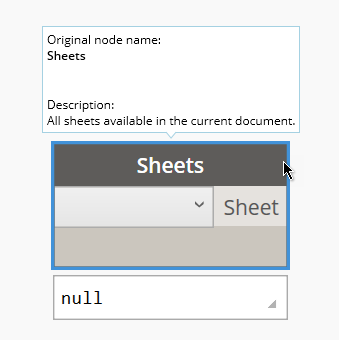 Dynamo 2.10 and Revit 2022 include this node for selecting a sheet in the Revit file. |
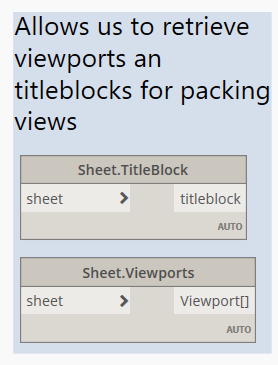 New nodes for working with sheets |
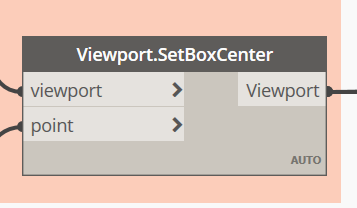 Ability to locate viewports now included in Dynamo |
With these new Dynamo nodes in mind we can now observe the logic of the overall graph.
Graph Logic

- Select sheet and random seed to perform packing operation
- Extract viewports from sheet and fix the view titles to be within the layout box.
this is important because with Revit 2022 we can now control view titles, resulting in a useable result - Margins for the sheet *(these are hardcoded but can be added as inputs for Generative Design)*
- Perform the viewport packing with the rectangles and the Viewport Id
This is thanks to a custom node from the Rhythm package. This node performs the packing without a Revit Dependency allowing it to be used with Generative Design. - Build a dictionary for retrieving the viewport name by id later on.
- Provide a preview in the Dynamo/Generative Design viewport of the viewport name.
- Locate the viewports that fit on the sheet and place the leftovers outside of the sheet.
- Future development. Renumbering views automatically after placement.
Video Overview of Graph and Process
And all the sample files for this workflow are available here: Packing Viewports